The Commission Tracker lets you record incoming commissions from a borrower and/or lender, disperse payouts to referrals and team members, and see your net earnings update in real time. You can also set default commission rates for your team members, broken down by role. Once your commissions are set, you can use the Invoicing tool to generate a branded invoice to the borrower or broker in a couple clicks.
Setting accurate commissions here keeps every payout and the resulting invoice consistent, so you spend less time reconciling who's owed what. Role-based defaults let you skip repetitive setup by auto-applying a team member's commission the moment they're added to a deal.
Setting commissions on a deal
Determine the commission amount and split for each team member on the deal.
- Open the commission modal — Click Add commissions & referrals on the right side of the Deal Overview page.
- Add an incoming commission — Click + Add incoming commission, then choose whether it will be paid by the client or lender.
- Set the commission amount — Enter either a fixed percentage or a flat dollar amount.
- Add an outgoing payment — Click to add a payout and determine how the commission is split amongst your team and the referral contact.
- Review and save — Review the commission breakdown on the right, then click Save.
The commission rate is calculated from the loan amount for the deal. The payout amount is calculated from the commission amount.
Default commission rates
Set a standard commission percentage for a role once, then assign that role to team members so their payout applies automatically every time they join a deal.
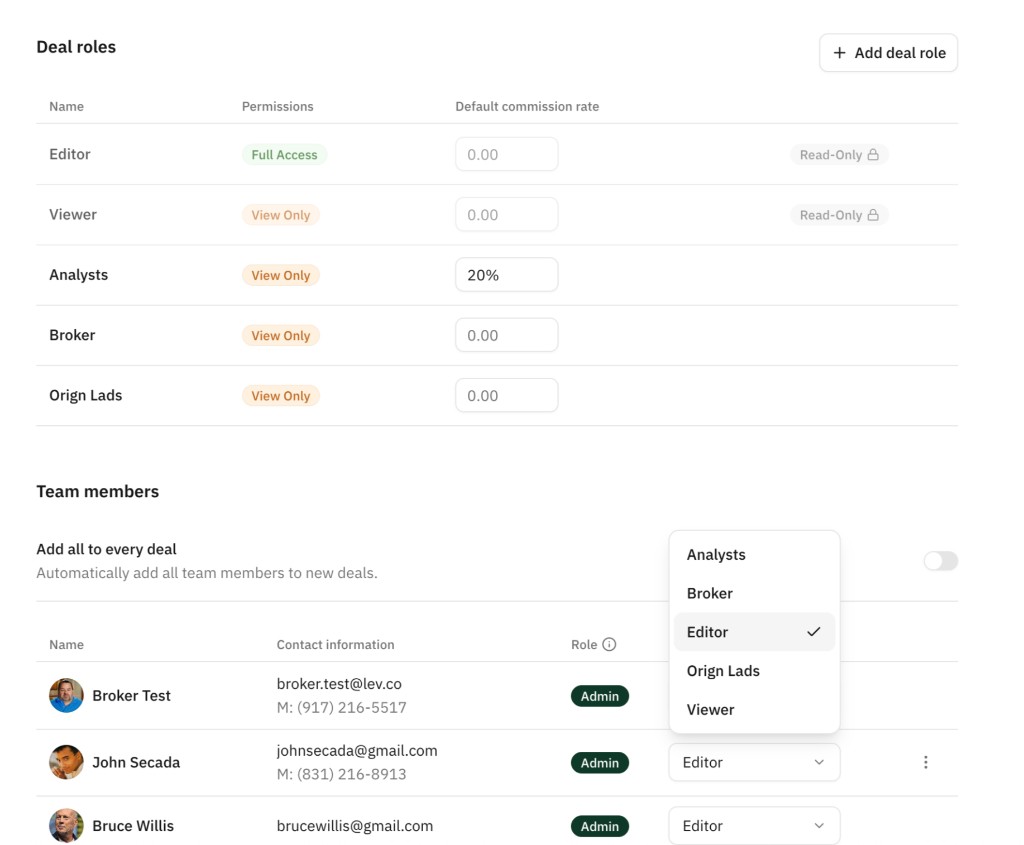
- Go to profile settings — Navigate to your profile settings, then click the Team Members tab.
- Set rates by role — Under Deal roles, select the default commission rate for each role. You can create a new role from this page as well.
- Automatic application — The commission rate will now apply automatically for any team members under each specified role.
You can only set a default commission percentage. A dollar amount isn't supported because the total commission amount will differ on each deal.
Generating invoices
Turn the commissions you've set into a branded invoice for the borrower or broker, pre-filled with relevant deal information.
- Generate the invoice — Click Generate invoice on either the commission modal or the commission section of the Deal Overview page.
- Set a due date — On the following modal, select a payment due date then click Generate invoice again.
- Review the draft — This will open the invoice draft in Memo. Your relevant deal info will be auto-populated.
- Make edits — You can make inline edits from this page, like adjusting line items or changing the invoice due date.
- Publish — Click Publish once you're all set. Your invoice can now be found in the Resources tab on the deal.
Reporting
The Reporting tool lets you view metrics related to your commissions across all deals in each pipeline. Start by clicking the Report button when viewing the pipeline you want to build this for.
After creating the report, select a measurement item, a slice item, and a segment item from the dropdown menus. Measure defines what you're calculating across your pipeline — the number you want to see totaled, like commissions owed or loan amount. Slice breaks that number down by a category, so instead of one aggregate total, you see how it's distributed across groups like property type or deal stage. Segment lets you see how the values differ across different roles on each deal.
- Select the pipeline — Choose the pipeline you want to create a report for, then click Report in the top right of the screen.
- Set Measure, Slice, and Segment — Click the values you want to view for each dropdown.
- Review live results — The data in the report adjusts in real time based on the values you select.