Build and organize the work you track on each deal. Checklists live inside Vaults and give you a structured way to manage documents, deliverables, and collections.
Open the Checklist
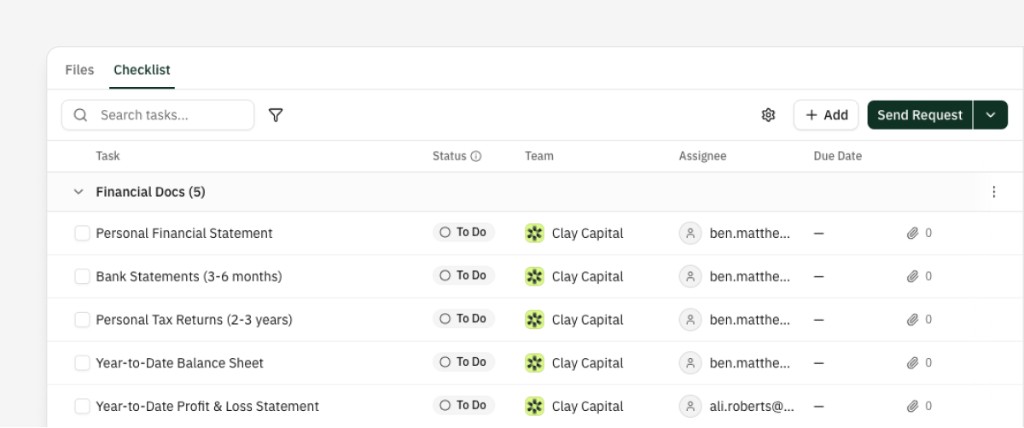
Open a Deal → Vaults → choose a Vault → Checklist tab. You’ll see columns such as Task, Status, Team, Assignee, Due date, and Attachments.
If the Checklist is empty, use Use a template to start from a pre-built set of tasks, or add tasks manually.
Add sections and tasks
Sections group related tasks (for example “Financial docs,” “Property documents,” “Legal”). Use + Add to create a section or a task inside one.
Name tasks clearly—for example “Get PFS” or “Executed lease agreement.” Open a task to set its properties:
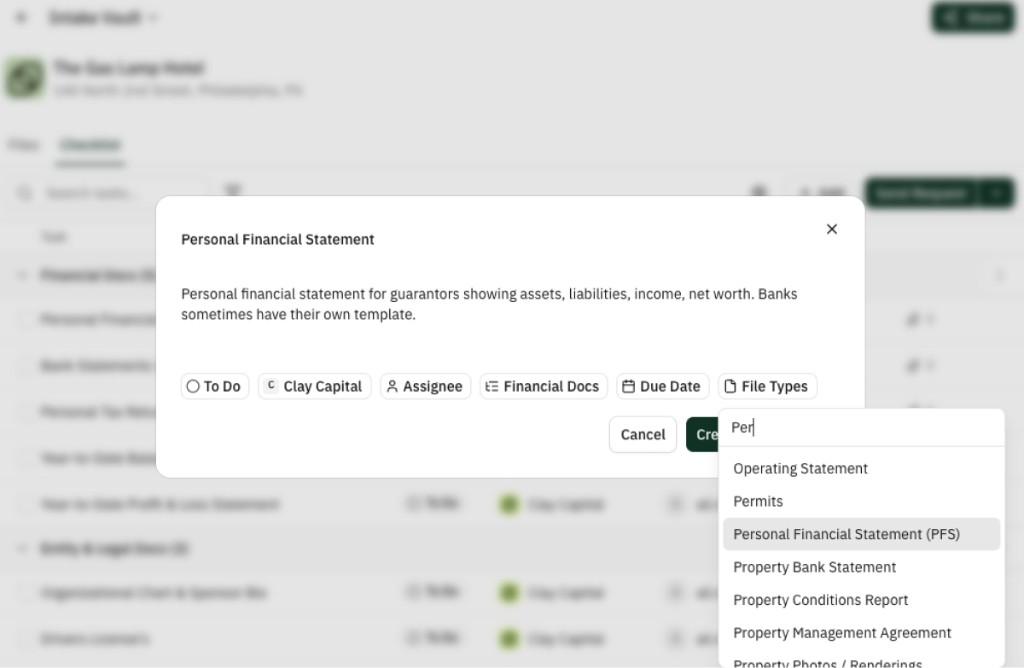
- File types — The document type this task expects (Rent Roll, Tax Returns, etc.). That drives which incoming files Lev should match here. See Requesting and tracking files.
- Team — Company responsible, from companies with access to this Vault.
- Assignee — Specific person.
- Due date — Optional deadline.
- Description — Instructions or context for whoever completes the task.
Add subtasks for multi-step items and attach files manually with Attach.
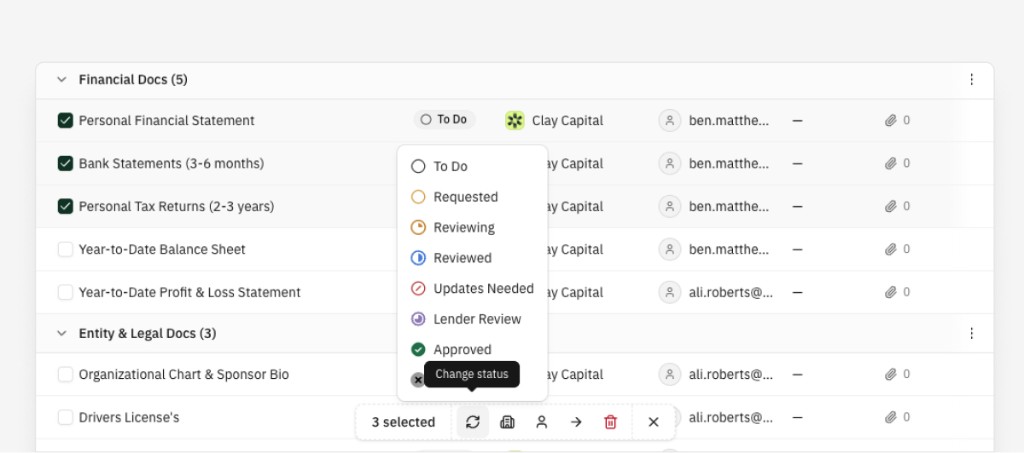
Drag tasks to reorder or move between sections. Use search and the filter control for status, assignee, team, or due date. Select multiple rows to bulk-change assignee, status, section, and more.
Templates
Reuse the same sections and tasks across deals instead of rebuilding each time.
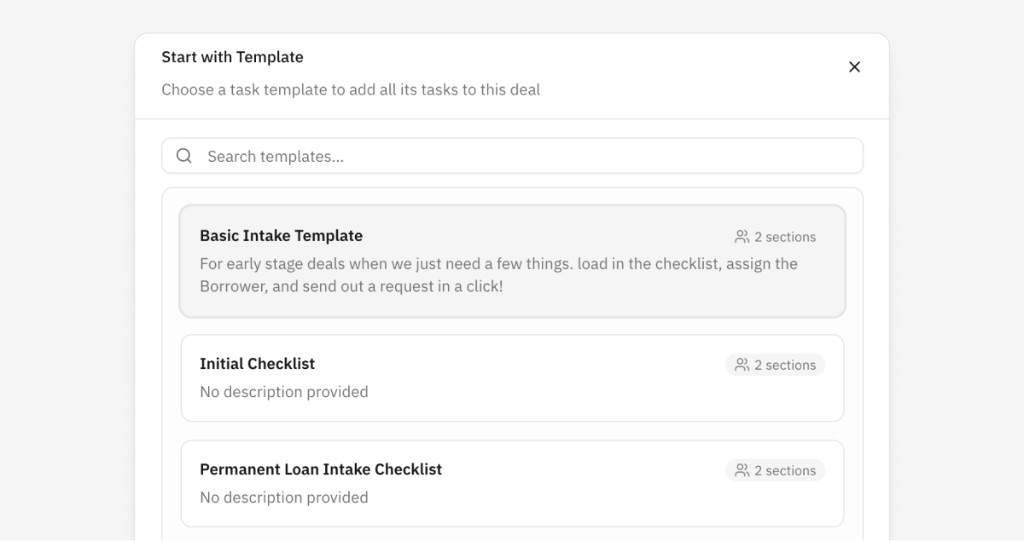
Apply a template — From the toolbar dropdown or the empty state, choose Use template. Browse Lev Master templates (by property type: Multifamily, Office, Retail, Industrial) or your saved templates. Applying copies everything into this Checklist; the saved template is unchanged.
Save a template — From the toolbar dropdown, Save as template. Name it; sections and tasks copy into a new reusable template, independent from this Vault.
Manage templates — Settings → Checklist templates to view, edit, rename, delete, or fork a Master template into your own variant.
Templates do not copy assignees or due dates—set those per deal after you apply.
Keep your team updated
Digest emails send a periodic Checklist summary to your deal team. Each Vault with active tasks can get its own digest: status mix, overdue items, due this week, recently completed, and newly added tasks.
Follow-up reminders nudge people who haven’t responded to a file request. Replies stay in the original email thread so they look like a follow-up from you. If a task passes its due date, Lev can switch to an overdue template.
Configure both from Send request → Manage alerts & reminders on the Checklist tab.
| Setting | Options |
|---|---|
| Digest frequency | Daily, weekly, or monthly (default: weekly on Monday) |
| Follow-up interval | Time between reminders (for example every 24 or 48 hours) |
| Max reminders | How many follow-ups before stopping |
| Enabled / Disabled | Per Checklist |
Different Vaults on the same deal can use different schedules. Reminder and digest activity appears on each task’s Activity section.