Send file requests from a Checklist and follow each document from first ask through delivery—email, attachments, and status changes stay on the task.
Send a file request
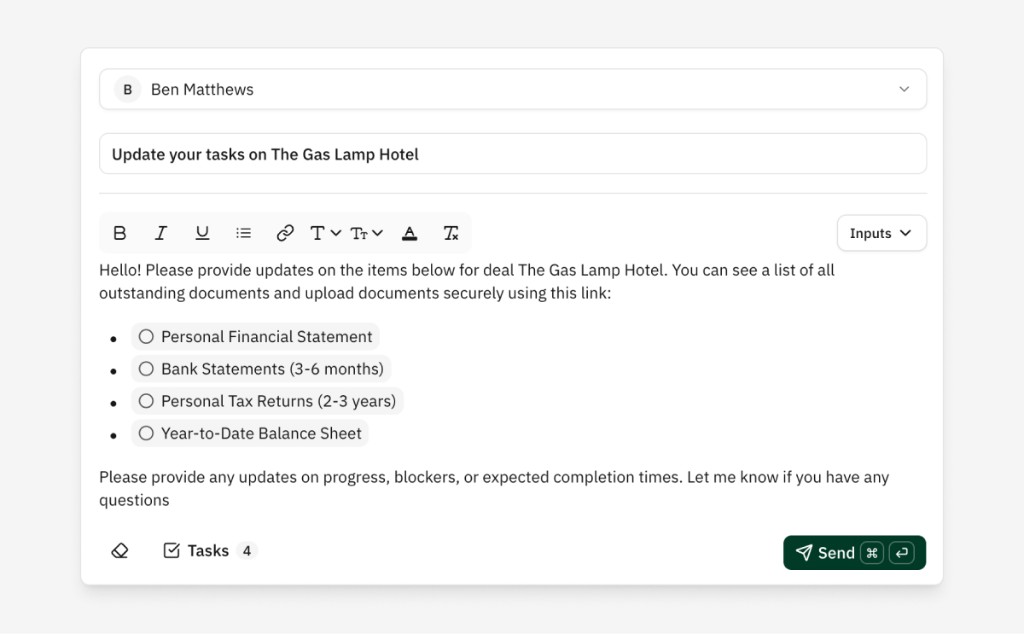
- On the Checklist tab, click Send request → Request task updates.
- Choose who owes you files—the list includes people and companies with access to this Vault.
- The To line fills with their email; add CC if needed.
- Lev pre-fills subject and body with outstanding tasks assigned to that person. Edit freely.
- Click Send.
Each included task moves to Requested status.
What the recipient gets
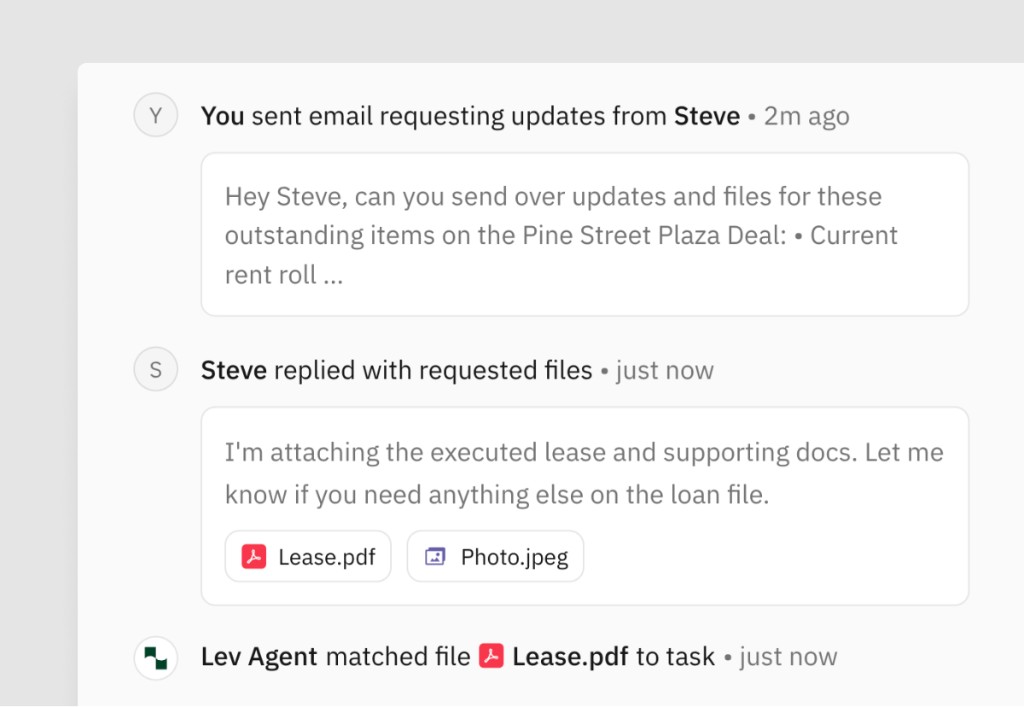
They receive a normal email from your address (not “from Lev”). It lists open items and includes a Vault link. They can respond in two ways:
Reply with attachments — Lev pulls in every attachment, classifies by document type, and matches files to the right tasks (for example PFS to the PFS task). Other files still land in the Vault.
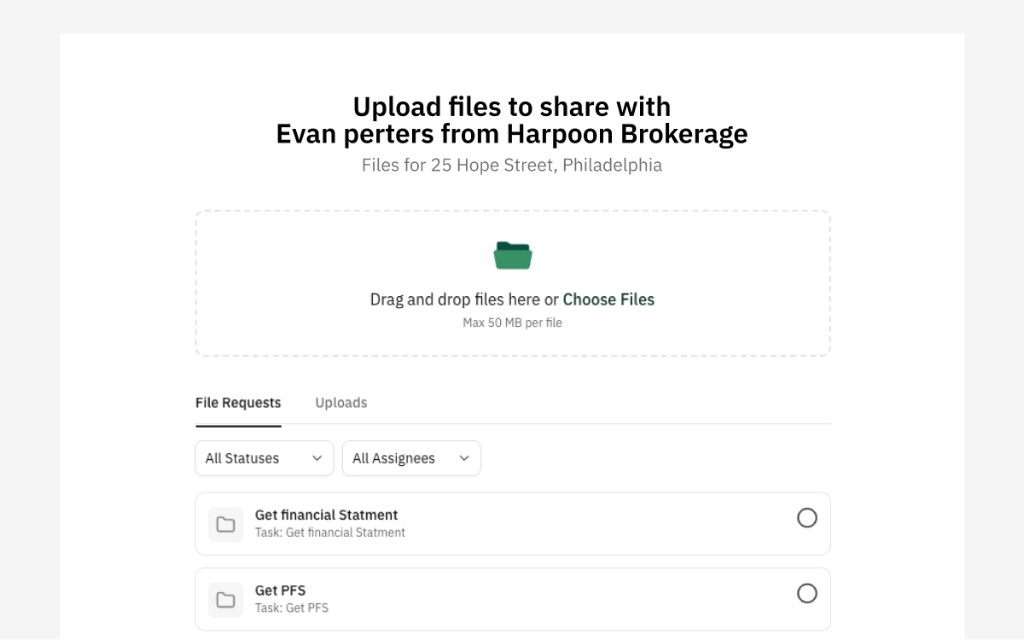
Upload in the Vault — With Full access, they can open the link, see assigned tasks, and upload. See Collaborating on checklists with external parties.
What happens automatically
When files arrive—email reply, direct upload, or guest upload:
- Every file is added to the Vault.
- Lev classifies each file by document type.
- Files that match a task’s expected type attach to that task.
- The task status moves to Reviewing.
- The Activity log records each step.
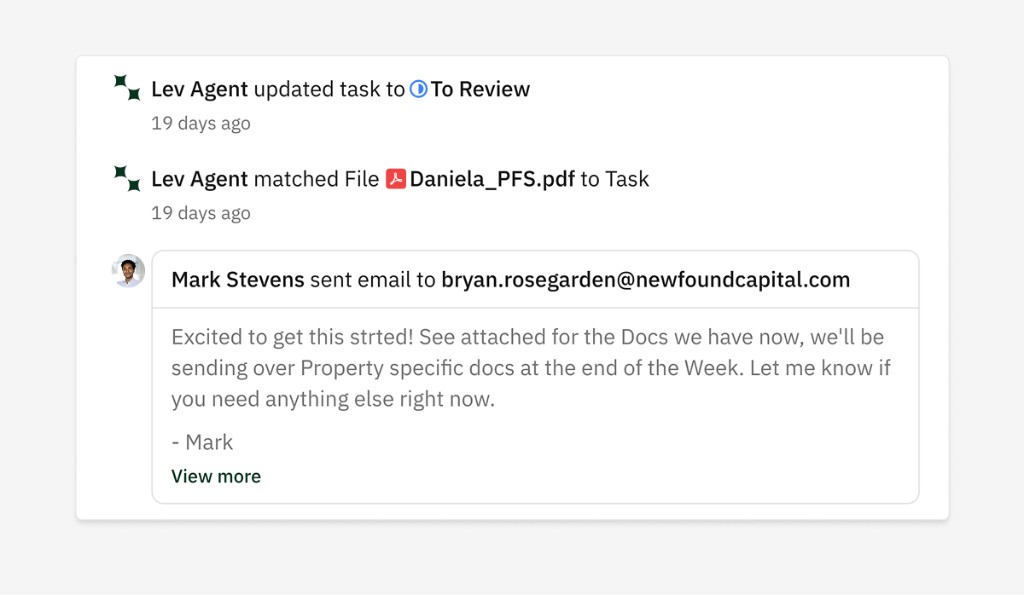
You don’t need to rename or manually attach for the happy path. Unmatched files still stay in the Vault, classified.
Automated follow-ups
If someone doesn’t respond, Lev can follow up in the same thread. Set timing and limits under Send request → Manage alerts & reminders.
Tasks past due date can switch to an overdue reminder. All follow-up events appear on the task’s Activity section.
The activity log
Each task keeps one timeline:
- Created
- Request email sent (and to whom)
- Replies, senders, and attachments
- When Lev matched a file
- Reminders sent
- Status changes
- Comments from you or guests
Use it as the single place to answer “Did we ever get the rent roll—and who sent it?”
Task statuses
Some statuses update automatically:
| Status | Meaning | Set by |
|---|---|---|
| To do | Created, no request yet | Default |
| Requested | File-request email sent | Automatic on send |
| Reviewing | Matching file received and attached | Automatic on match |
| Approved | You accepted the deliverable | You (manual) |
| Cancelled | No longer needed | You (manual) |