Introduction
Lev Memo allows you to easily modify your content structure by allowing you to easily add / delete slides, move the slides around, or even copy a templated slide from another Memo.
Adding a Slide
Add a blank slide.
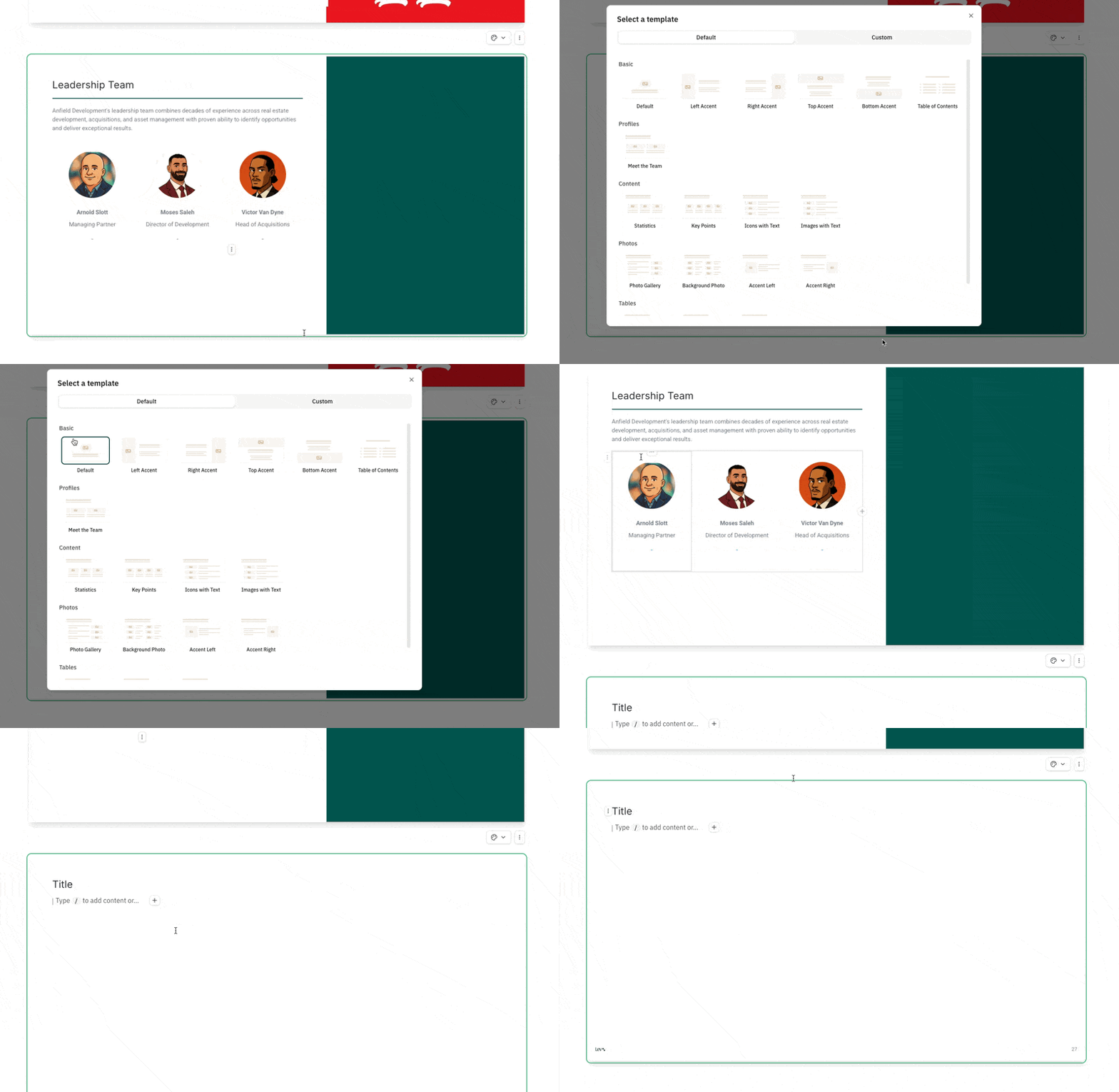
- Click the + button at the bottom of any slide to open the template modal.
- Pick any of the default layout templates to insert a blank slide.
Duplicate a slide in the same memo.
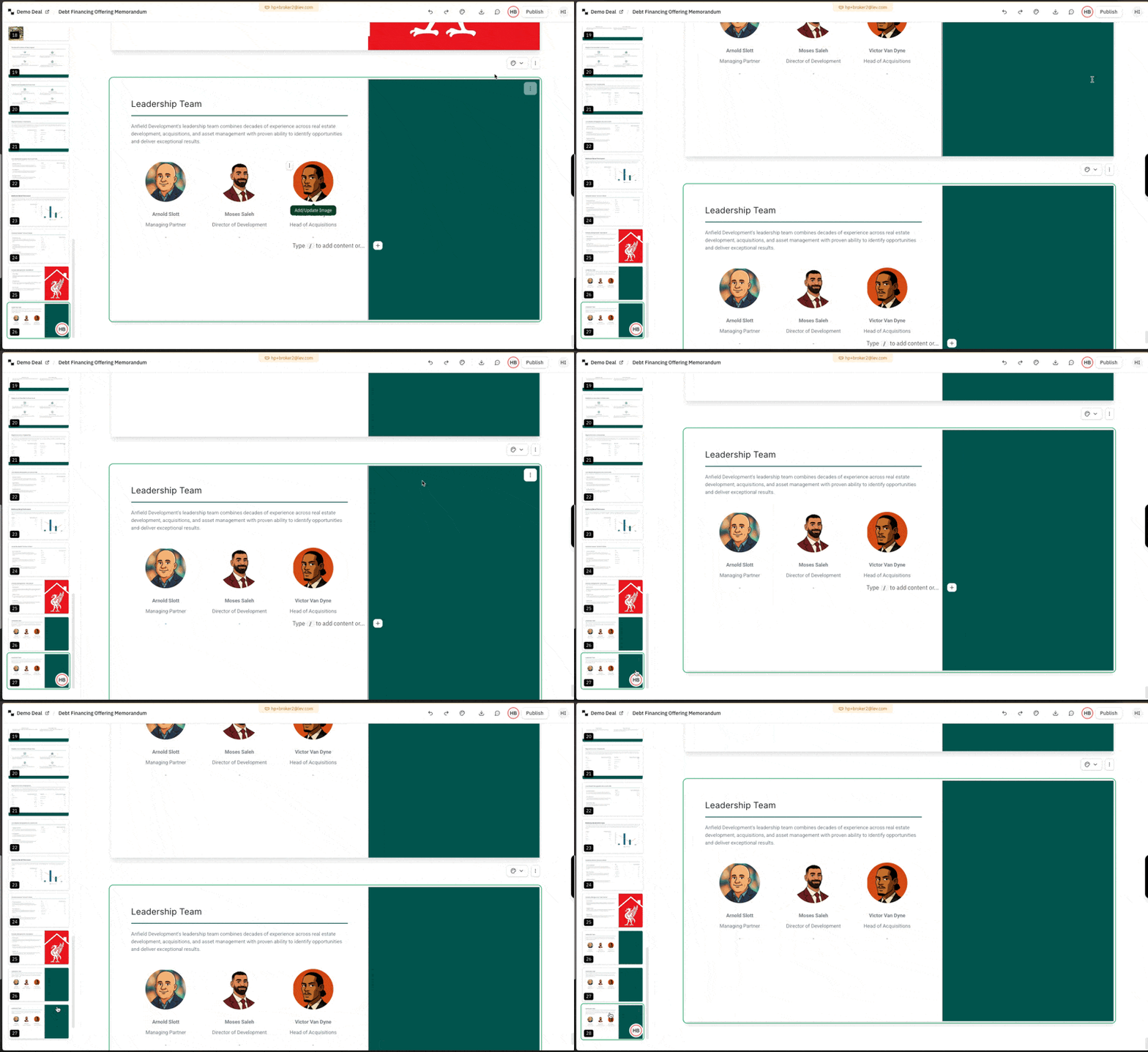
Via the dots menu
- Click the vertical ⋯ menu above the top-right of the slide.
- Choose Duplicate slide to insert a copy directly below the selected slide.
Via the slide preview bar
- Click ⋯ on a slide thumbnail in the left preview bar.
- Choose Duplicate slide.
Add a slide from another Memo.
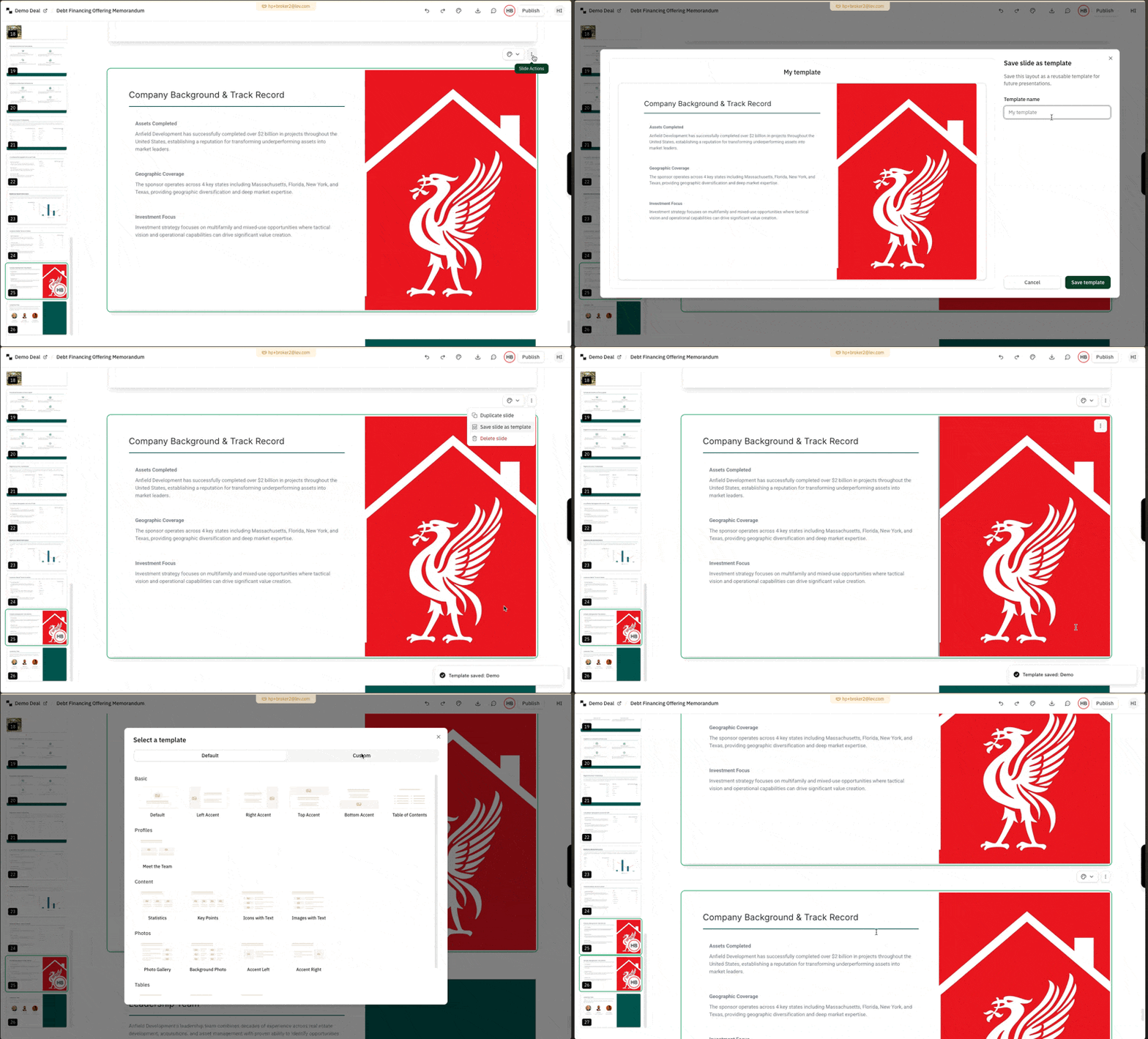
- Open ⋯ above the top-right of a slide and choose Save slide as template. Name it so you can find it later.
- In this Memo or another, click + under a slide to add a slide.
- In the template modal, open the Custom tab (top right) and select the template you saved.
Deleting a Slide
Warning
Deleting a slide is permanent! There is no way to undo this today.
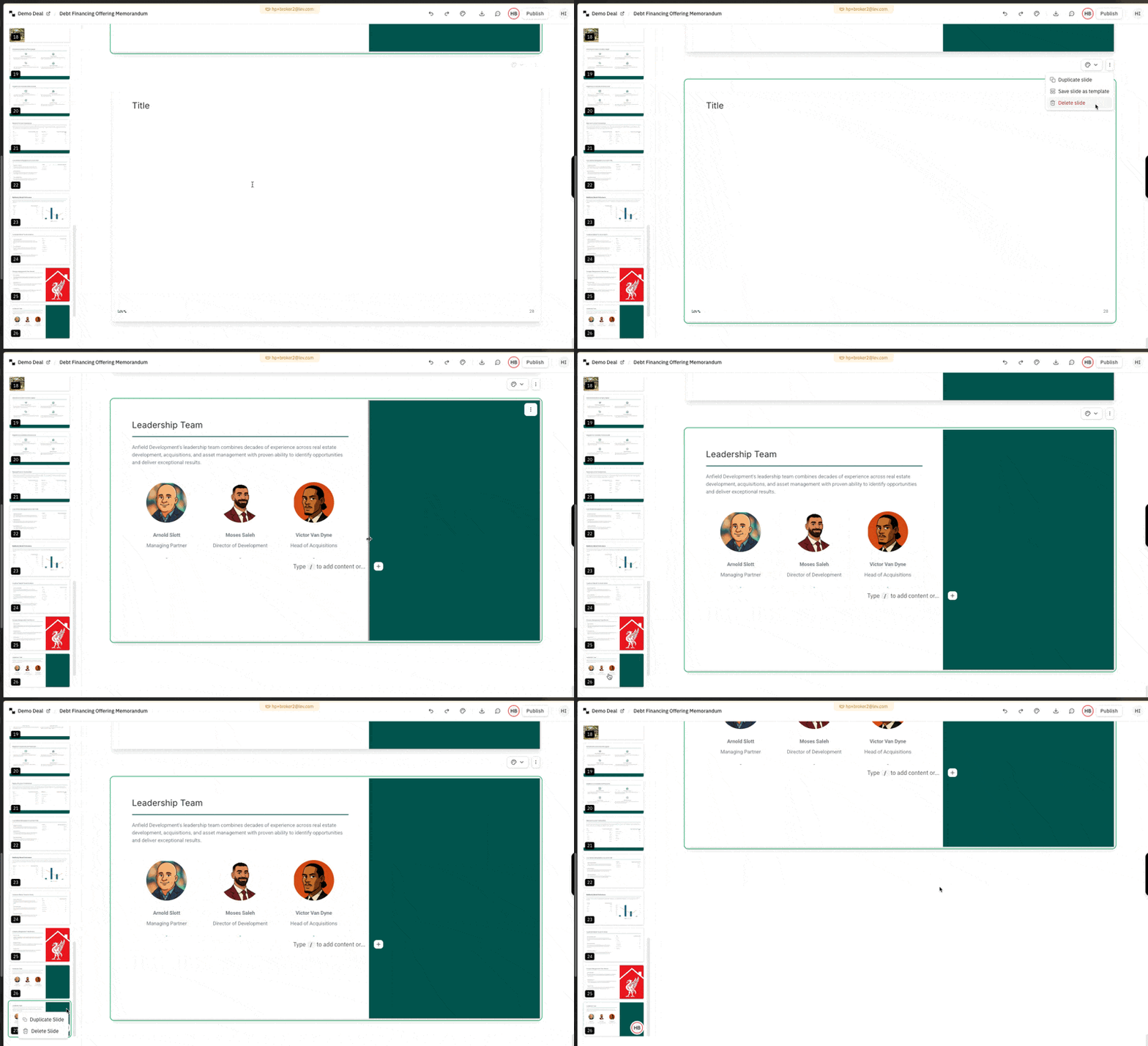
Via the dots menu
- Click the vertical ⋯ menu above the top-right of the slide.
- Choose Delete slide (trash icon).
Via the slide preview bar
- Click ⋯ on a thumbnail in the left preview bar.
- Choose Delete slide.
FAQ
Can I control the size of each slide?
Not today, each slide if fixed to the standard powerpoint format. We are looking to support more slide sizes in the near future!
Is there a limit to how many slides there can be in the Memo?
There's no limit! Memos can be as short or as long as you like.
Can I customize the copied over slide to my new deal / Memo?
Not today, this is sort of "Smart Templating" is something we're hoping to support by the end of 2025 though!