Introduction
Images are a critical part of any CRE document. Property photos, floor plans, and supporting visuals make the story clearer. In Lev Memo you can add, replace, crop, and lay out images without leaving the editor.
Adding an Image
Slash command or Insert menu
- Type
/imageor/galleryon a slide, or - Open the Insert menu and choose the Image option.
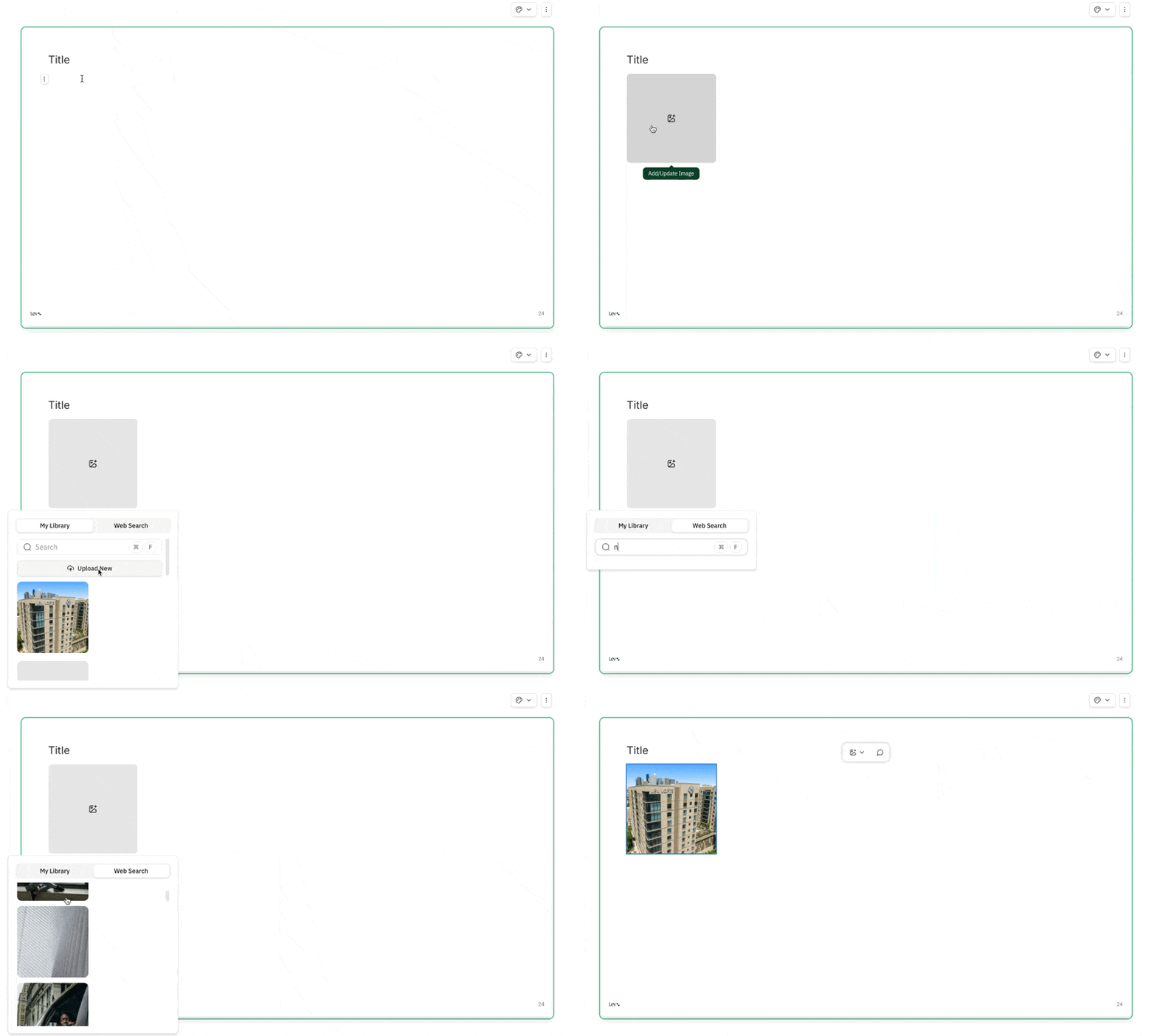
Choose a source
Click the image placeholder, then pick a source:
- Image library
- Upload a file from your computer
- Deal files — assets from the deal appear here automatically when available
- Web search — browse royalty-free options
Editing an Image
Resize and align
- Drag the handles on the image frame to resize.
- Use the image toolbar to align left, center, or right in the container.
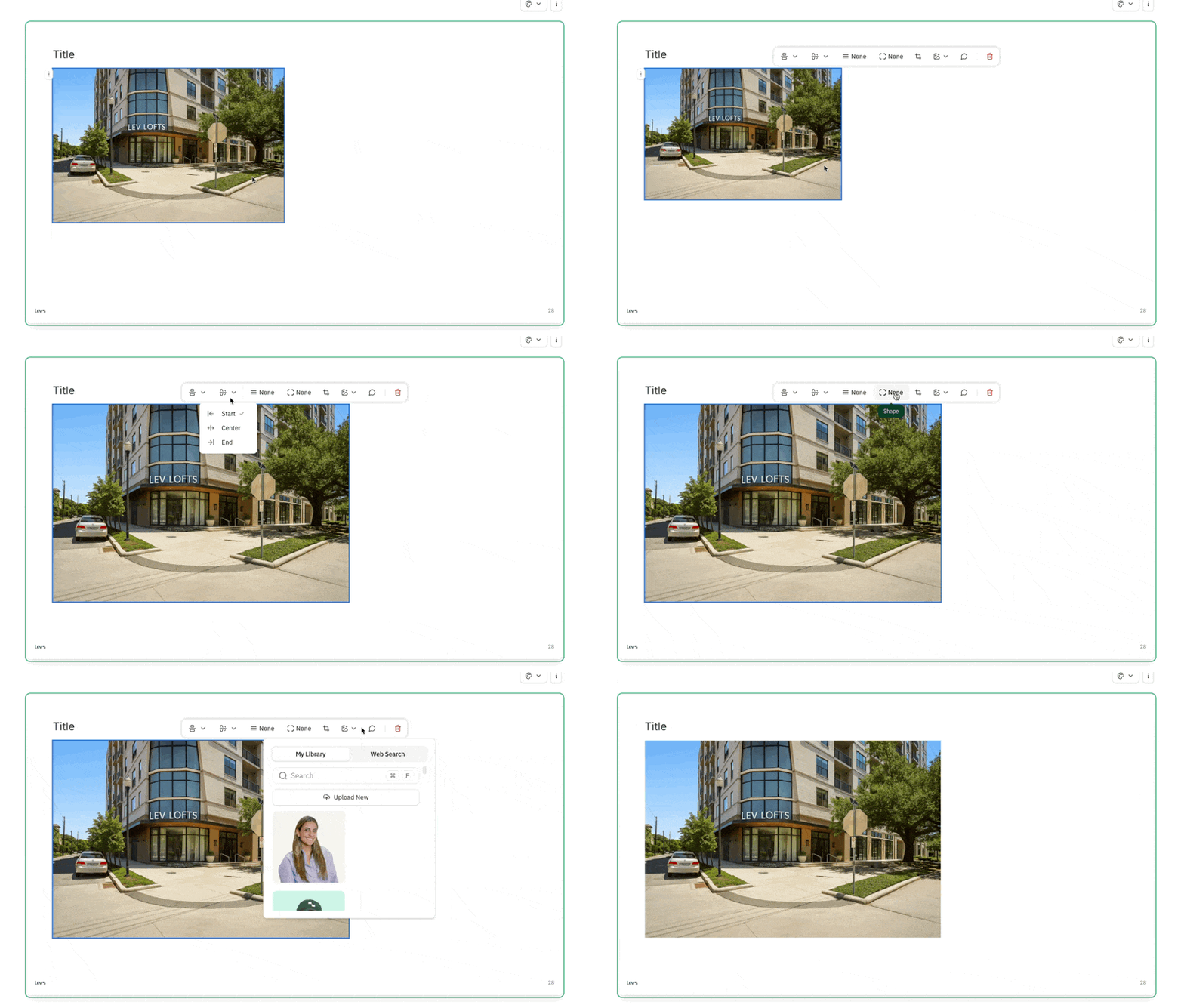
Replace an image
- Click the image to open its toolbar.
- Choose the image / library control, pick a new asset, and Apply.
Focal point
Available for accent images and for images inside smart layouts (not every plain image block).
- Select the image → open its menu → focal point (crosshairs).
- Click where the crop should center.
Crop
Available for standard uploaded images in the regular image component.
- Select the image → Crop in the toolbar → adjust → apply.
Different image types
Gallery
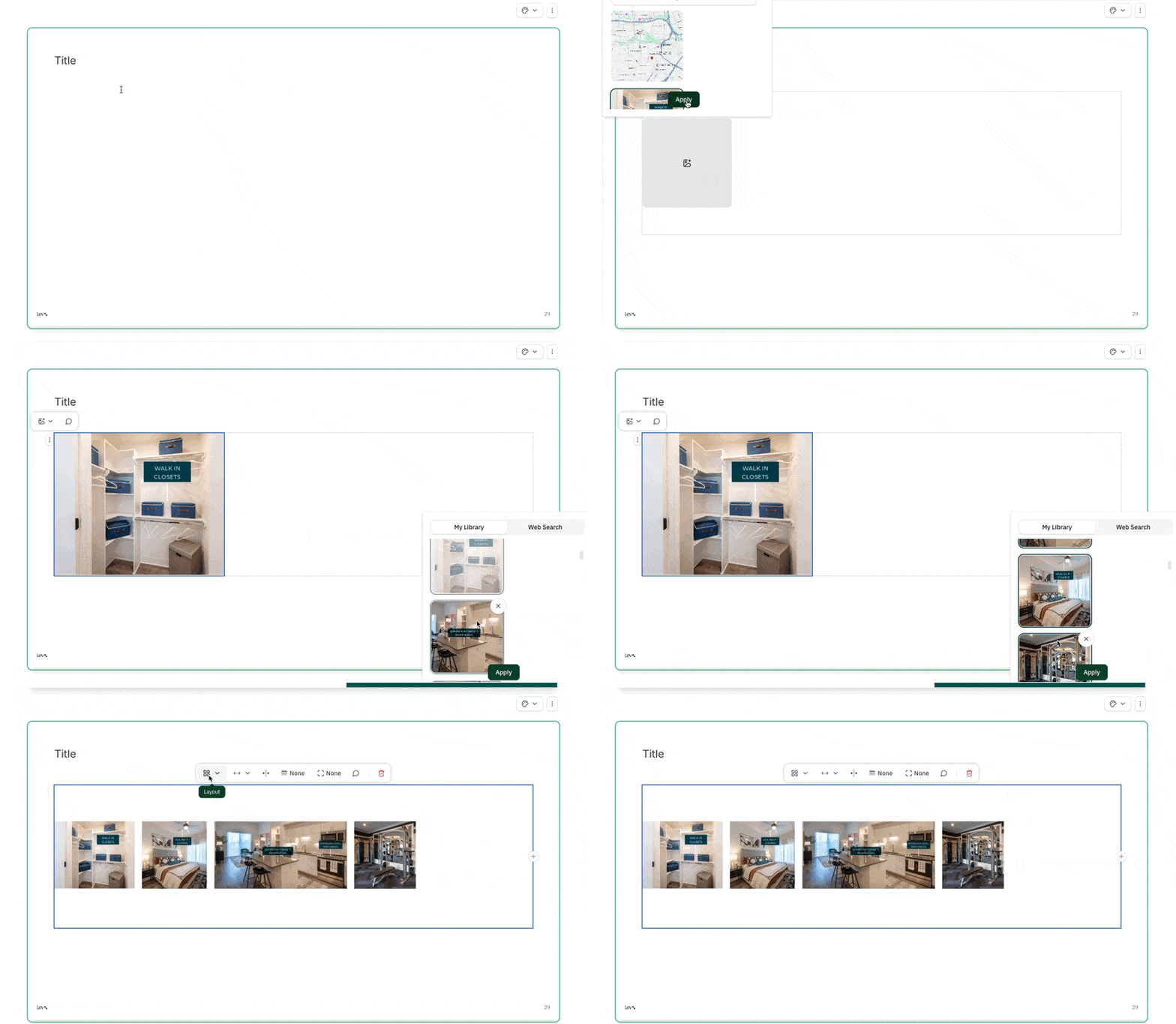
Galleries group multiple photos in one block—useful for property tours and amenity sets.
Insert a gallery.
- Type
/gallery, or - Insert menu → Gallery.
Add photos.
- Click placeholders to add images.
- On desktop, Ctrl (Windows) or Cmd (Mac) + click to select several files at once.
Pick a layout.
- Grid — even cells, fixed feel
- Flex — wraps rows by width
- Column — one row, flexible column widths, equal height
- Stacked — one column, equal width, flexible row heights
Drag the gallery’s outer edge to change vertical size.
Accent image
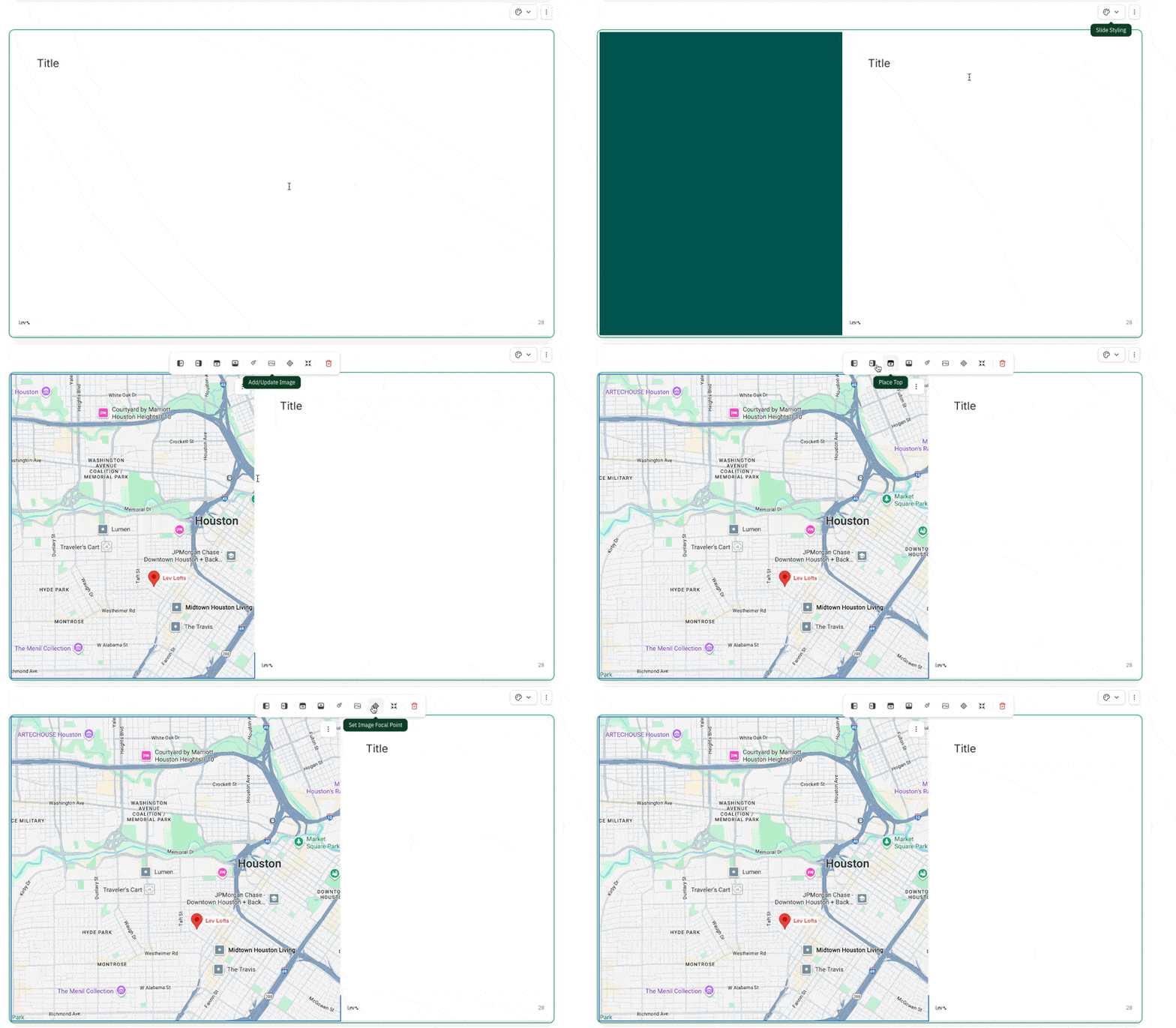
Accent images span edge to edge inside a card—great for hero shots, aerials, and maps.
Add or place an accent.
- Open page / slide settings (icon above the top-right of the slide) and choose an accent position.
- Use the accent’s menu to add or update the image.
Edit the accent.
- Swap art with the add/update control, or delete the image / whole accent with the trash icon.
- Drag borders to resize the accent region.
- Use crosshairs to set focal point.
- Toggle Fit image so the full photo stays visible in the frame.
Images in smart layouts
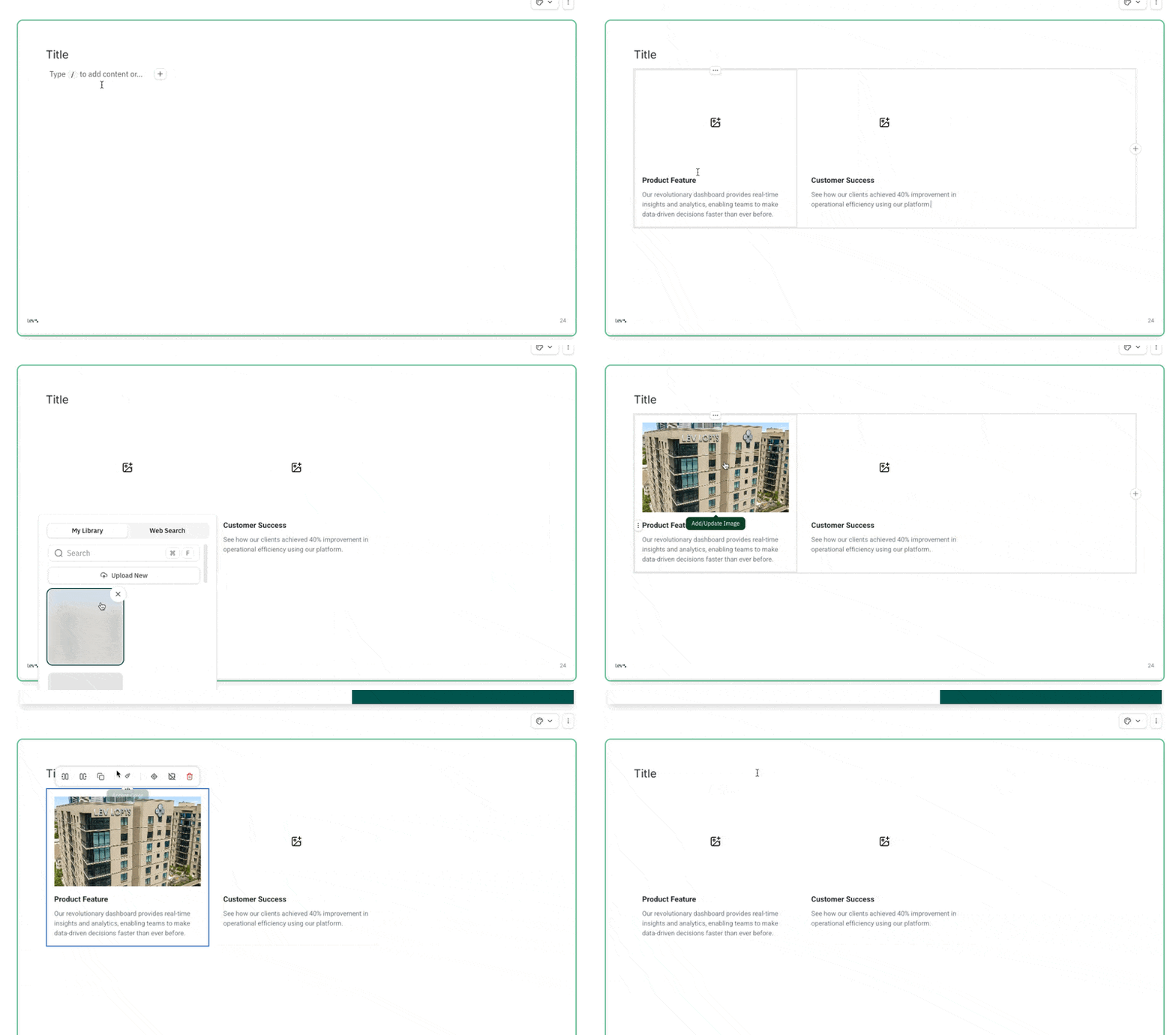
The Image with Text (Text with Image Boxes) layout pairs copy with a dedicated image area—handy for comps, tenant stories, and similar slides.
Insert the layout.
- Type
/Text with Image Boxes, or - Insert → Text with Image Boxes.
Edit the image.
- Click the image area to upload or replace.
- Use the ⋯ menu on the item for focal point or remove image.
More on templates: Smart layouts in Memo.
FAQ
How can I add text next to my image?
- For several images with captions, use the Image with Text smart layout (see Smart layouts).
- For a single image, hover to the side of the block and use click to add text when it appears.