Introduction
By styling your slide, you can create a Memo that's visually stunning and engaging. We make it easy for you to adjust the background, accent position, as well as alignment of the content.
Changing the Background
Adding a Background
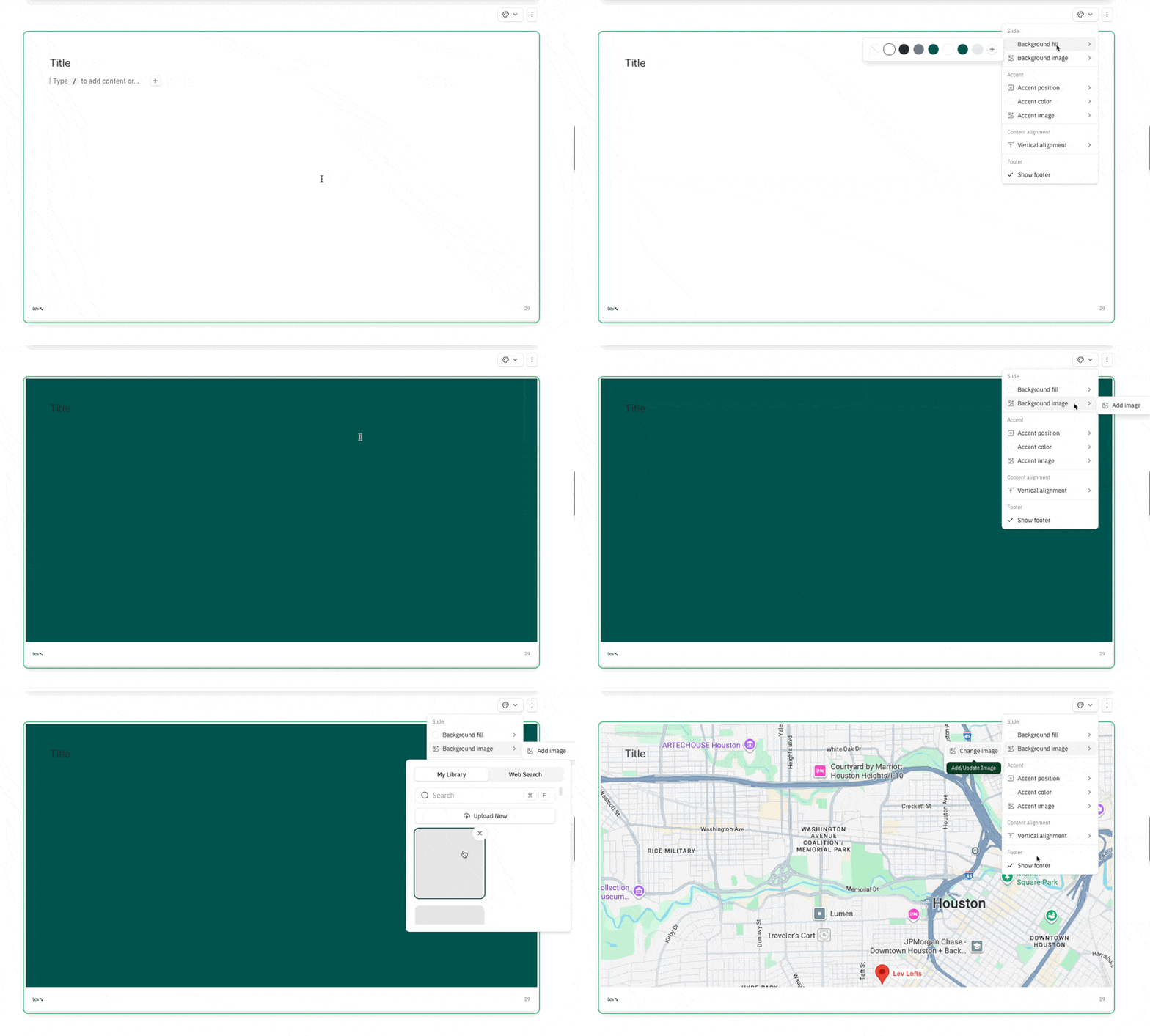
- Navigate to Slide Styling menu above the top right corner of any slide
- For a solid background color, click on Background fill and choose a color
- For background image, click on Background image to bring up the library
- The image will overwrite any existing background color
- Choose an image from your deal's image library or search from the web
Removing a Background
- Navigate to the Slide Styling menu above the top right corner of any slide
- To remove the background color, click on background fill and choose the first color option with the slash
- To remove the background image, click on background image and choose remove image
Adding / Editing an Accent
Adding an Accent
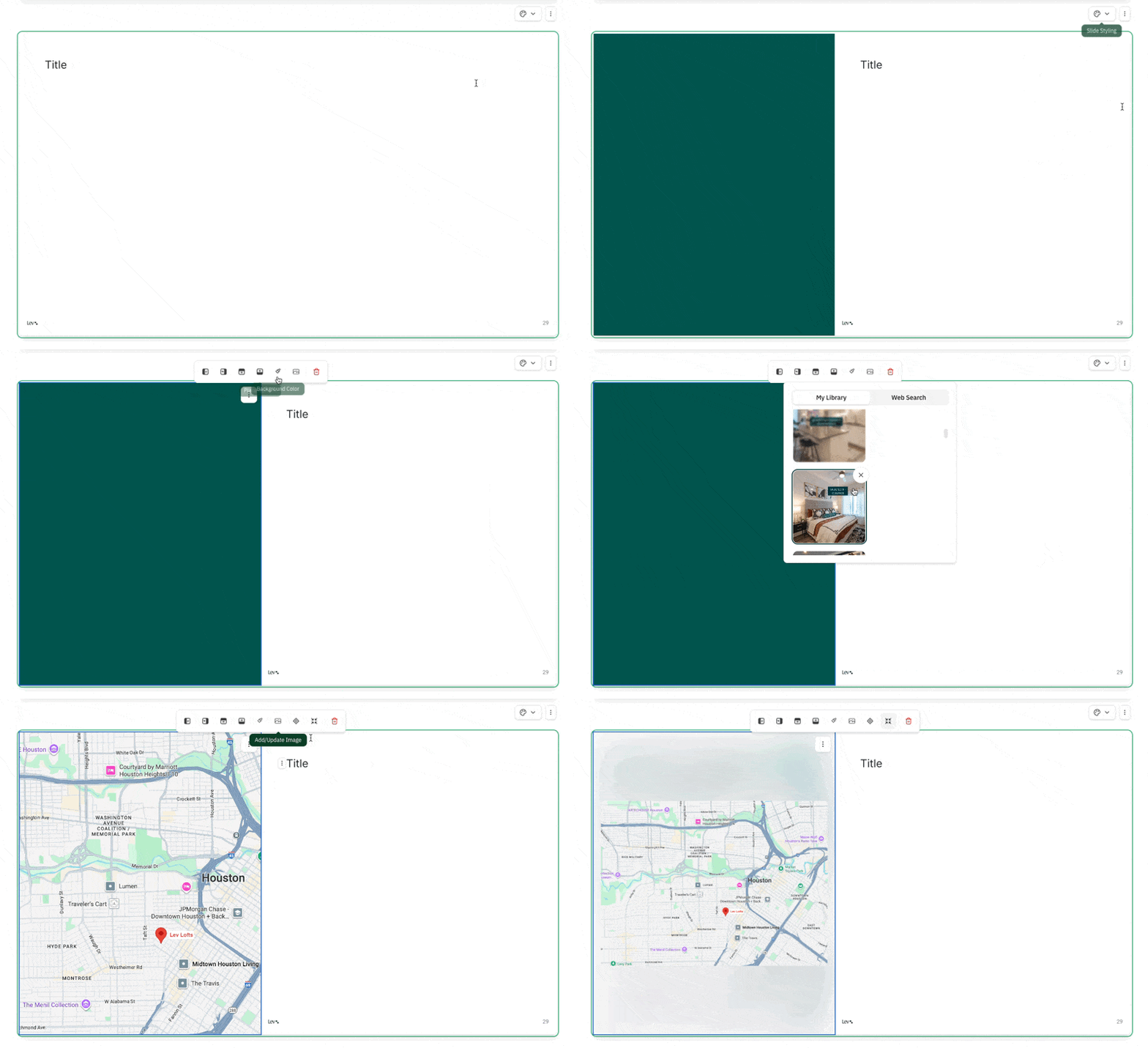
- Navigate to the Slide Styling menu above the top right corner of any slide
- Click on Accent position and choose an accent position to add an accent
- For a solid color accent, click on Accent color and choose a color
- For a accent image, click on Accent image to bring up the image library
- The image will overwrite any existing background color
- Choose an image from your deal's image library or search from the web
Editing an Accent
- Click on the add/update image icon to swap out the accent image
- Click on the trash icon to remove the image or delete the accent entirely
- Adjust the size of the accent image by dragging the border of the accent
- Use the crosshairs icon to adjust the focal point of the image to be shown in the accent
- Choose Fit Image to ensure the entire image fits neatly within the accent
Aligning Your Content
Set how your text and visual content sit vertically within a card
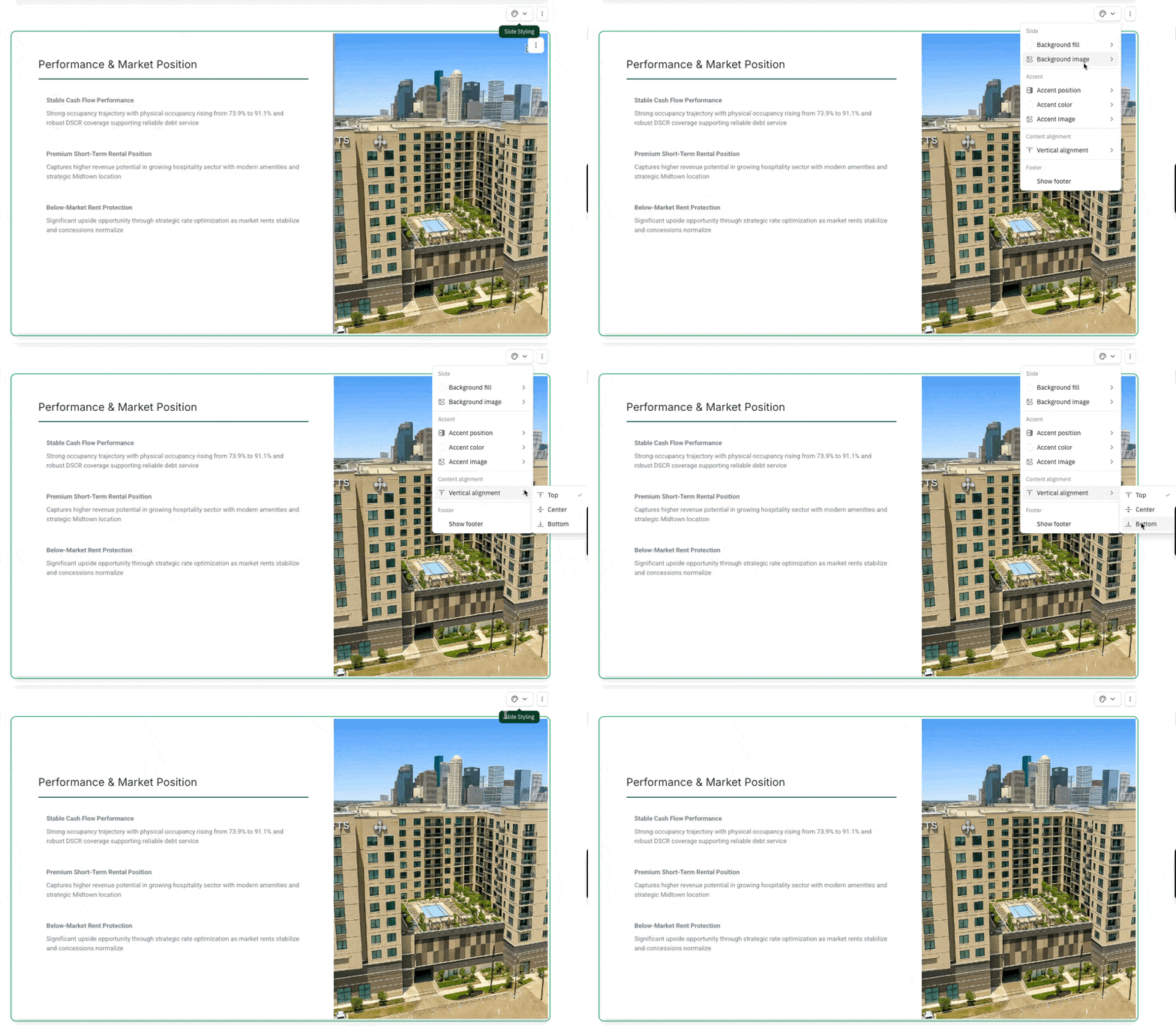
- Navigate to the Slide Styling menu above the top right corner of any slide
- Click on vertical alignment and choose
- Top - align contents to the top
- Center - align contents to the center
- Bottom - align contents to the bottom
FAQ
Can I adjust my slide margins?
No, this is not something that is supported in Lev Memo today.
Can I style my entire presentation at once?
We support some general theme settings for the entire Memo, this includes the color of the slide background, accent, fonts, borders, and so on. You can also set the format of the footer for the entire presentation. Learn more in our article on a slide's general settings
You cannot set alignment and/or the accent size across the entire Memo though.