Introduction
Lev Memo turns deal data and underwriting into a branded offering memorandum in minutes instead of days.
Accessing Lev Memo
Memo is always opened from a deal on the Lev platform.
From the new-deal flow
- Open the Lev platform and create a deal (or open an existing one).
- Upload documents and complete basic and financial information as prompted.
- In Prepare Deal Package, click Create Memo.
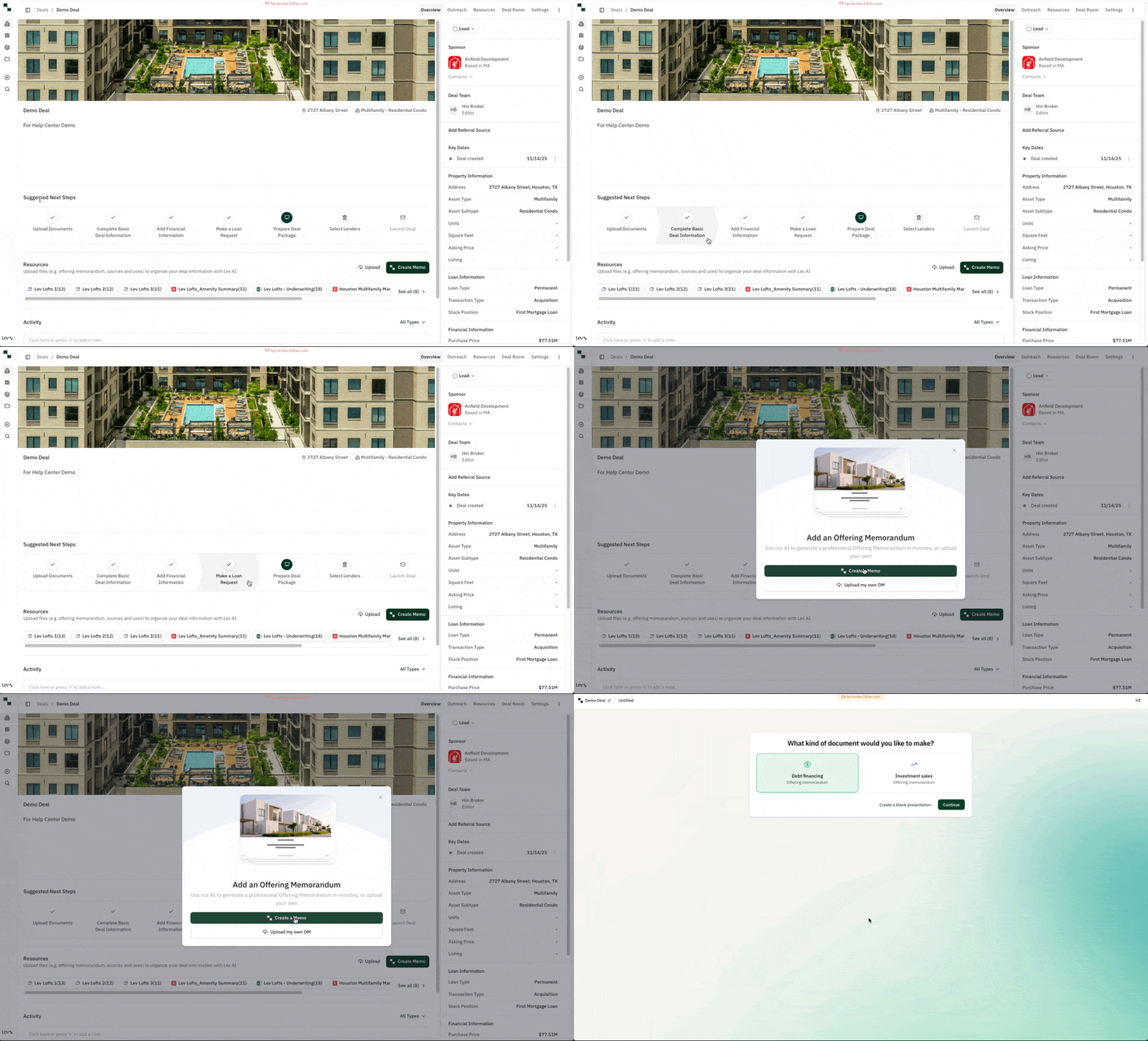
Uploading source files as soon as you can starts document processing earlier and usually shortens the first generation. You can still add files later.
Other ways to start
Suggested Next Steps
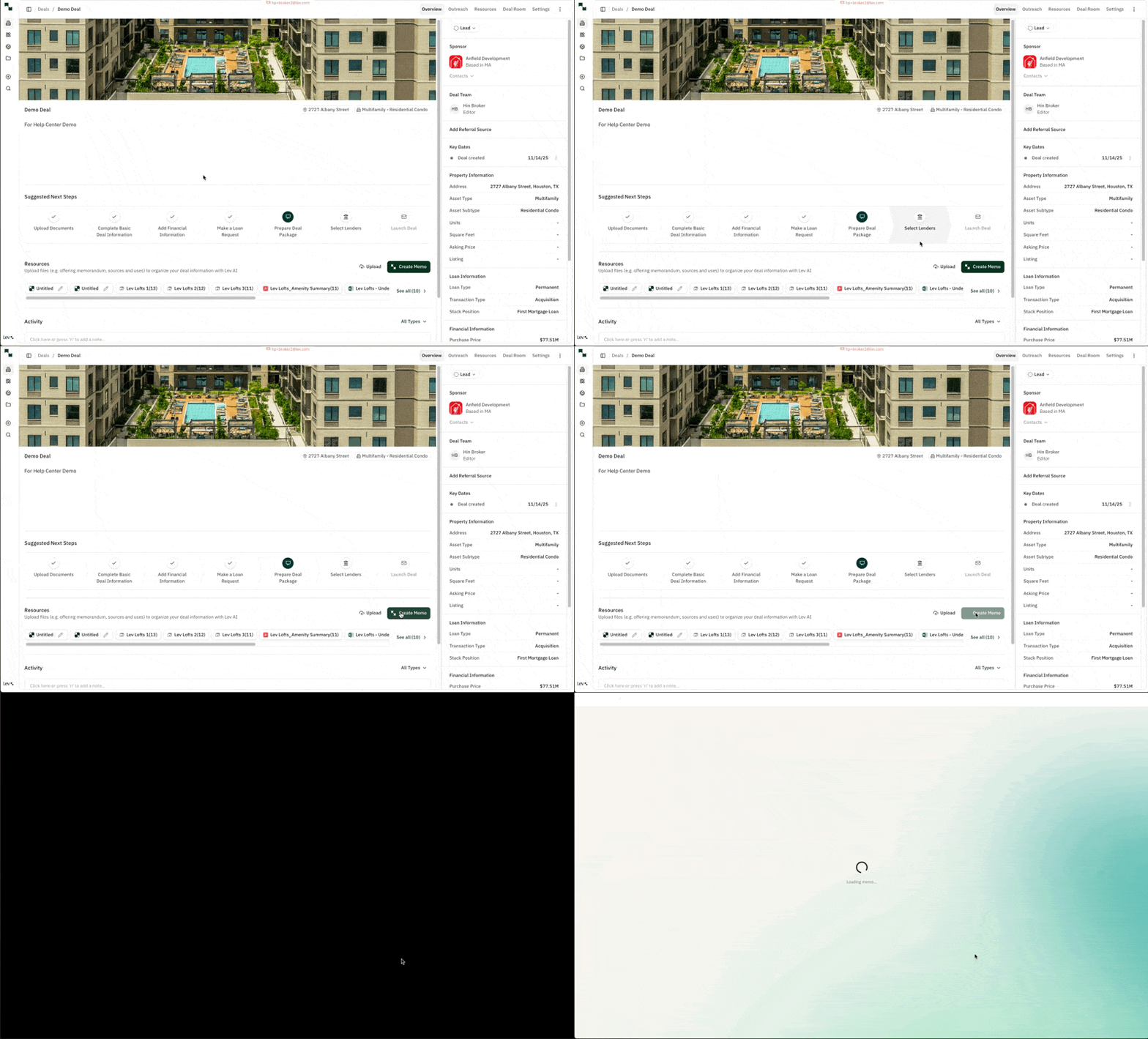
- Open any deal.
- Under Suggested Next Steps, click Create Memo.
Resources tab
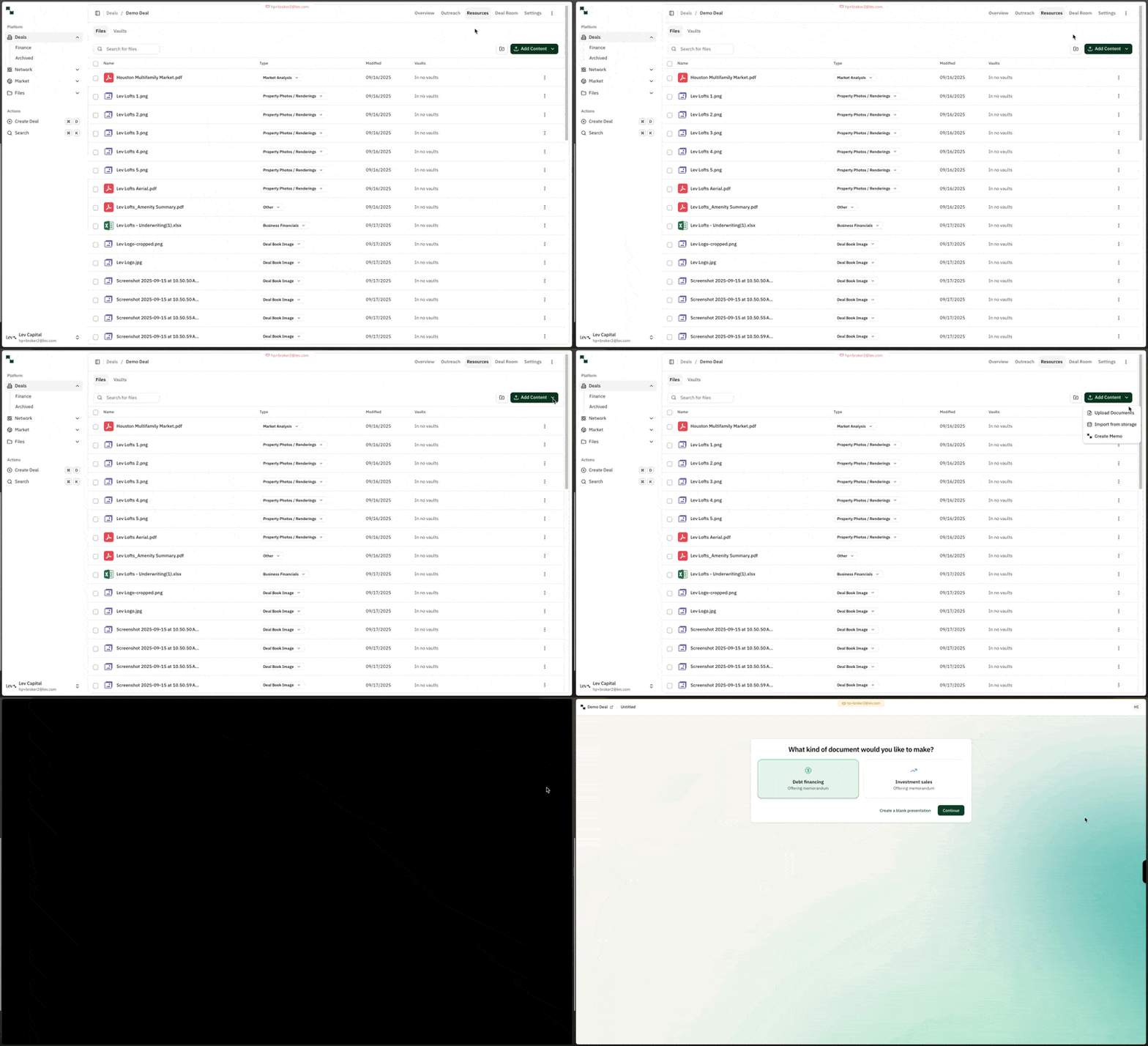
- Open the deal’s Resources tab.
- Add content (top right) → Create Memo.
Creating a new Memo
Choose document type. Pick a template or start blank—for example Debt Financing Offering Memorandum, Deal Summary / Teaser, or Blank. If you haven’t already, set asset class and loan type when asked.
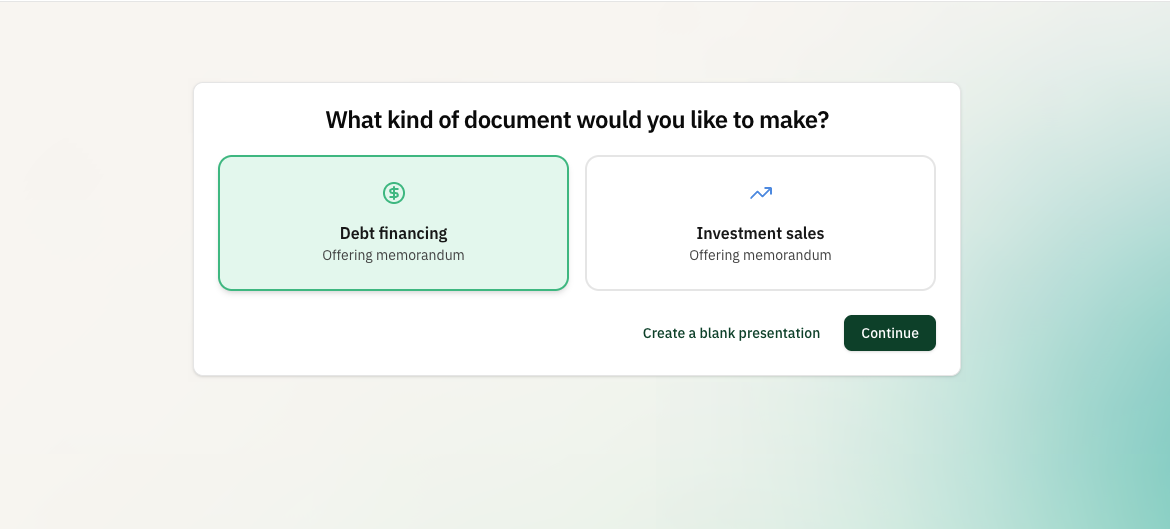
Available types evolve over time. If you need another product type, tell your Lev team what you want to generate next.
Upload and generate outline. Files already on the deal are pulled in automatically; add anything missing here. Click Generate Memo to build the outline (often on the order of a couple of minutes).
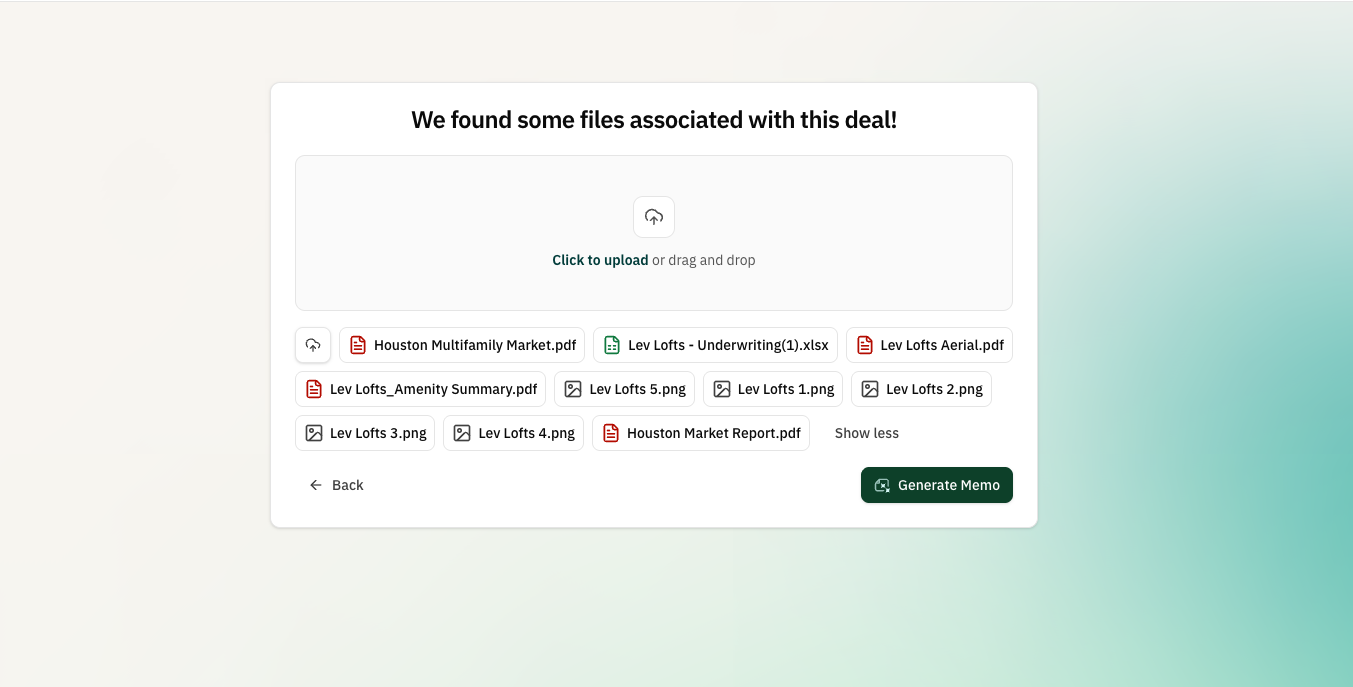
Better uploads yield better Memos. Especially helpful: sources & uses, underwriting model, T-12 / rent roll / budget, photos and plans, and market studies.
Edit the outline. Review section titles and bullets, add or remove sections, then Build Memo to generate the full deck (often 5–10 minutes). Edits here—especially narrative sections like investment highlights—heavily steer what ships.
.gif)
Bullets in the outline guide each slide. Time spent here saves rework in the editor.
Review in the editor. When generation finishes, refine slides: text, order, images, tables, and branding (Theme Settings). Use Preview to click through like a presentation.
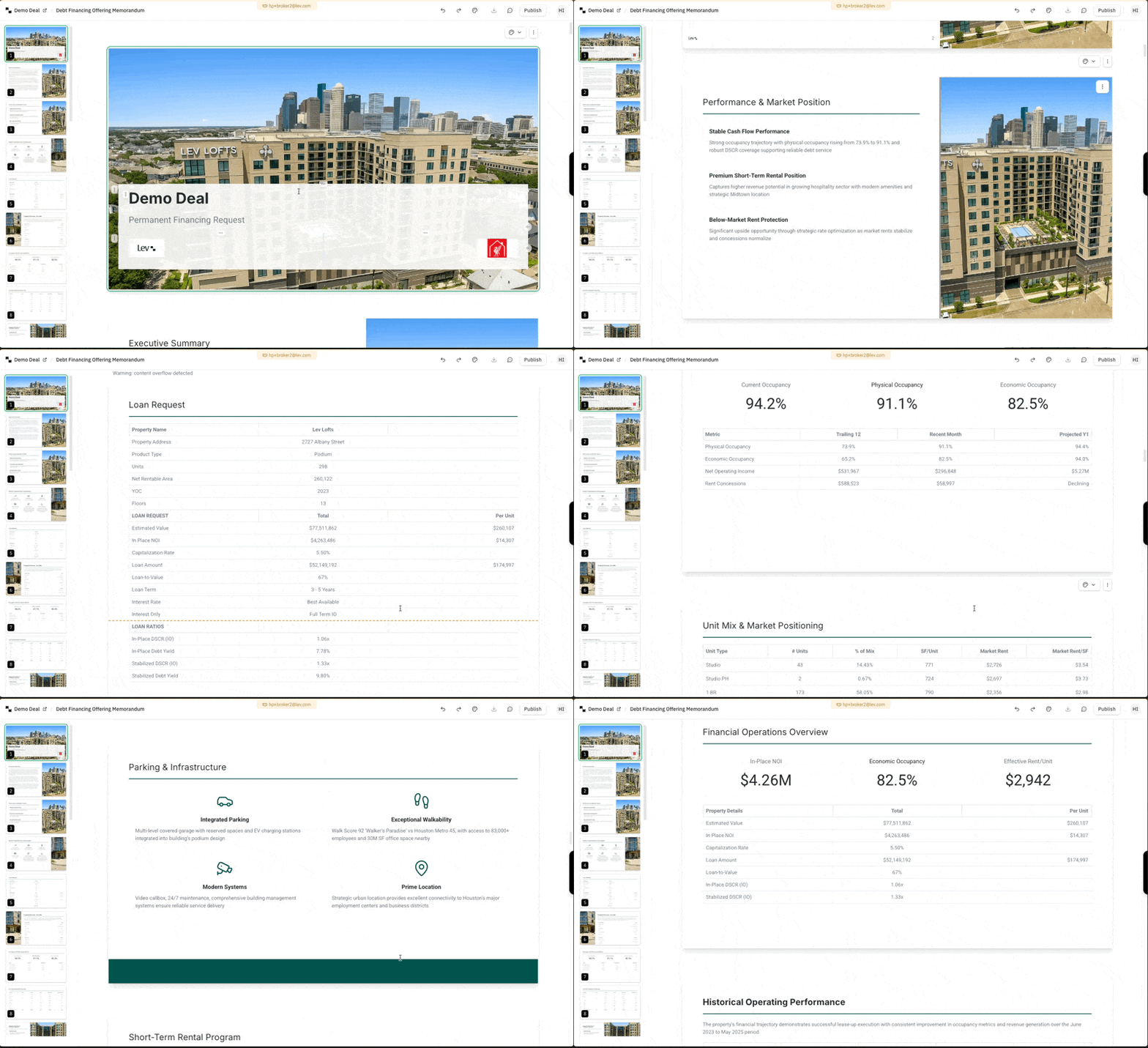
Deep dives: Format text, Tables, Images, Theme.
Publish and share. Click Publish (top right) to push the Memo to your Deal Room for lenders and/or export PDF / PowerPoint.
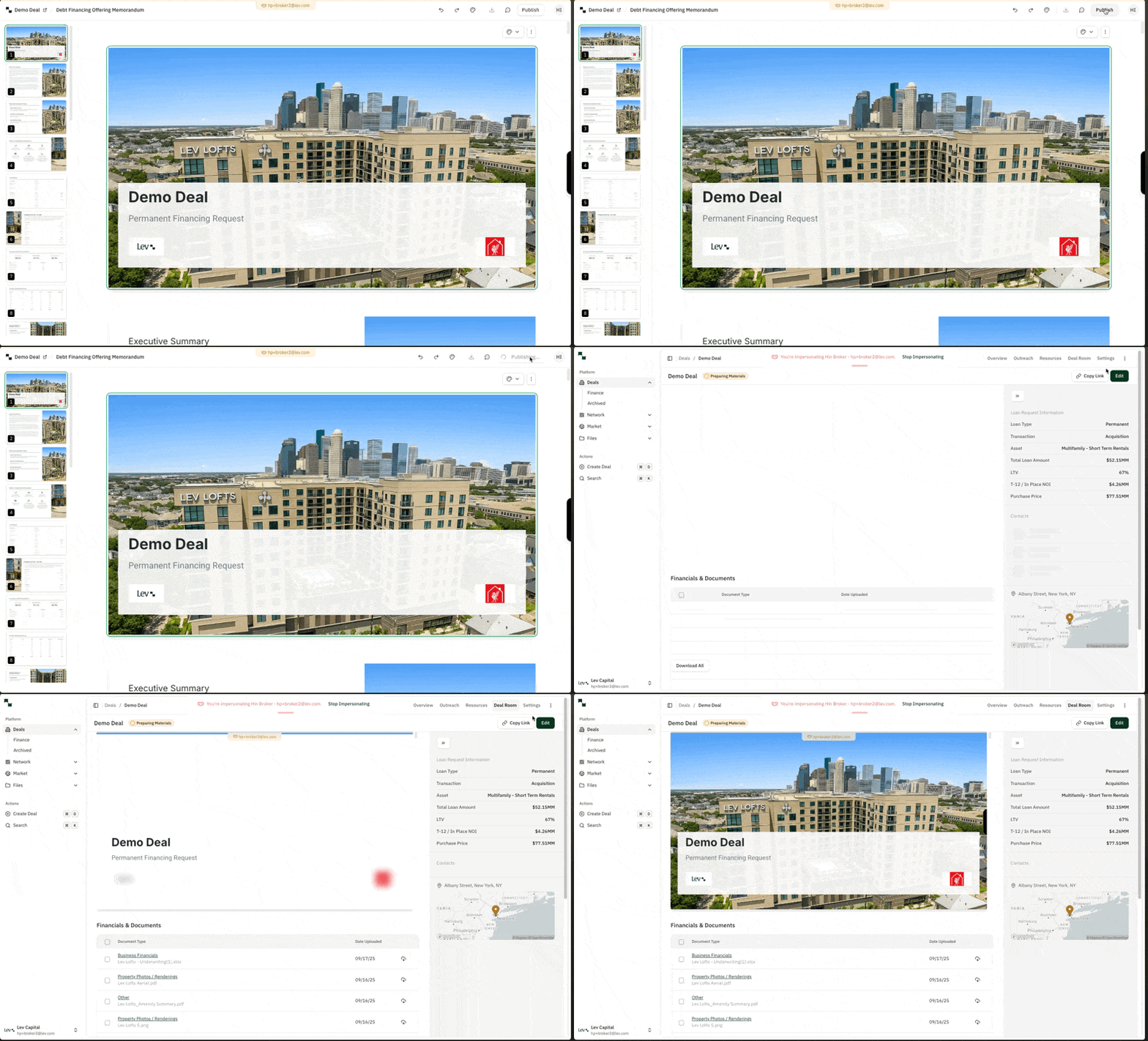
Anything that overflows the slide in the editor may be clipped in the published PDF / export. Check Preview before you publish.