Learn how to track deal progress, manage statuses, use deal list views, organize your pipeline, compare quotes, and share deal progress.
Deal Statuses
Deal statuses help you track where each deal is in the financing process. You can see the current status in several places: deal cards on the dashboard, the Pipeline Status section, and the Kanban View where deals are organized by status columns.
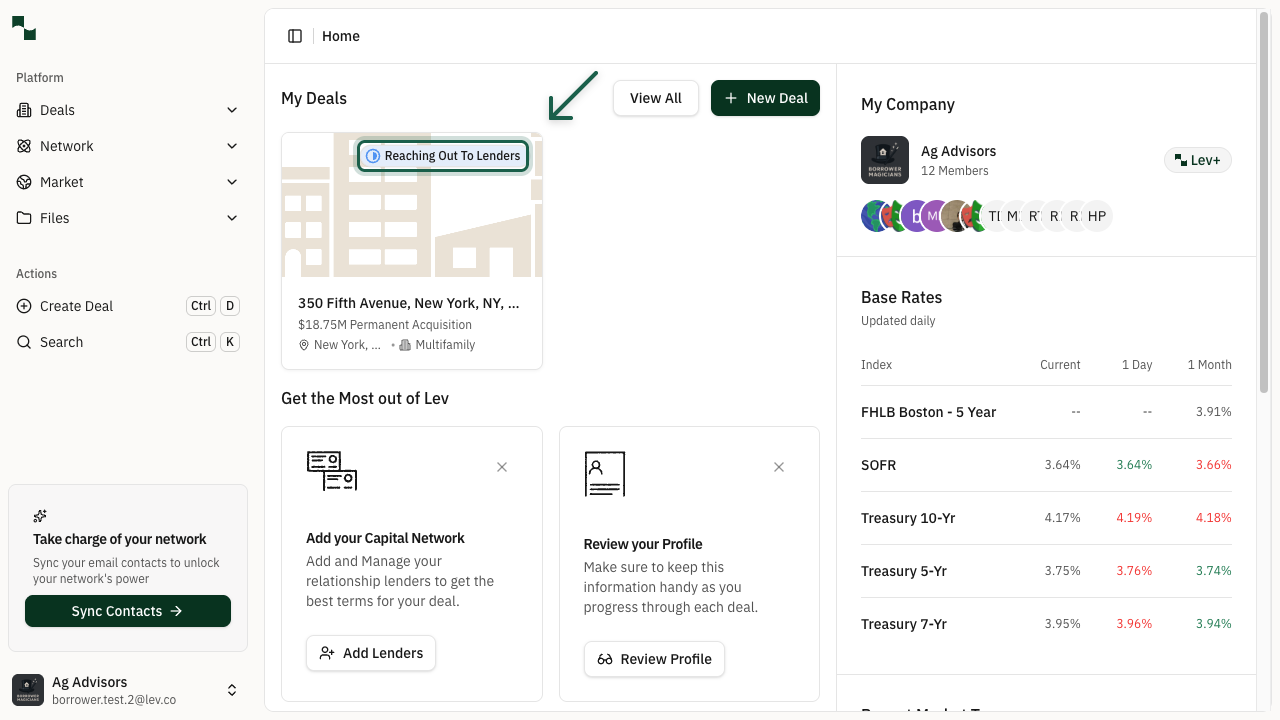
Your deal progresses through these statuses:
- Preparing Materials — Initial status while setting up your deal. Deal information is not yet shared with lenders.
- Reaching Out To Lenders — Deal has been launched and emailed to lenders. Auto follow-ups are enabled.
- Negotiating & Selecting — At least one lender has responded with terms. Review and compare offers.
- Closing — You've selected a lender and are working toward closing. Auto follow-ups are disabled.
- Closed — The financing process is complete.
- Archived — Deals that are no longer active. Can be restored to any prior status.
Most status changes happen automatically based on placement activity (e.g., launching moves status to "Reaching Out," receiving terms moves it to "Negotiating"). You can also manually change status from the Pipeline Status dropdown on the Deal Overview page.
Deal List Views
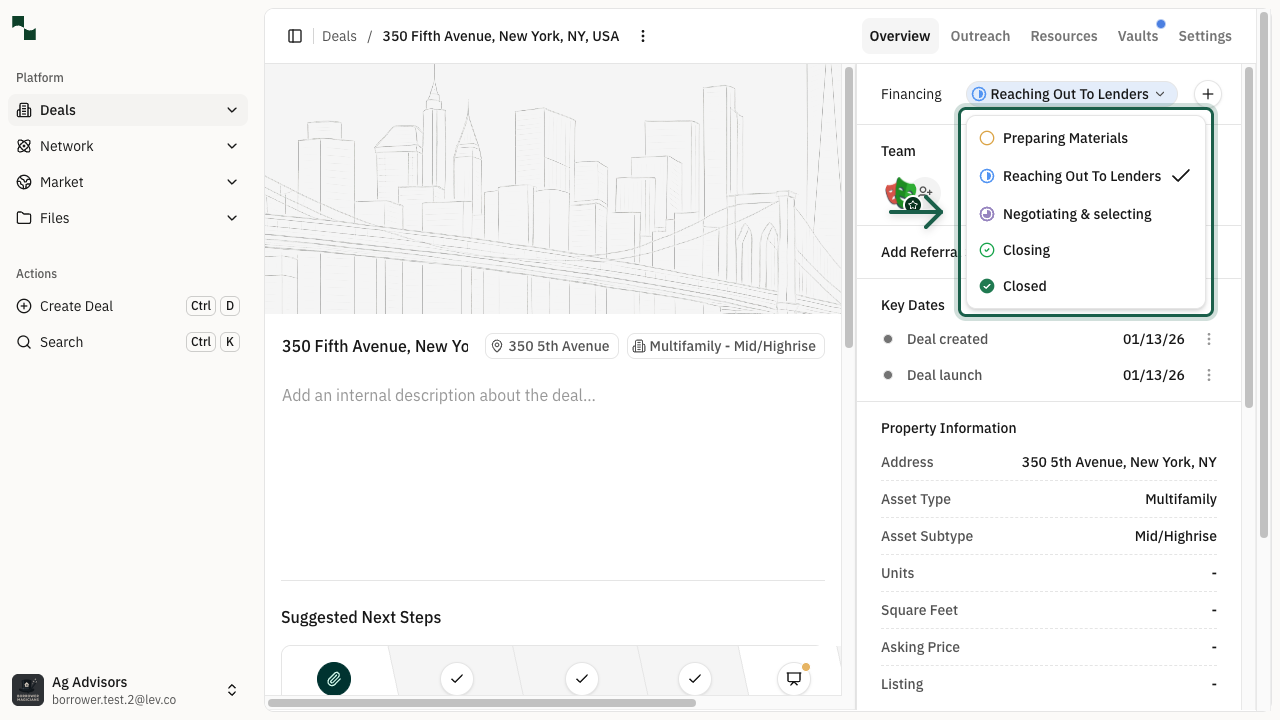
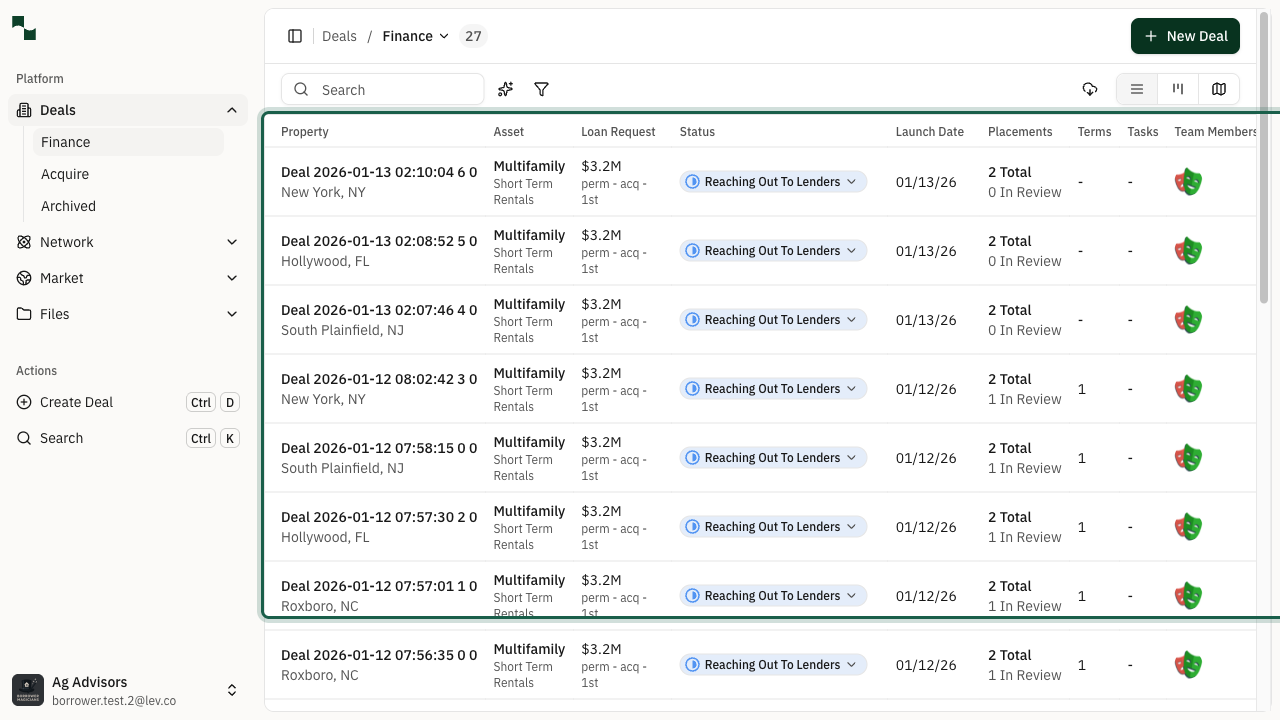
Navigate to Deals in the left sidebar to access your deals. The submenu shows three default options: Finance (active deals), Acquisition (upcoming deals), and Archived (inactive deals).
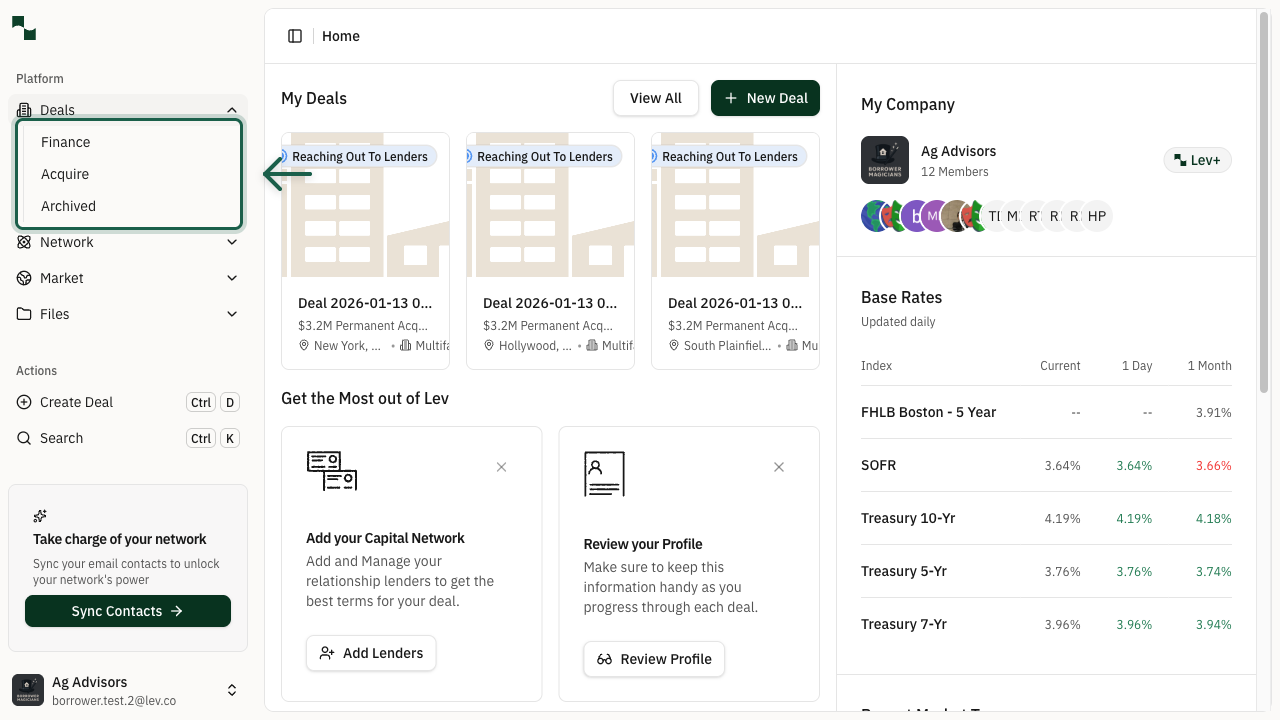
Use the view toggle in the top-right corner to switch between three views:
Kanban View — Displays deals as cards organized by status columns. Great for visualizing your pipeline at a glance.
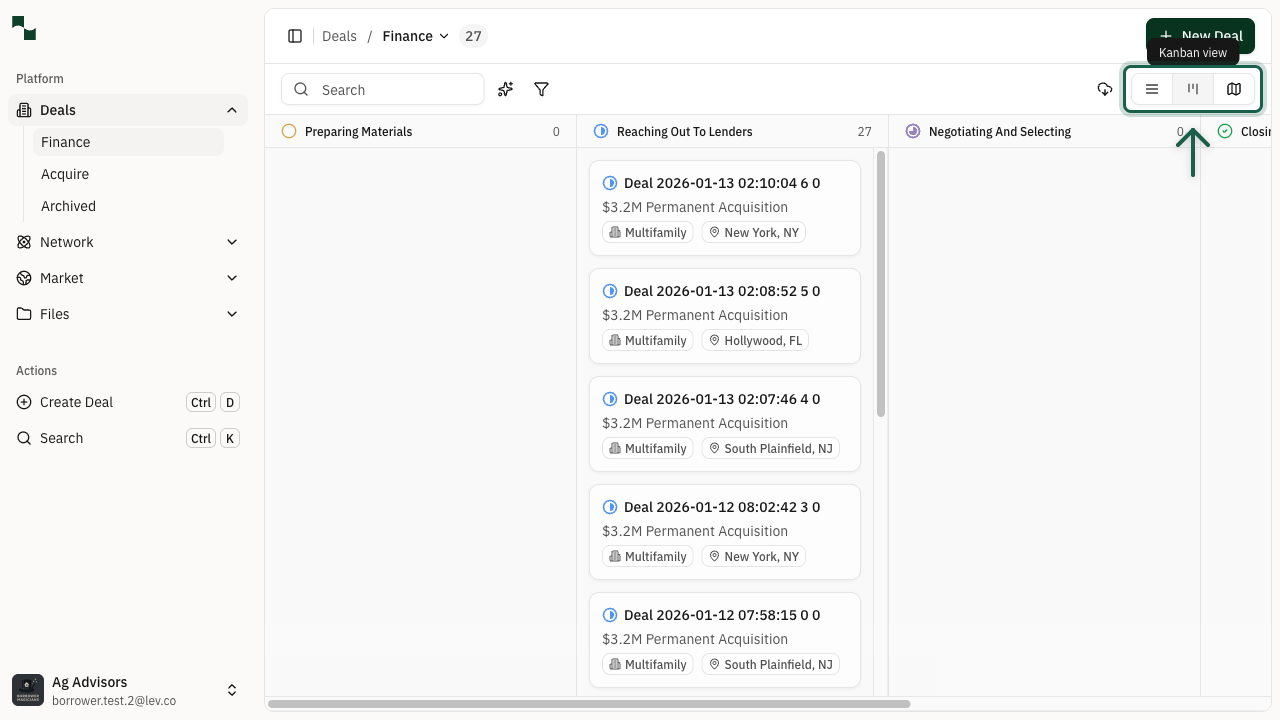
List View — Table format with sortable columns including Property, Asset, Loan Request, Status, Launch Date, Placements, Terms, Tasks, and Team Members. Click any column header to sort.
Map View — Geographic visualization of your properties.
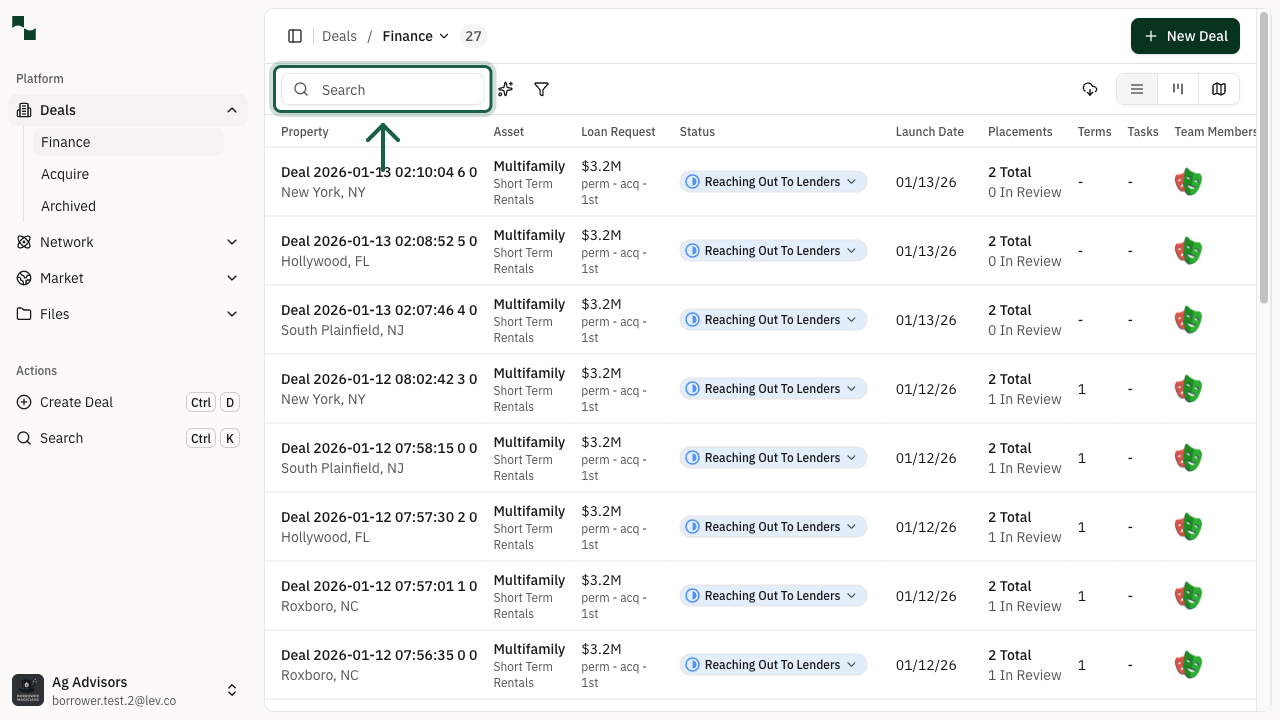
Use the Search box to quickly find deals by name, address, city, or state. You can also use the AI Filter for complex queries using natural language.
Archive, Duplicate & Restore Deals
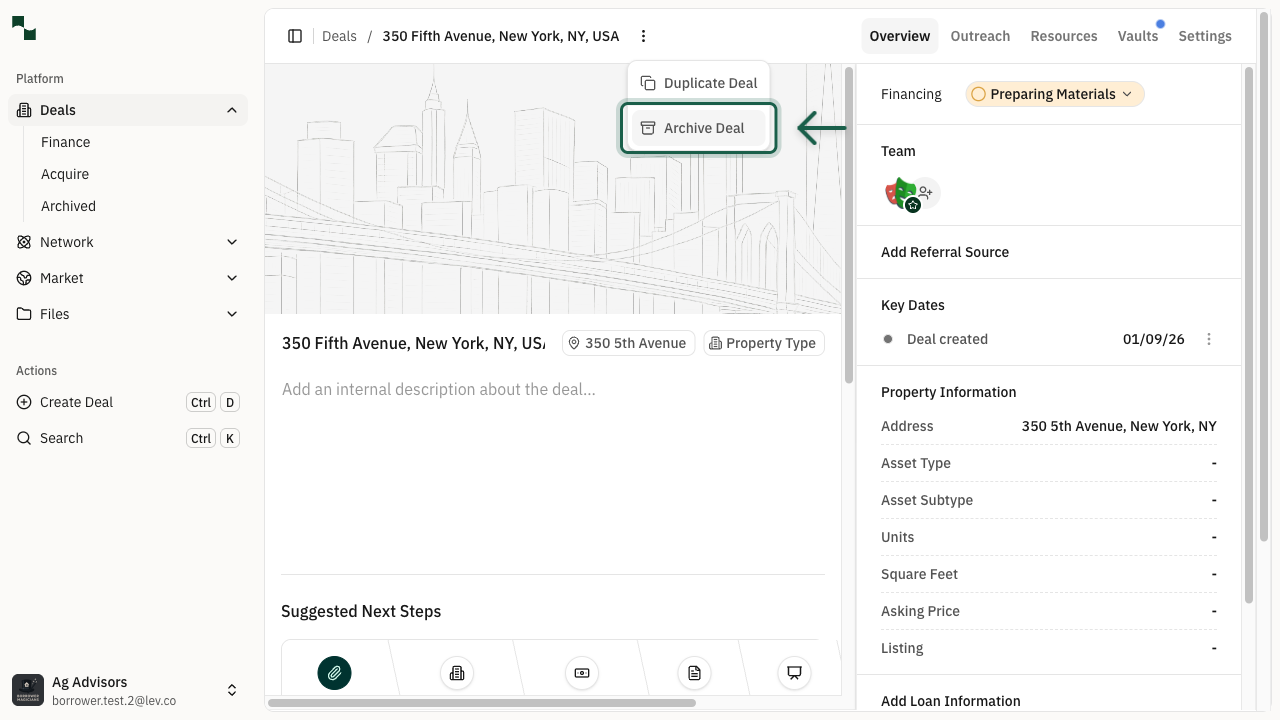
Archiving — Open a deal and click the Deal actions button (three dots) in the top right corner. Select Archive Deal, optionally enter a reason, and confirm. Archived deals stop automated follow-ups and email notifications.
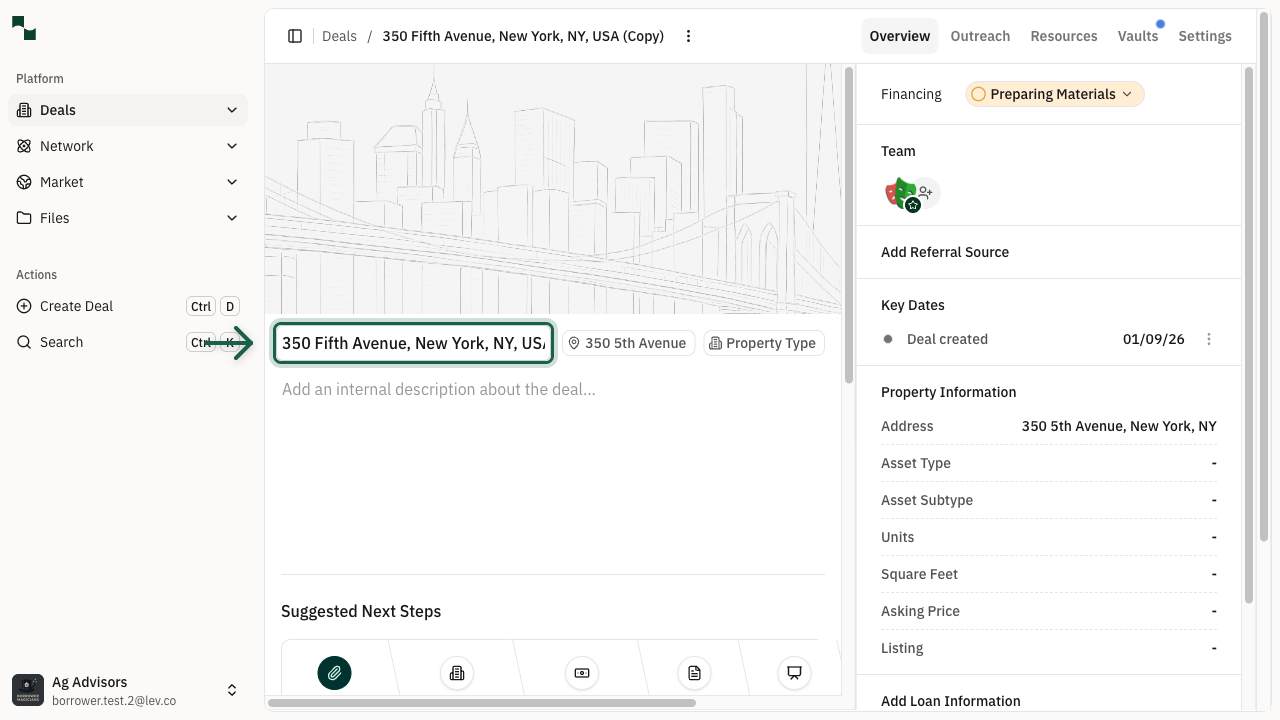
Duplicating — From any deal's overview page, click Deal actions > Duplicate Deal. The system creates a copy with "(Copy)" appended to the title. Property information, financial details, and loan request parameters are copied. Lender selections, outreach history, and activity/notes are not.
Restoring — On an archived deal's overview page, click the chevron next to Archived and select Restore to return it to active status.
Custom Pipelines
Custom pipelines let you track deals using terminology that matches your own workflow.
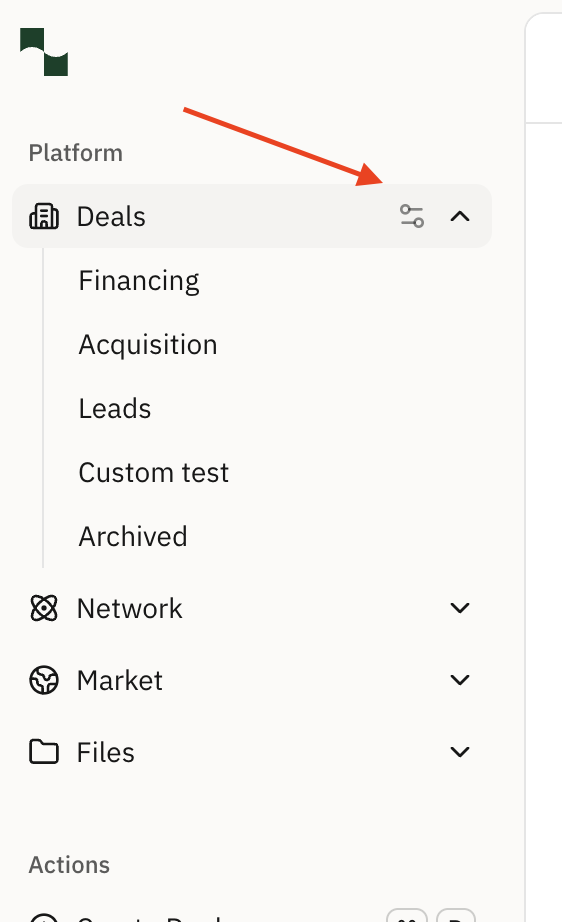
Open pipeline settings. In the sidebar, hover over Deals and click the slider icon to the right of the Deals label.
Create a new pipeline. Click + Add Pipeline, name it (for example “Development” or “Bridge Loans”), and add stages. Name each stage, assign icons, reorder by dragging, and add descriptions. Click Create to save.
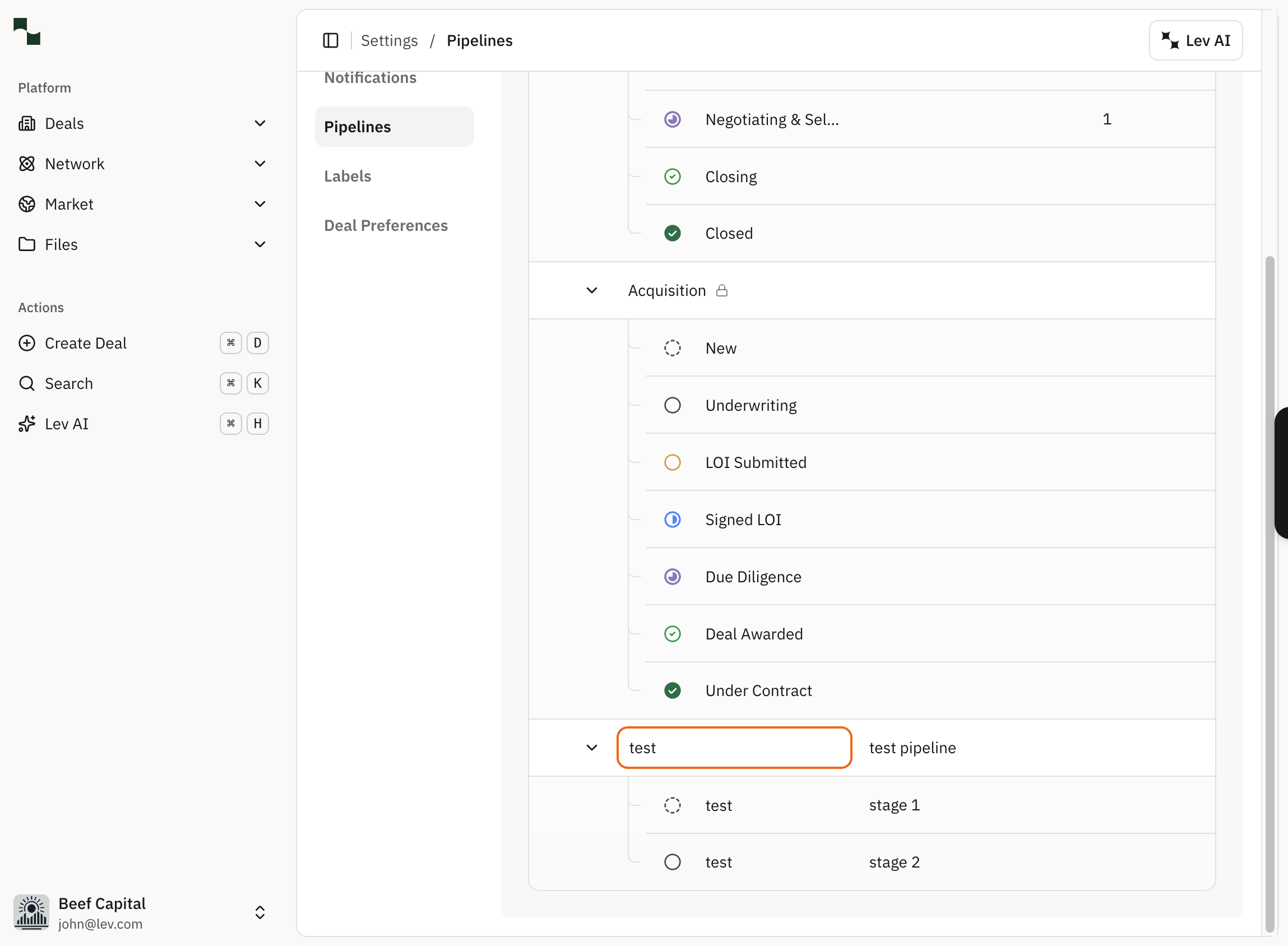
Each stage has a colored icon for quick visual identification. Choose icons that are intuitive for your team and add descriptions to clarify what each phase means.
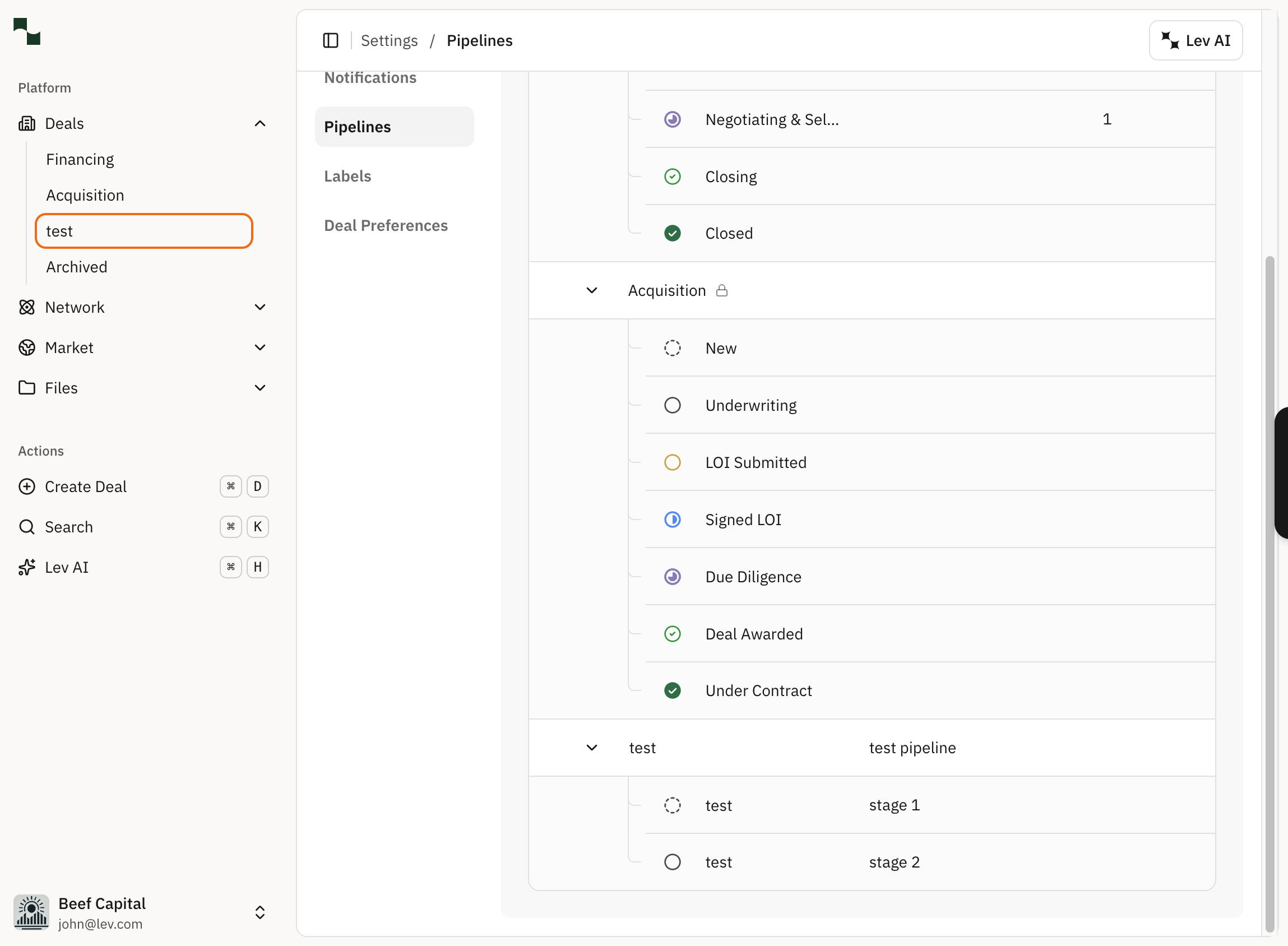
Your custom pipelines appear in the Deals dropdown in the left sidebar. Select a pipeline to view the deals assigned to it.
Update Lender Status
Track lender outreach progress in the placement table. While statuses update automatically based on email activity, you can also change them manually.
Navigate to the Outreach tab, click a lender to open their side panel, and click the status dropdown to select a new status:
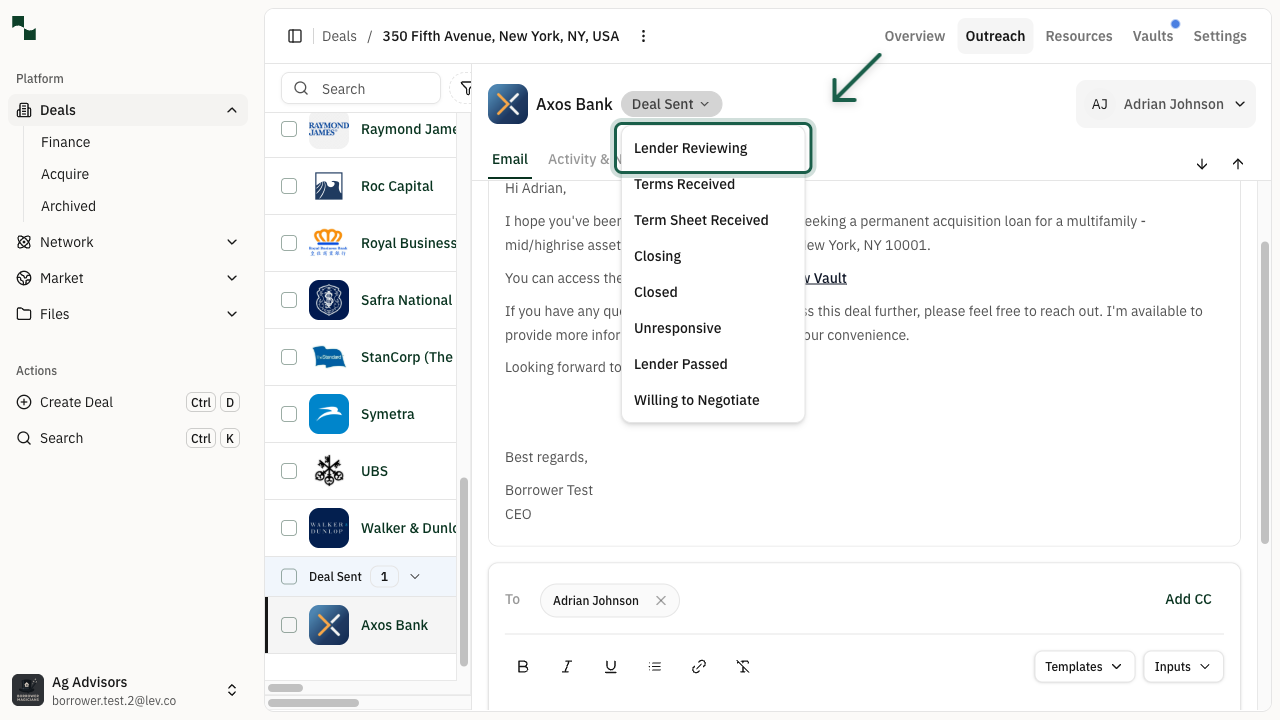
- New — Deal has not been sent to this lender
- Deal Sent — Email has been sent to this lender
- Lender Reviewing — Lender has replied but hasn't indicated whether to proceed or pass
- Terms Received — Lender has shared a rough outline of potential terms
- Term Sheet Received — Lender has shared a formalized term sheet
- Closing — You have begun the closing process with this lender
- Closed — The deal has been closed with this lender
- Unresponsive — Lender has not responded to any emails including auto follow-ups
- Lender Passed — Lender has indicated they are not interested
- Willing to Negotiate — Lender is somewhat interested but has an issue with a deal element
If a status is changed to Unresponsive, the platform will prompt you to relaunch the deal to a new contact at that lender (if one is available in the database).
Market Status Reports (MSR)
Market Status Reports (MSRs) are a great tool for sharing deal progress with your internal team or clients.
The report contains useful deal related information such as high-level loan statistics, updates on individual lender conversations, and suggested next steps for moving the deal forward.
- From your deal, click the Outreach tab to navigate to your placement table.
- Click Actions in the top right of your screen, followed by MSR Reports. You can then choose to generate a new report to capture recent lender activity, or download a copy of the most recently created report.
-
Review the MSR outline — here you can dictate which groups of lenders you want to include updates for, based on each lender's status on the deal. You can also make in-line edits to the outline.
-
The default sections included in MSRs are General Deal Progress, Pass Analysis, Next Steps, and Lender-Specific Updates.
-
Click generate, and you will shortly receive a notification on the bottom of your screen prompting you to download the report.
-
You can generate as many MSRs as you want at any time.
Quote Matrix
When a lender sends a quote via email or attachment, Lev reads the message and pulls key data into the Quote Matrix: interest rate, loan proceeds, amortization period, and term length — displayed side by side for easy comparison.
To get accurate results, include key terms in the body of the email or a clearly labeled PDF, and use bullet points or simple formatting.
If Lev misses a quote — or if a lender gives you details over the phone — click the pencil icon in the Matrix to add or adjust entries manually.
Submitting a Quote — From the Outreach tab, click a lender to open their side panel, then navigate to the Terms tab. Click Add New Quote and select the quote type:
Fill in fields including Loan Amount, Max LTV, Rate (Fixed or Floating), Term, and Amortization, then click Save.
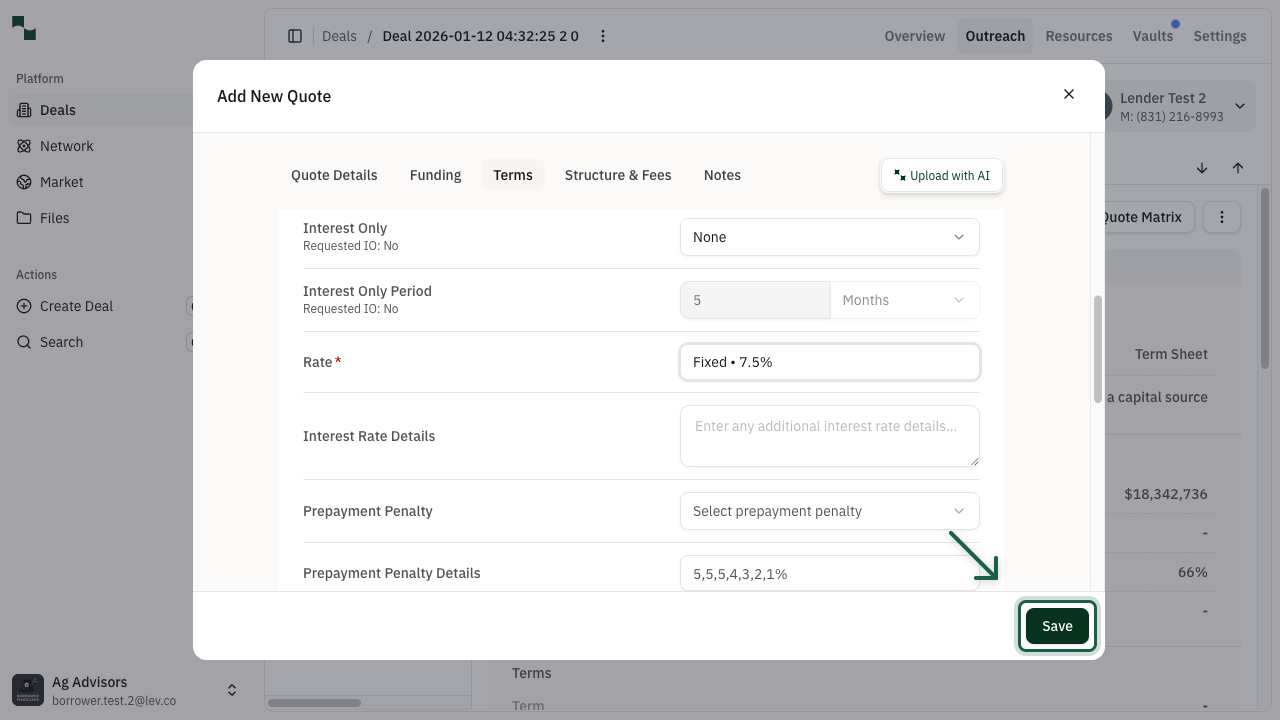
Updating a Quote — In the lender's Terms tab, click the three-dot menu > Edit Term. Navigate between tabs (Quote Details, Funding, Terms, Structure & Fees, Notes) to update fields, then click Update Terms.
Exporting Quotes — From the deal's Outreach tab, open Quick Actions > View Quote Matrix, then click Export Quotes to download a CSV file.