Introduction
Lev Memo offers multiple ways to insert and edit content so that you can easily create and modify your Memos.
How to Add Content
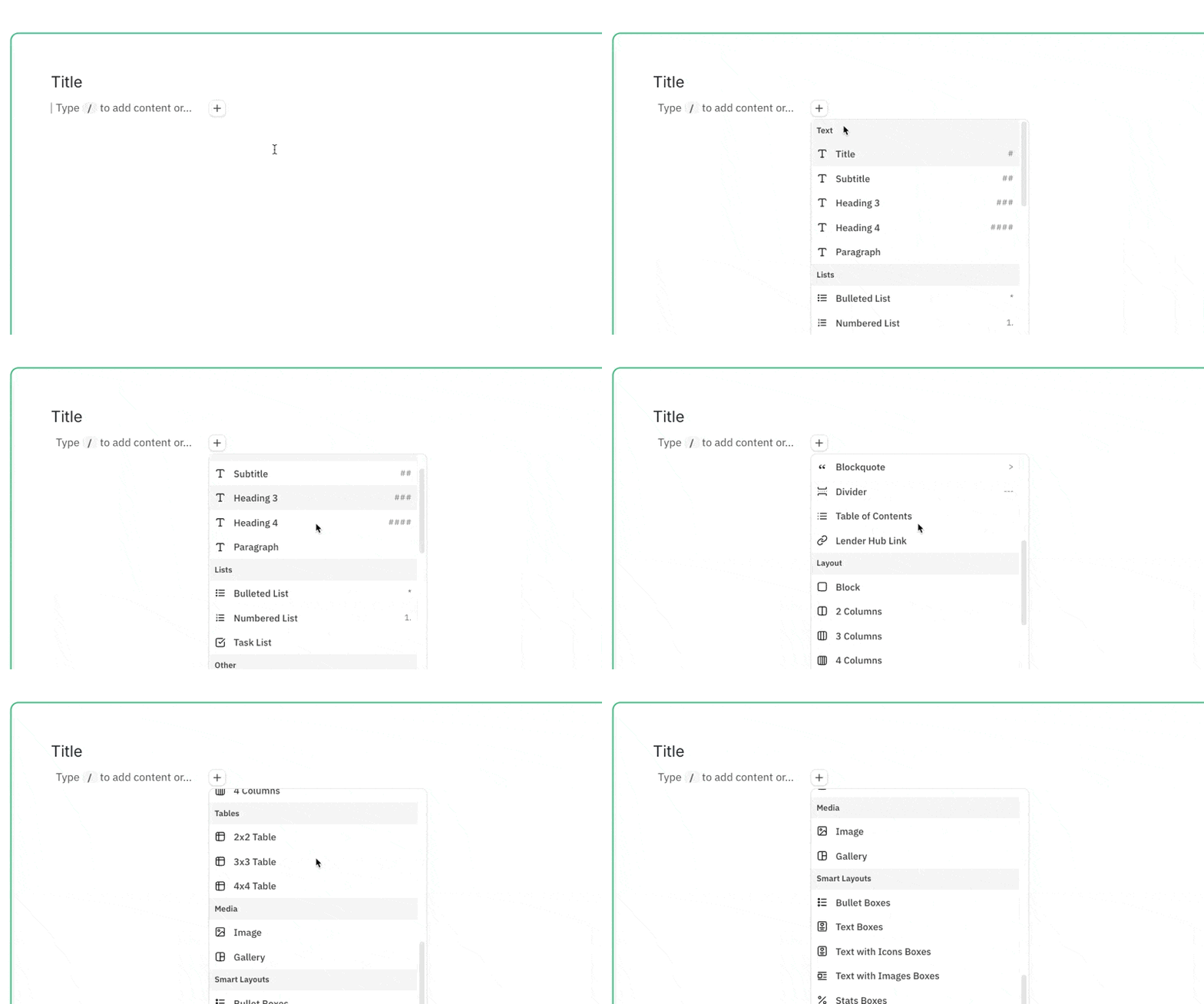
Option 1: Using the Insert Button (+)
- Open up your Memo and click into any slide
- Double-click in the area where you want to add a new piece of content to add an empty line
- Click on the "+" button to choose from a list of content types to add
- Search for your desired content type and add it
Option 2: Using the Slash (/) Command
- Open up your Memo and click into any slide
- Double-click in the area where you want to add a new piece of content to add an empty line
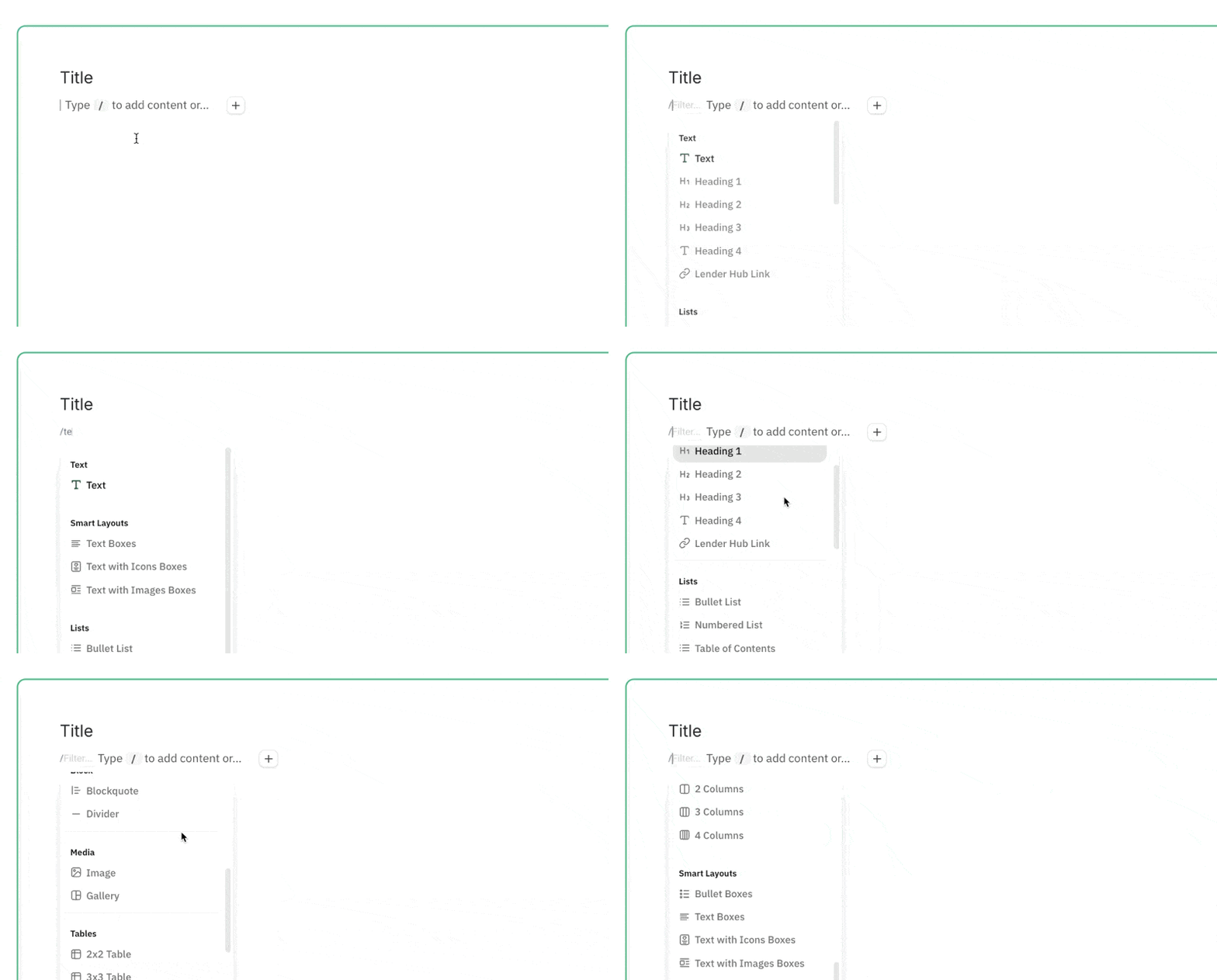
- Type / to open up the content menu
- Continue typing / scroll through the menu to choose your desired content type
Editing Content
Tip
See our editing articles like Format Text and Edit Tables to learn more about how to edit each component within your Memo.
Editing Text
- Click into any text and type directly on the slide to add / edit / delete text
- Choose from a variety of formatting options (font, color, alignment) for your text
Editing Images
- Click into any image and open up it's menu to replace the image
- Drag the borders of the image to resize it
Editing Tables
- Click into any table and type directly in any cell to add / edit / delete text
- Use the row / column menus to format entire rows and columns at once
FAQ
Can I customize any content that I add?
Yes, once you add any piece of content, you can edit it as much as you want. See our editing section for more help with editing specific components.
What if I don't see the insert button or slash command?
The command might be still there but hidden on some backgrounds. If not, then try refreshing your Lev Memo or resizing your screen.