Introduction
It is easy to add, edit, delete, and format your text in Lev Memo. You can easily adjust the font size, color, alignment, and even add links to your text.
Editing Text
Select and edit text.
- Open your Memo.
- Click any text block to start editing.
- Type on the slide to add, change, or remove text.
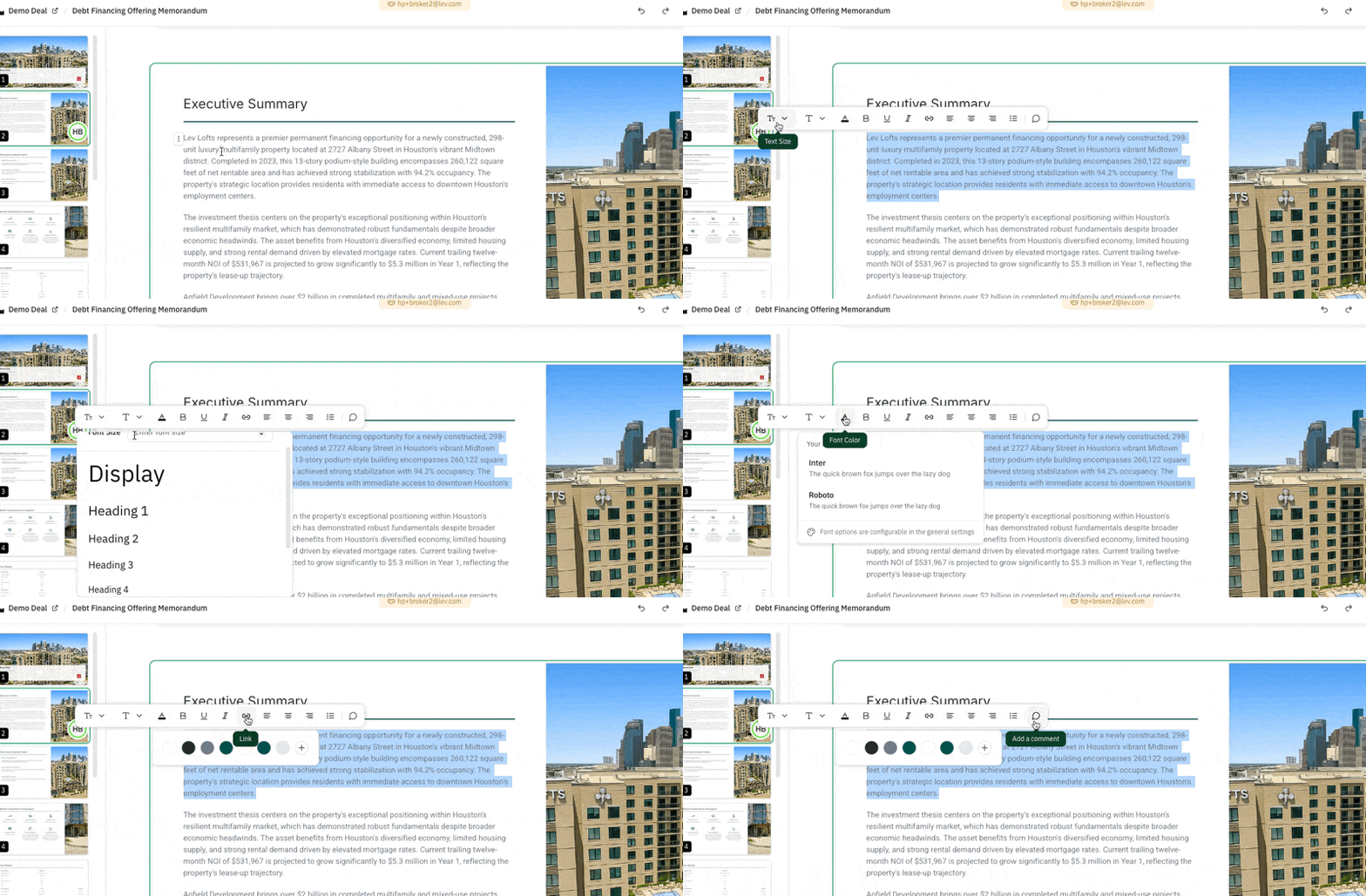
Format from the toolbar. Highlight the text you want to format. A formatting menu appears above the selection. Use it to adjust:
- Font size — pick a preset or enter a custom size
- Font — choose from the two fonts defined by your theme
- Font color — theme colors or a custom color via +
- Styling — bold, underline, italic
- Alignment — left, center, or right within the text container
- Bulleted lists — turn the block into a list (you can also start a line with
-)
FAQ
How do I change my font style option?
- You can change this in your document's theme settings, all Google fonts are supported.
- See more on Theme Settings here.
Can I upload my own font?
- We support all Google Fonts, but do not support font upload today.
Can I apply custom colors to my text?
- Yes, but you can use the predetermined theme colors or click the "+" button to use a custom color