Learn how to schedule your deal launch emails to be sent at a specific time instead of immediately.
Getting Started
Access Your Deal from the Dashboard
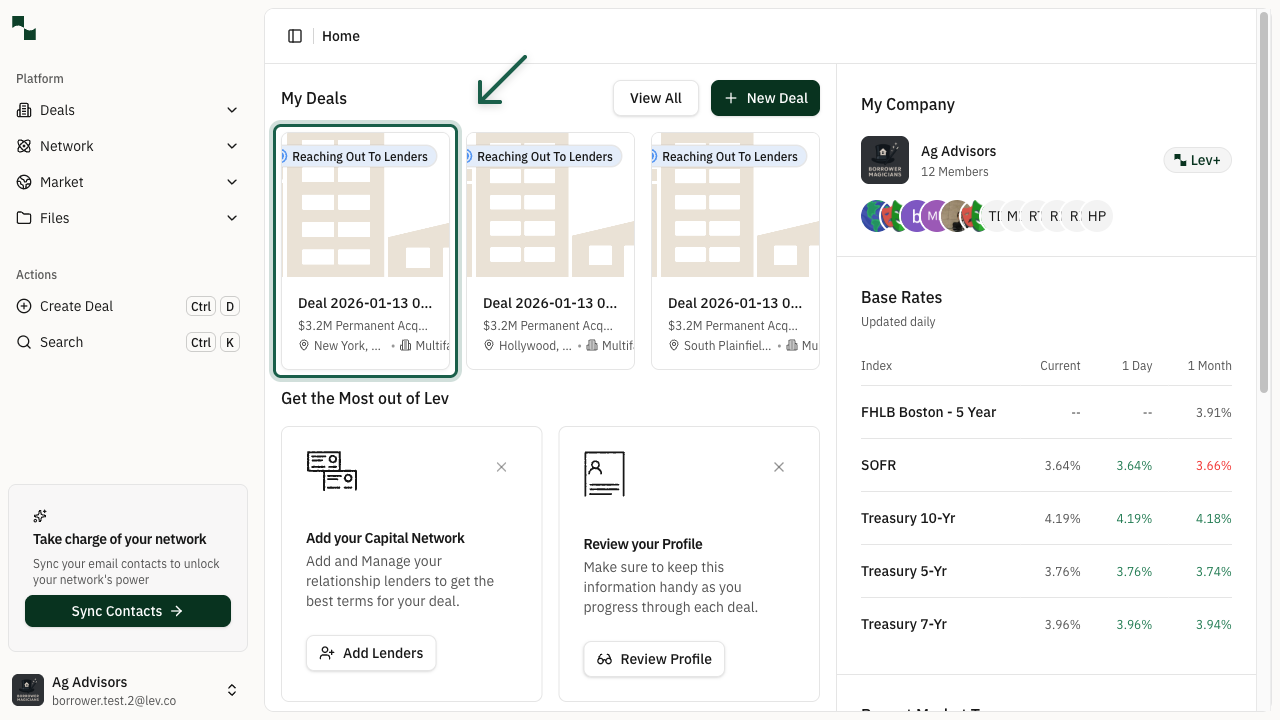
From your Lev dashboard, locate and click on the deal you want to launch. Your deals are displayed as cards showing the property address and current status.
Location: Dashboard > Deal Card
Navigate to the Outreach Tab
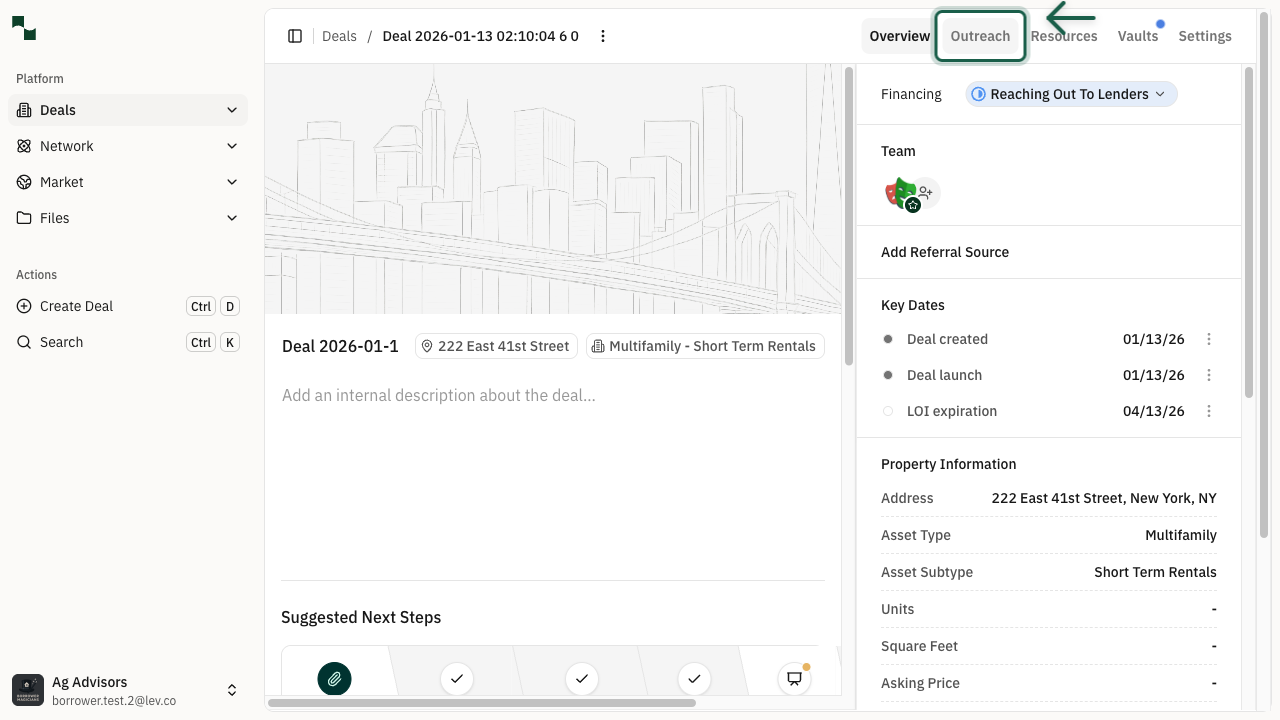
Once in your deal, click on the Outreach tab in the navigation bar. This is where you manage all lender communications and track deal progress.
Location: Deal > Outreach Tab
Composing Your Launch
Select a Lender to Launch
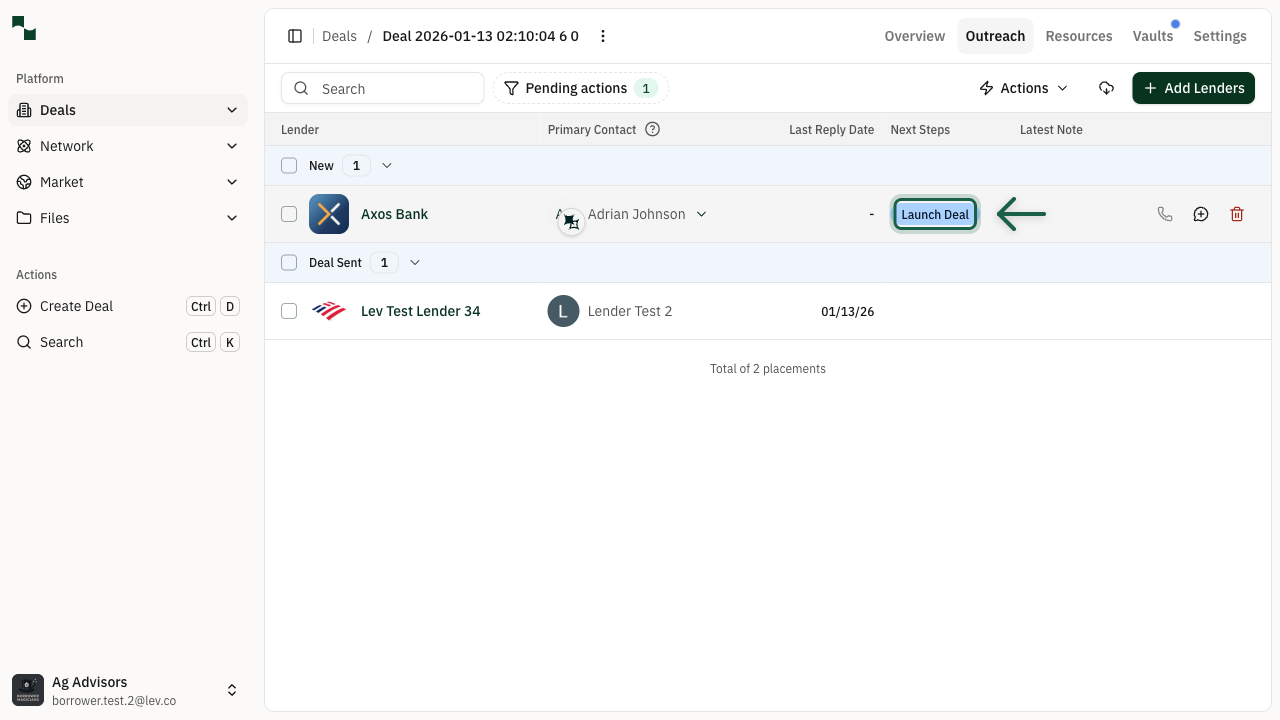
In the Outreach tab, you'll see a list of lenders organized by status. Click on a lender in the New section to open the email composer panel on the right side.
Location: Outreach > Lender Table
Review the Email Composer
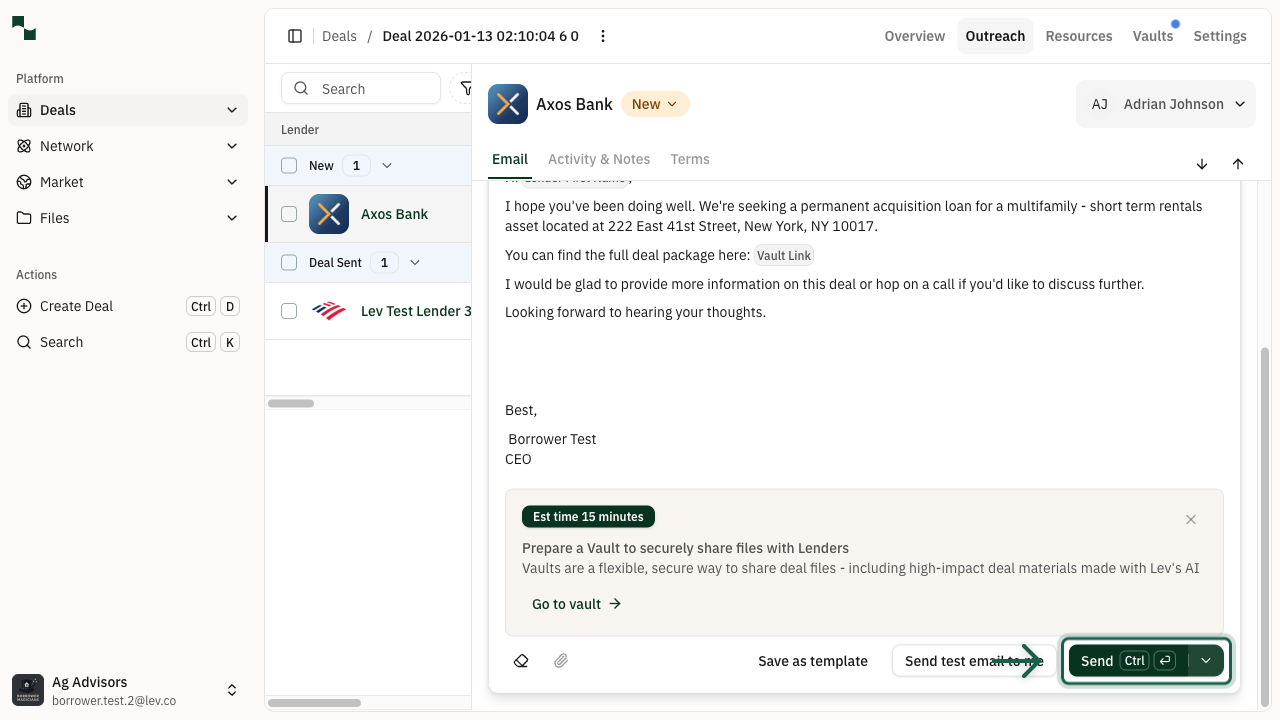
The email composer side panel opens with a pre-filled template. Review the recipient, subject line, and email body. You can customize the message using the toolbar options or change the template.
Tip: You can use the Templates dropdown to select a different email template, or use Inputs to insert dynamic content like lender names or deal room links.
Scheduling Options
Access Schedule Options
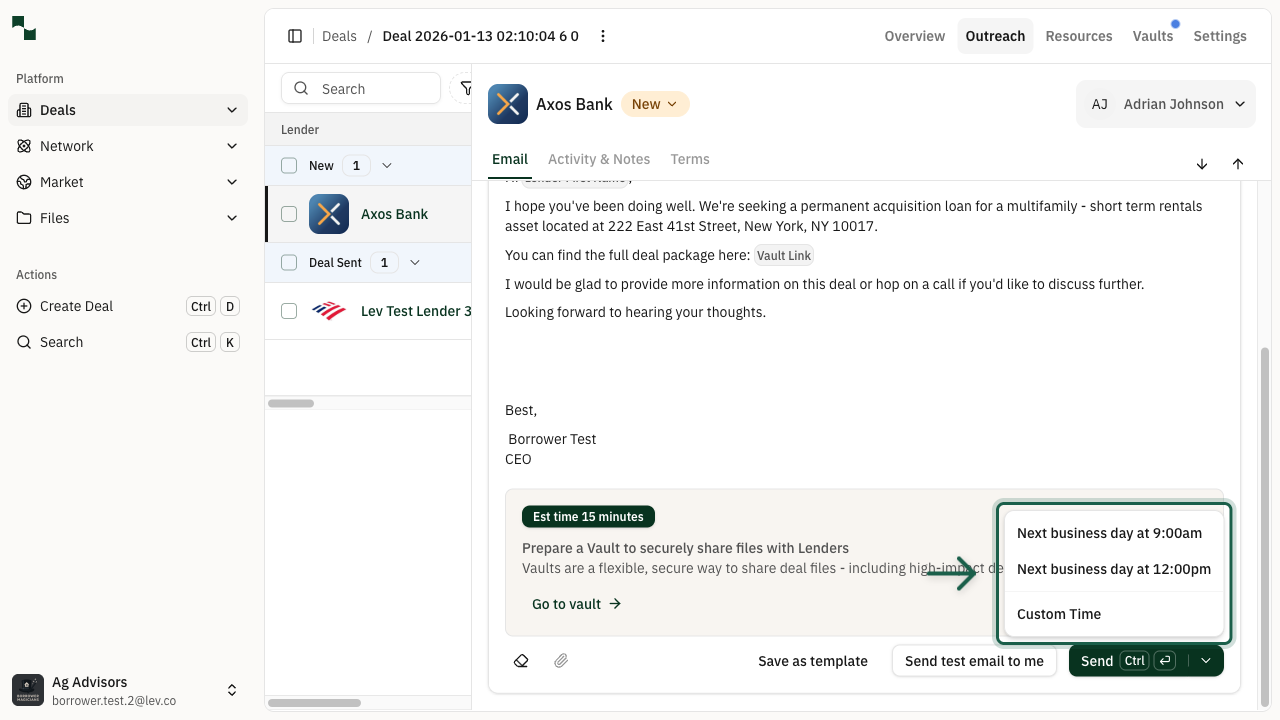
Instead of clicking Send directly, click the dropdown arrow next to the Send button. This reveals the scheduling options menu.
Location: Email Composer > Send Button > Dropdown Arrow
Choose a Scheduling Option
The dropdown menu displays three scheduling options:
| Option | Description |
|--------|-------------|
| Next business day at 9:00am | Schedule the email to send at 9 AM on the next business day |
| Next business day at 12:00pm | Schedule the email to send at noon on the next business day |
| Custom Time | Choose a specific date and time for sending |
Select the option that best fits your outreach strategy. For this example, we'll choose Custom Time to set a specific schedule.
Set Custom Date and Time
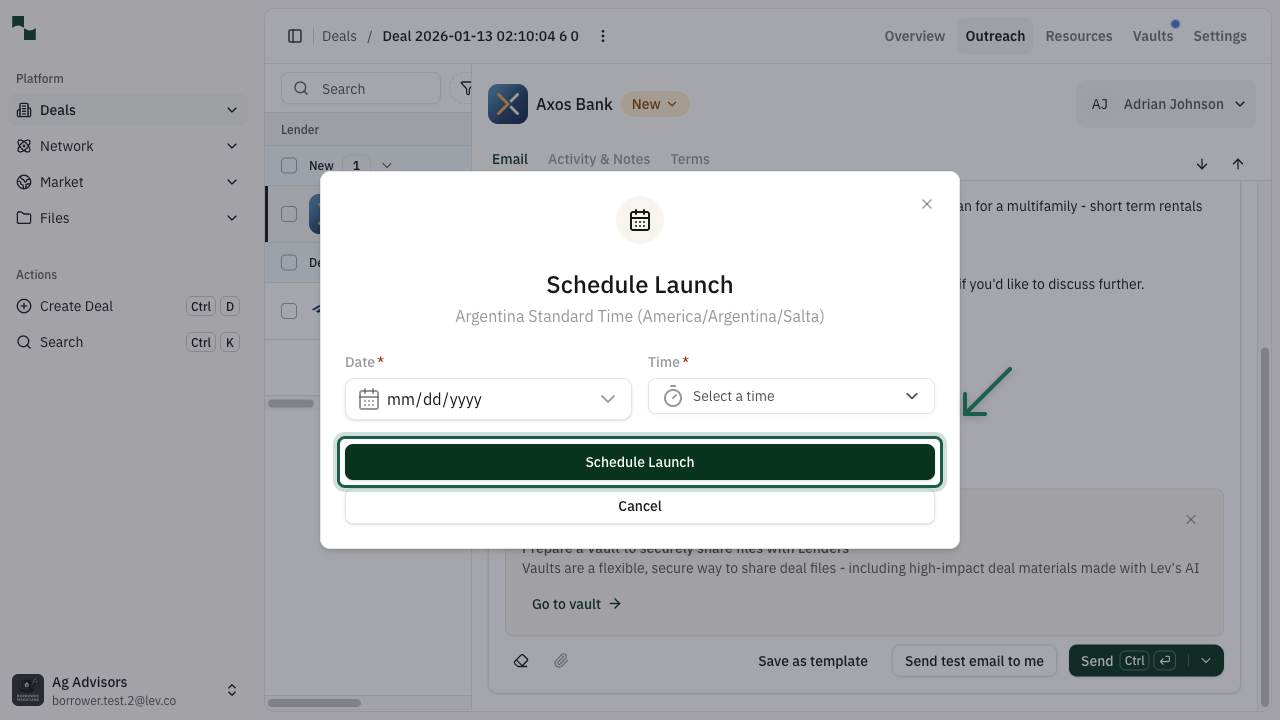
When you select Custom Time, a modal appears where you can specify exactly when to send the launch email:
| Field | Description |
|-------|-------------|
| Date | Select the date you want the email to be sent using the date picker |
| Time | Choose the time from the dropdown (times are shown in your local timezone) |
After selecting your preferred date and time, click the Schedule Launch button to confirm. The email will be queued and sent automatically at the scheduled time.
Note: The timezone displayed in the modal reflects your account settings. Make sure your selected time accounts for when lenders are most likely to be reviewing their inbox.
You're All Set!
- Your deal launch email is scheduled for your selected time
- You'll see a "Scheduled" status indicator next to the lender
- You can edit or cancel the scheduled launch before it sends
- The email will be sent automatically at the scheduled time