Learn how to add lenders from your personal network to a deal for outreach on the Lev platform.
Create a Lender Contact
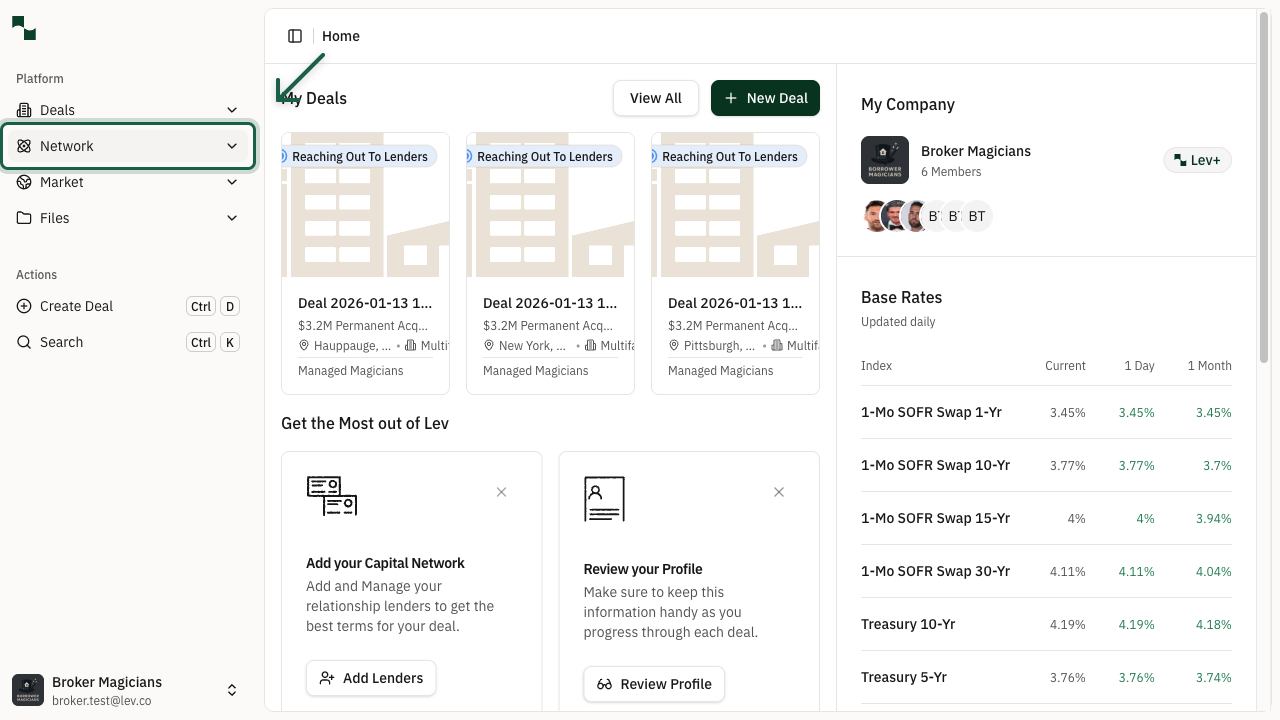
Access Network
From the dashboard, click on Network in the left sidebar to expand the network menu.
Location: Dashboard → Network
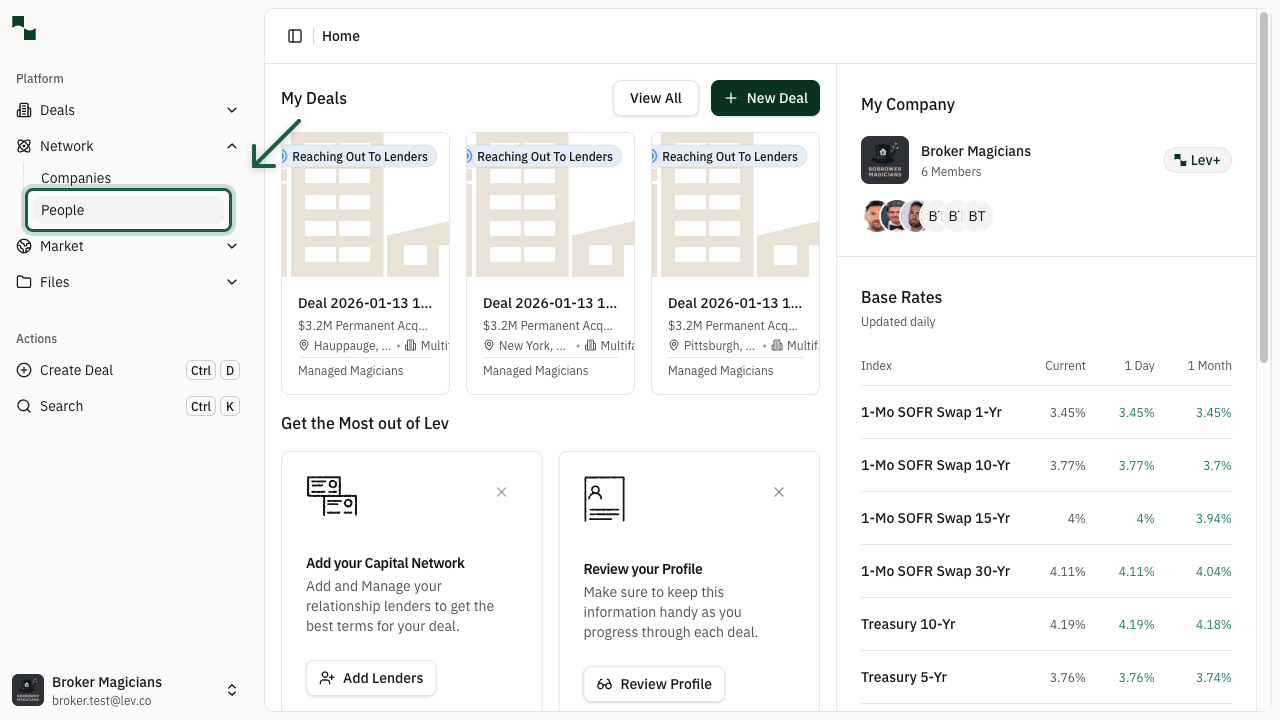
Go to People
After expanding the Network menu, click on People to access your contacts list.
Location: Network → People
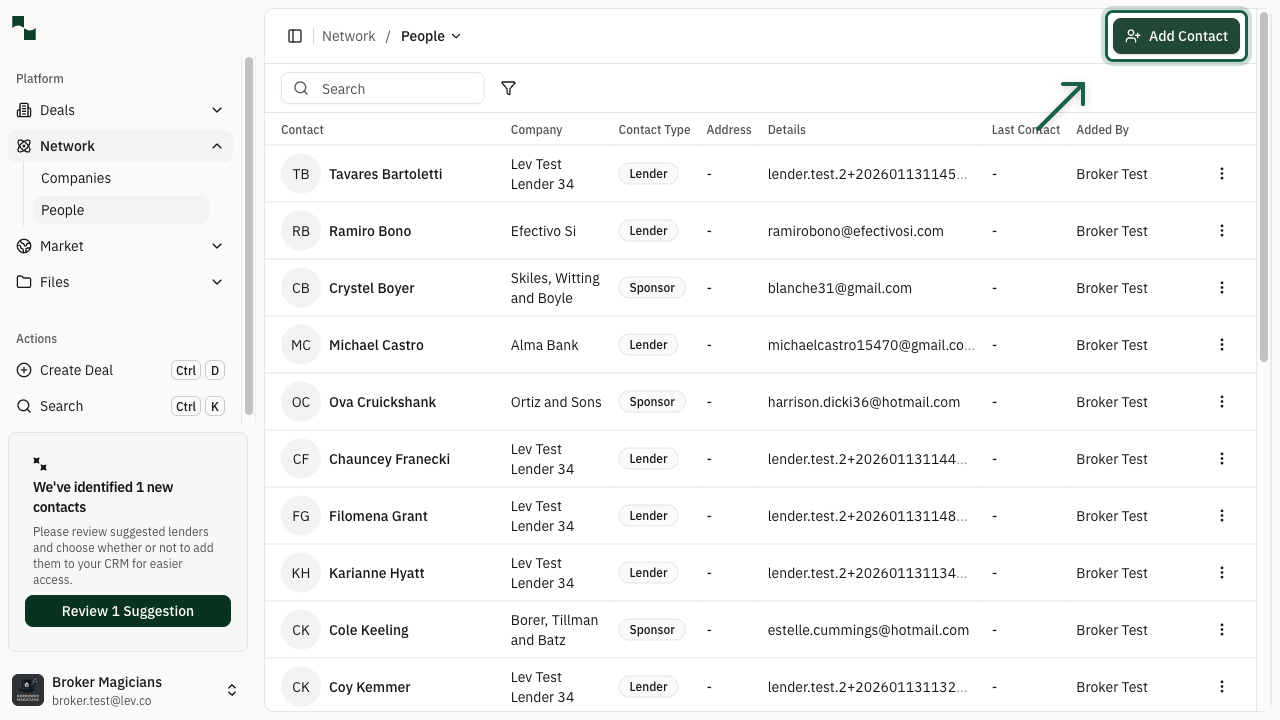
Open Add Contact Menu
On the Contacts page, click the Add Contact button in the top right corner to open the dropdown menu.
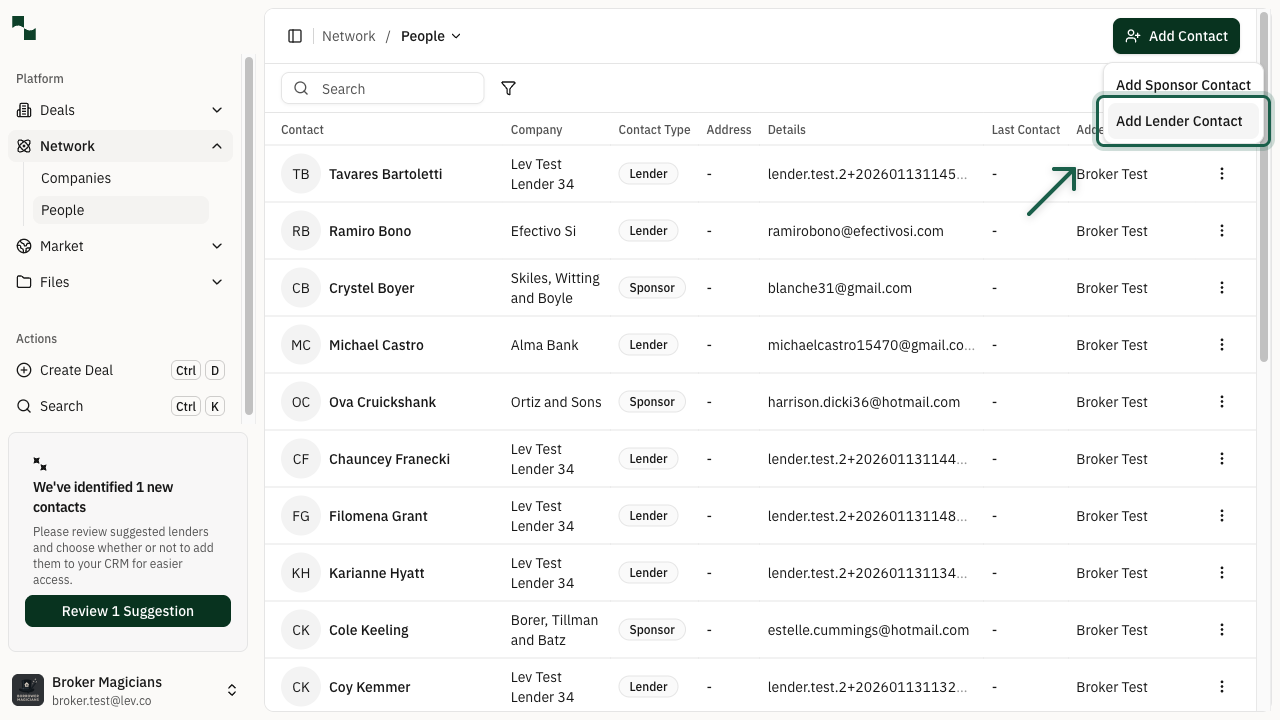
Select Lender Contact
From the dropdown menu, select Add Lender Contact to create a new lender in your network.
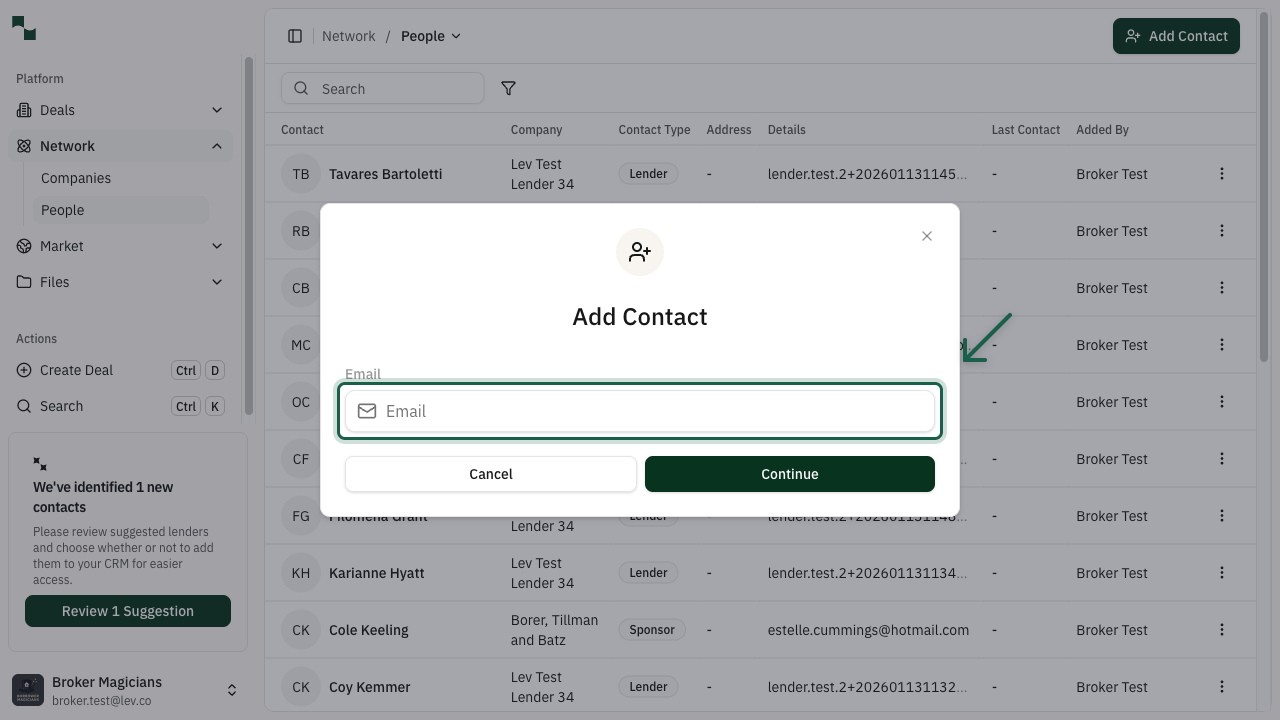
Enter Contact Details
In the Add Contact modal, enter the lender's information:
Click Continue to save the contact to your network.
- Email: The lender's email address
- First Name: The lender's first name
- Last Name: The lender's last name
- Company: The lending institution they work for
Add Lender to Deal
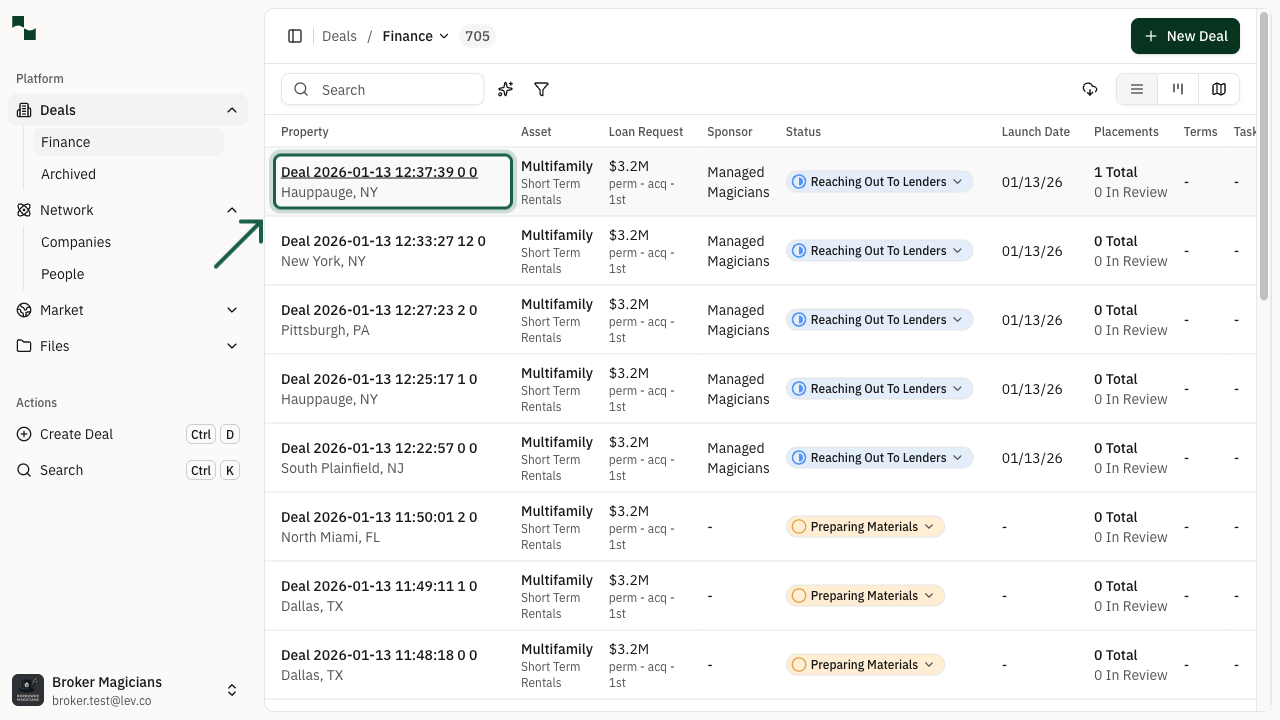
Navigate to Your Deal
Go to Deals in the sidebar and click on the deal you want to add lenders to.
Location: Deals → Finance → Select your deal
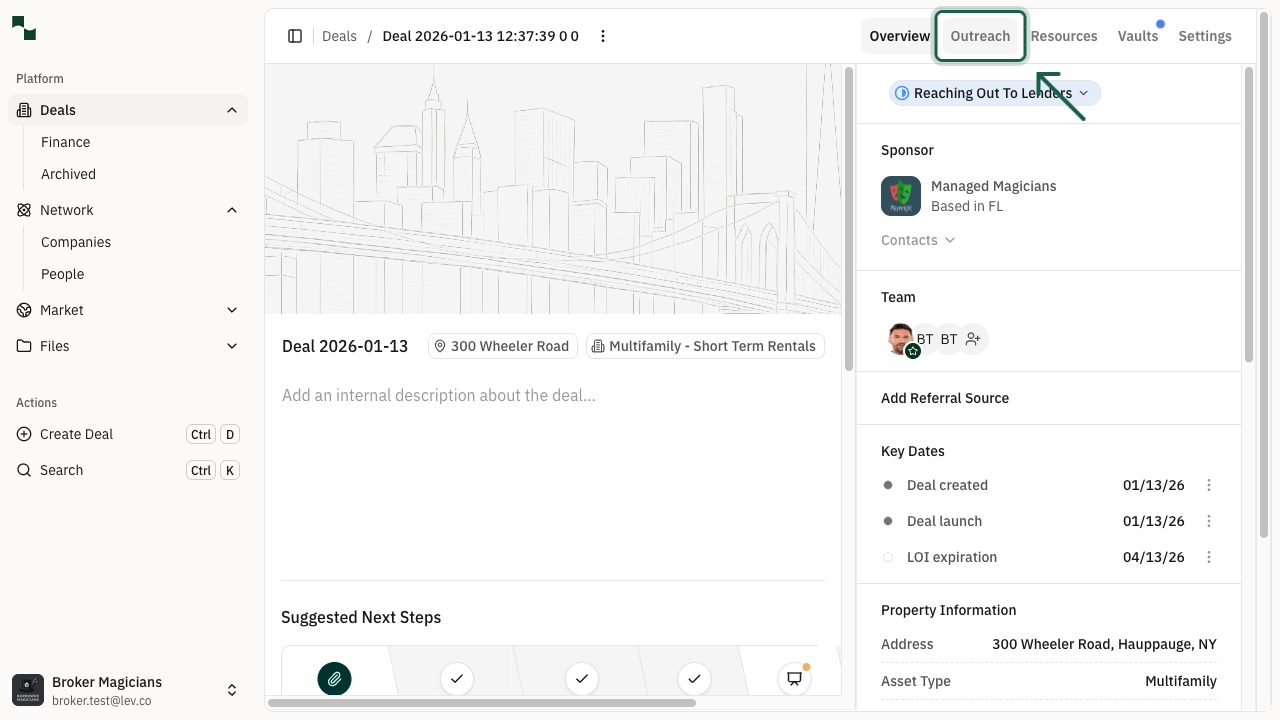
Open the Outreach Tab
On the deal overview page, click the Outreach tab to access lender management.
Location: Deal Overview → Outreach
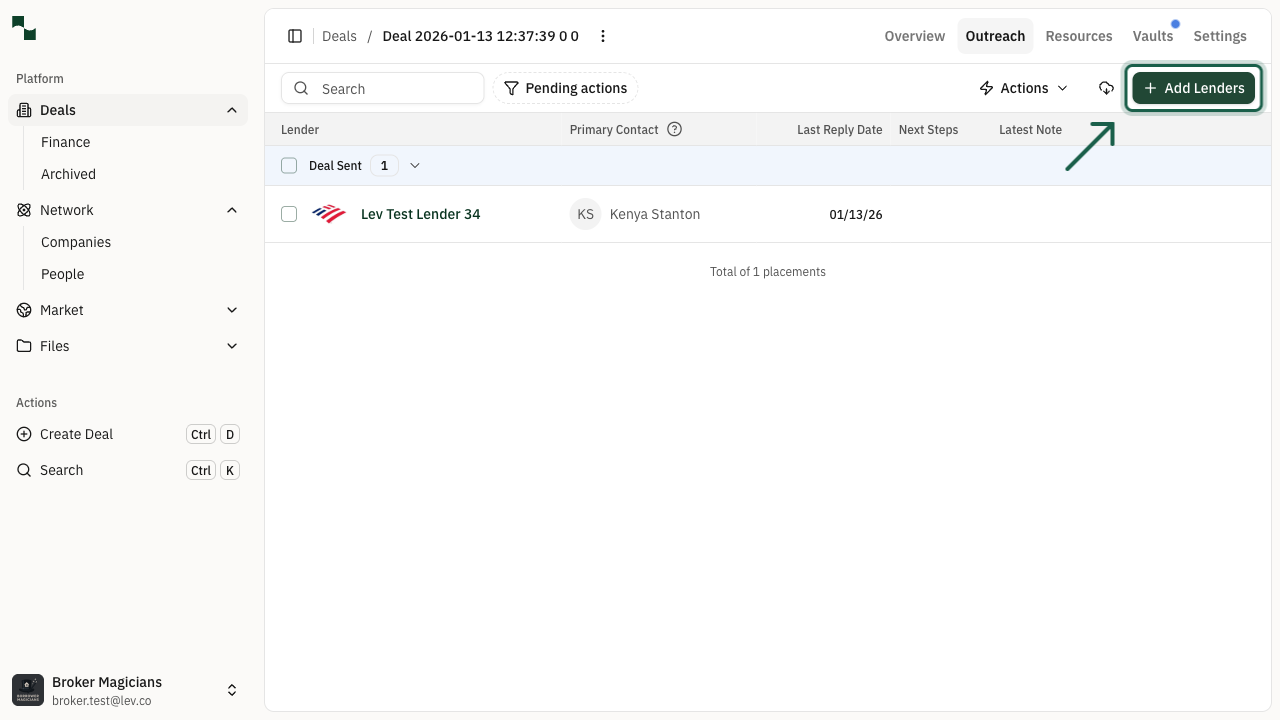
Click Add Lenders
On the Outreach page, click the Add Lenders button to open the lender selection screen.
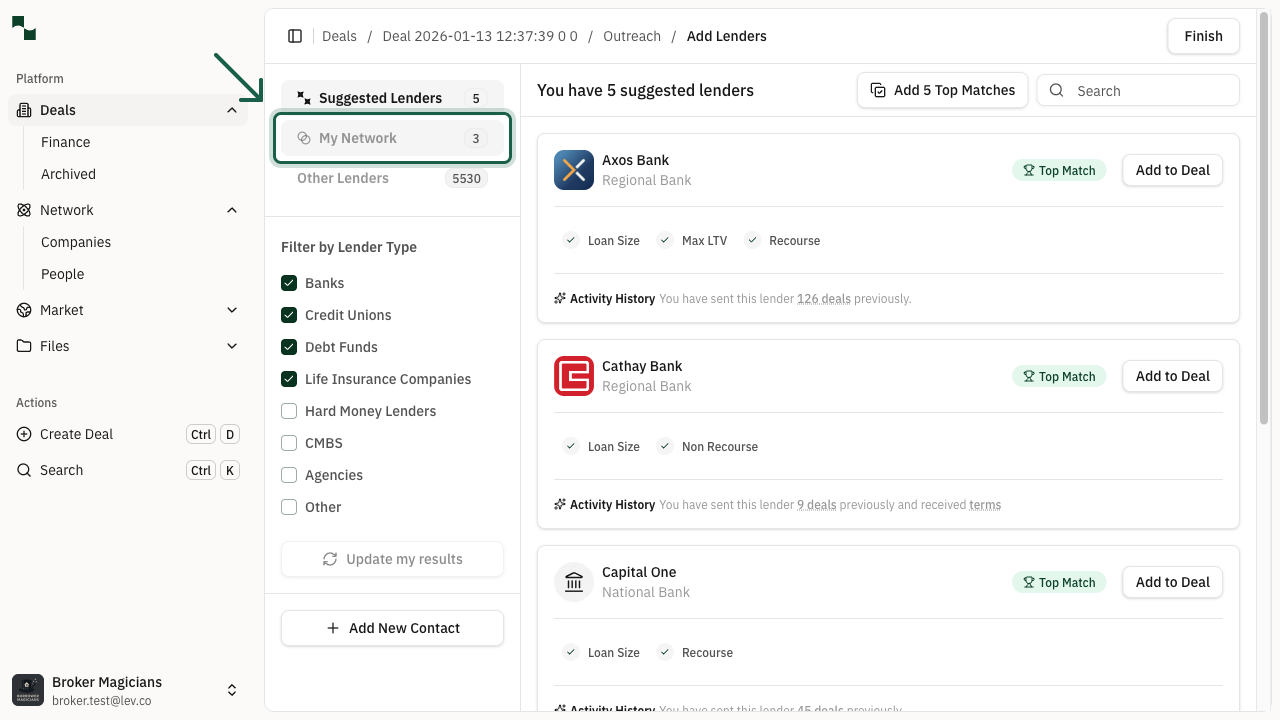
Select from My Network
On the Add Lenders page, click the My Network tab to see your connected lenders. From here you can:
Once you've selected your lenders, click Finish to complete the process.
- Search for specific contacts
- Browse your network connections
- Click Add to Deal next to any lender to include them
You're All Set!
- Your lender contact has been added to your network
- The lender is now included in your deal's outreach list
- You can now send deal information and communicate with your connected lender