Learn how to add and record term sheet quotes from lenders on your deals in the Lev platform.
Getting Started
Navigate to Outreach Tab
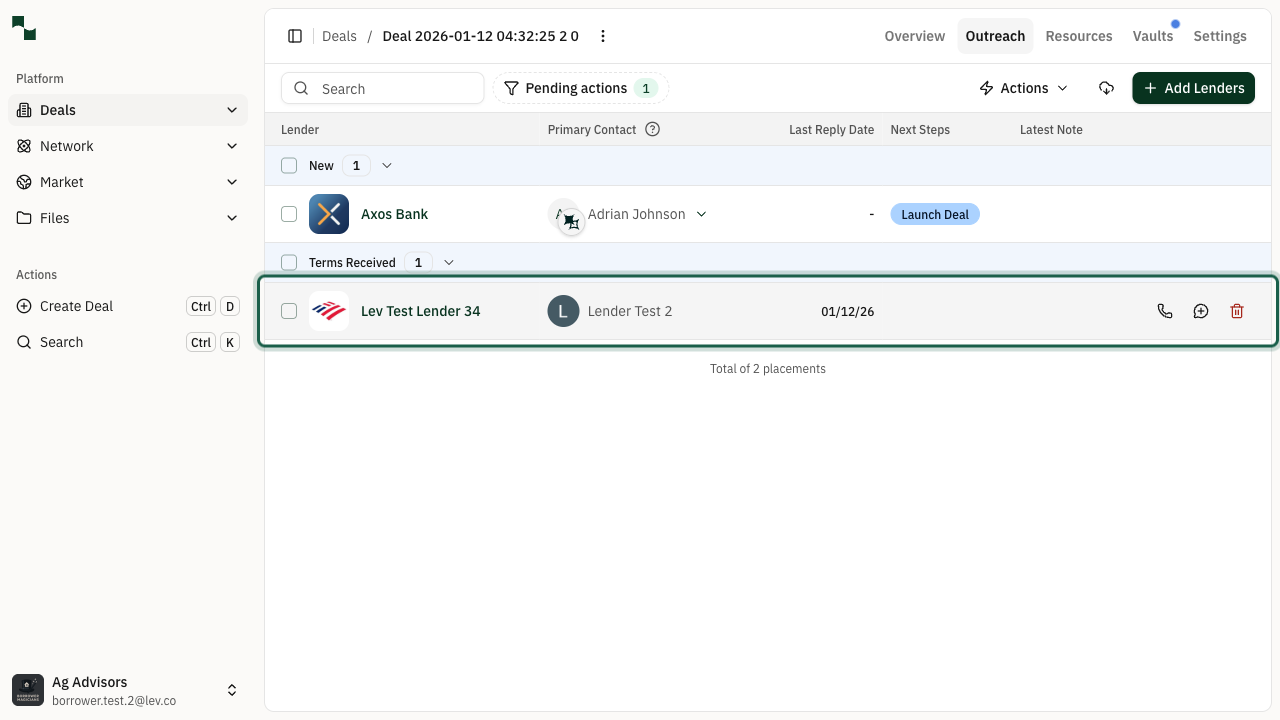
Open your deal and click on the Outreach tab to view all lenders associated with the deal. The Outreach tab displays a table of lenders organized by their current status (New, In Contact, Terms Received, etc.).
Location: Platform > Deals > [Your Deal] > Outreach
Open Lender Side Panel
Click on a lender row in the table to open the lender's side panel. This panel shows detailed information about your interaction with this lender, including email history, activities, and terms.
Adding the Quote
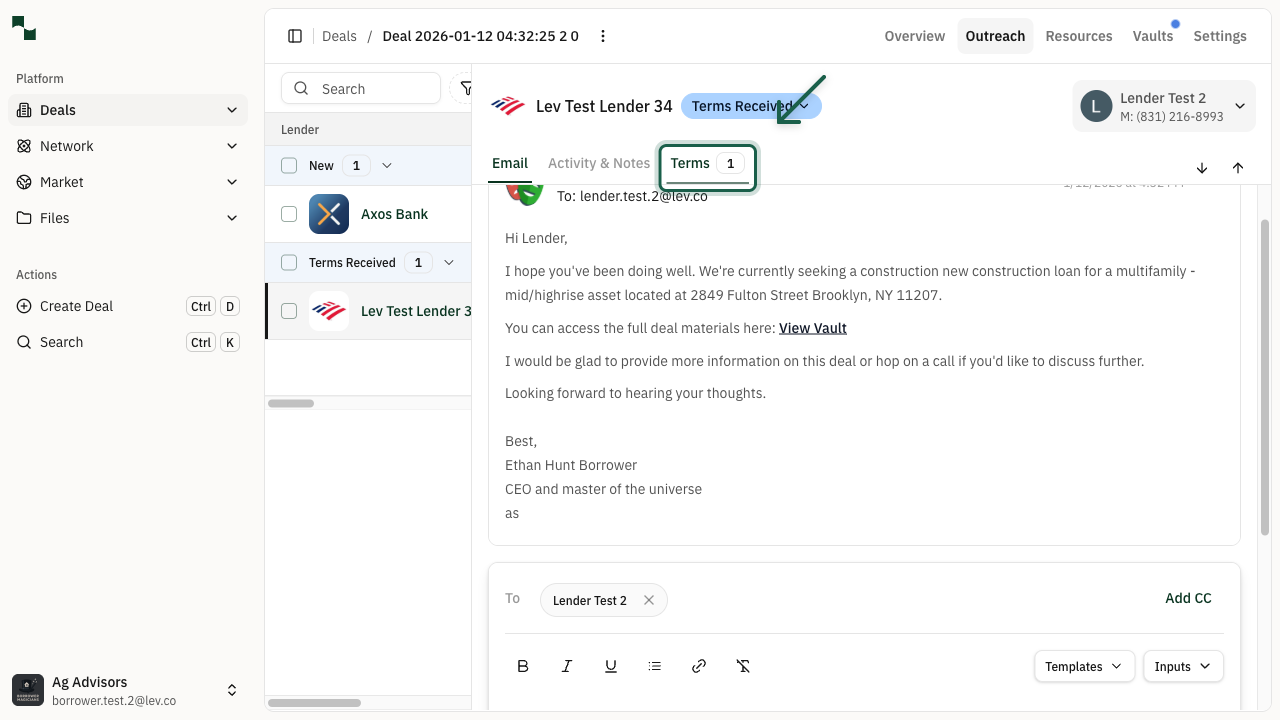
Click Terms Tab
In the lender side panel, click on the Terms tab to view any existing quotes and access the option to add new quotes. If no quotes exist yet, you'll see an empty state with the "Add New Quote" button.
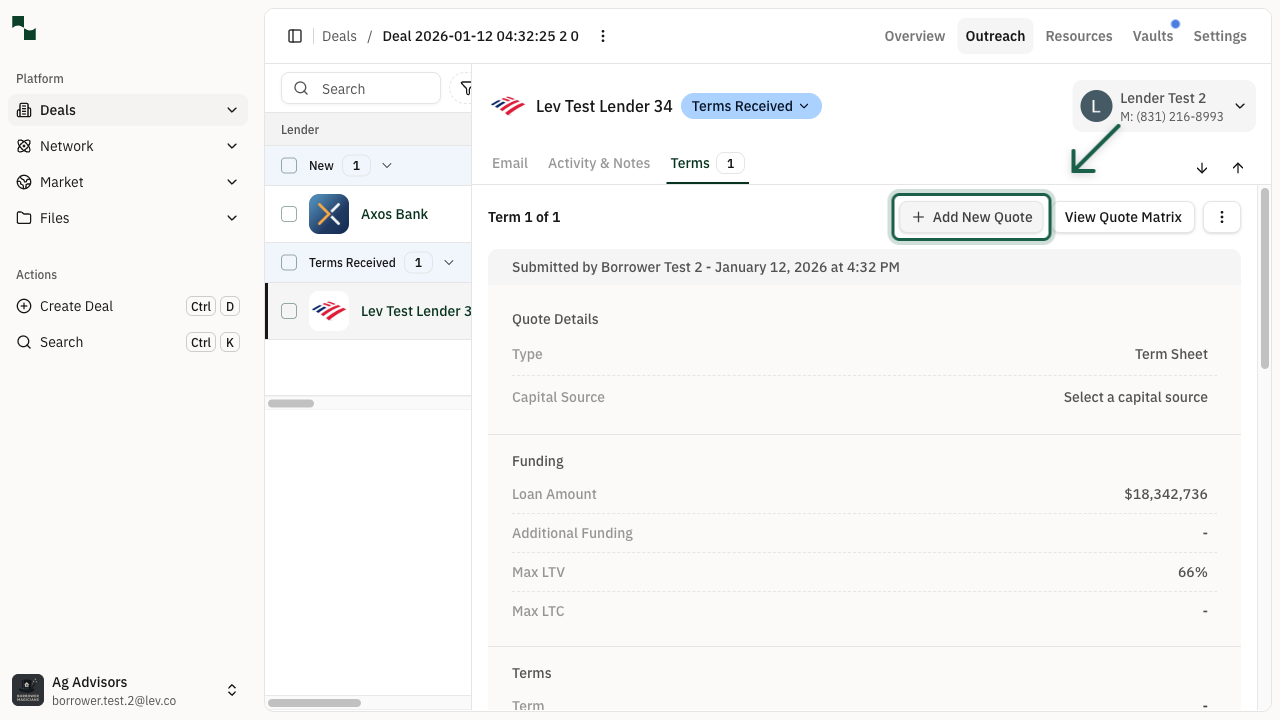
Add New Quote
Click the Add New Quote button to open the quote creation modal. This modal allows you to enter all the details of the terms you've received from the lender.
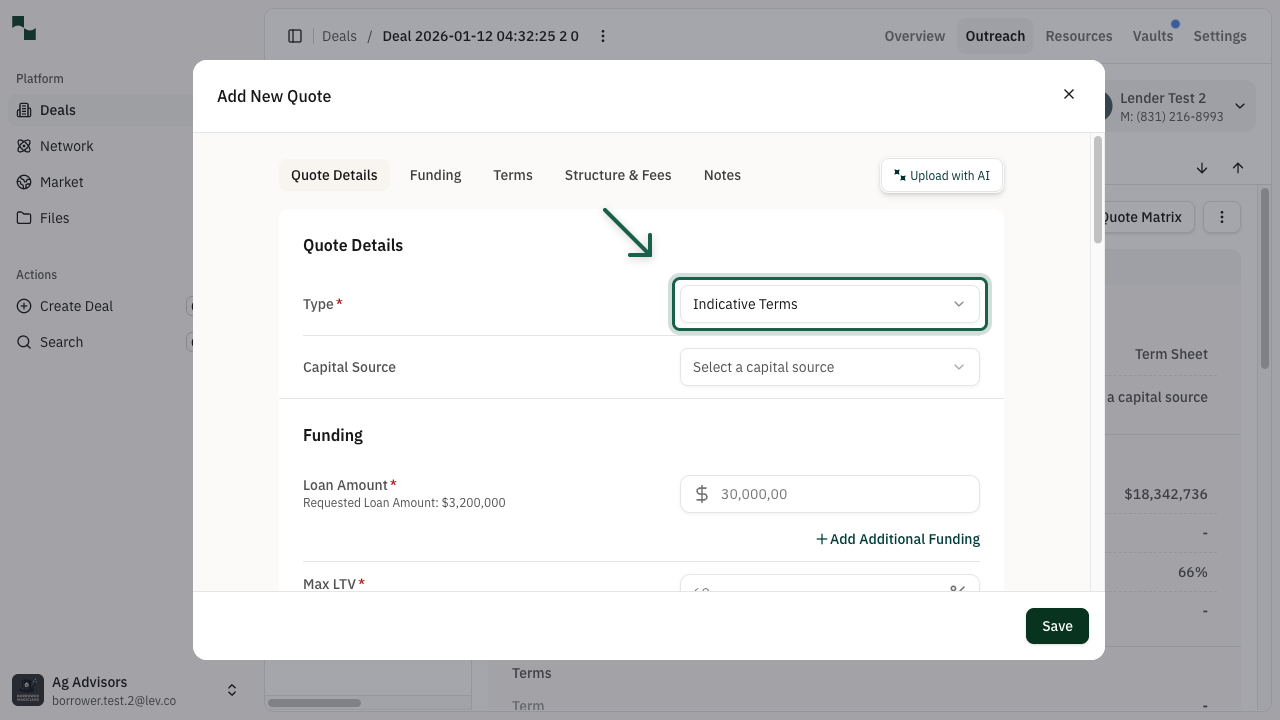
Select Quote Type
Click on the Type dropdown to select the type of quote you're recording. Available options include:
| Quote Type | Description |
|------------|-------------|
| Indicative Terms | Preliminary terms that may change during underwriting |
| Term Sheet | Formal terms that have been presented by the lender |
| Application | Terms associated with a loan application |
| Commitment | Final committed terms from the lender |
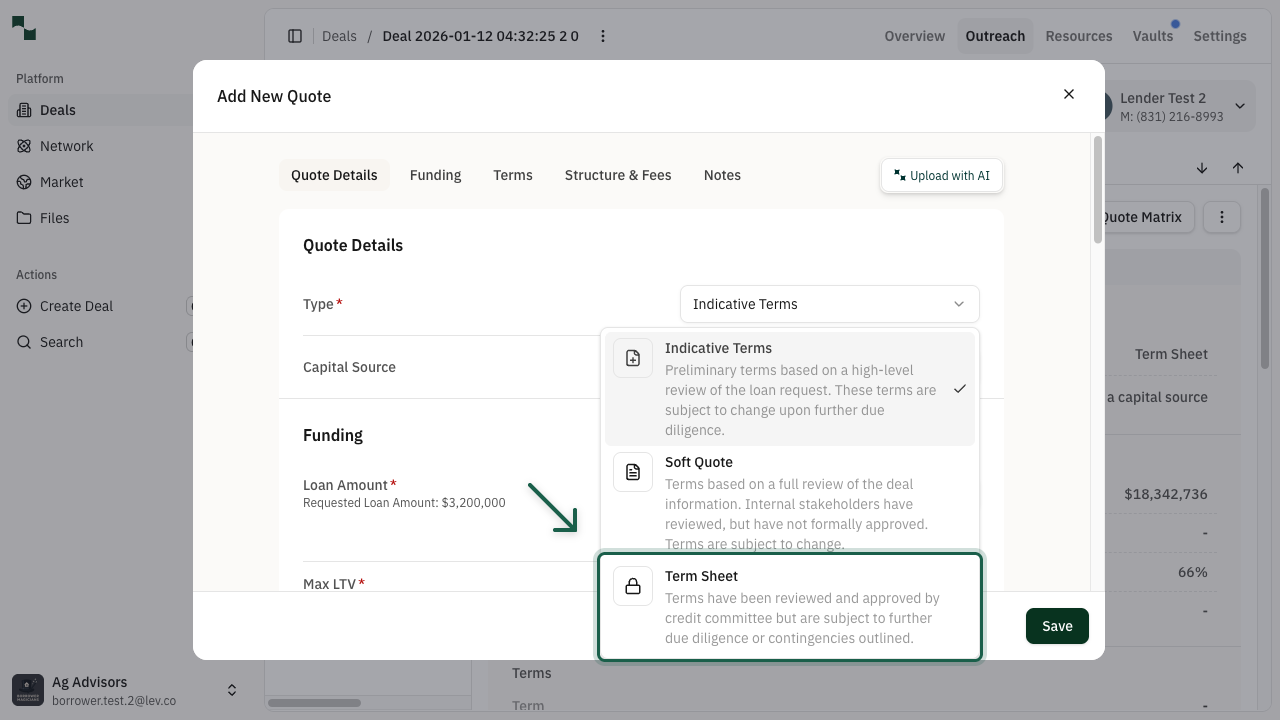
Fill Quote Details and Save
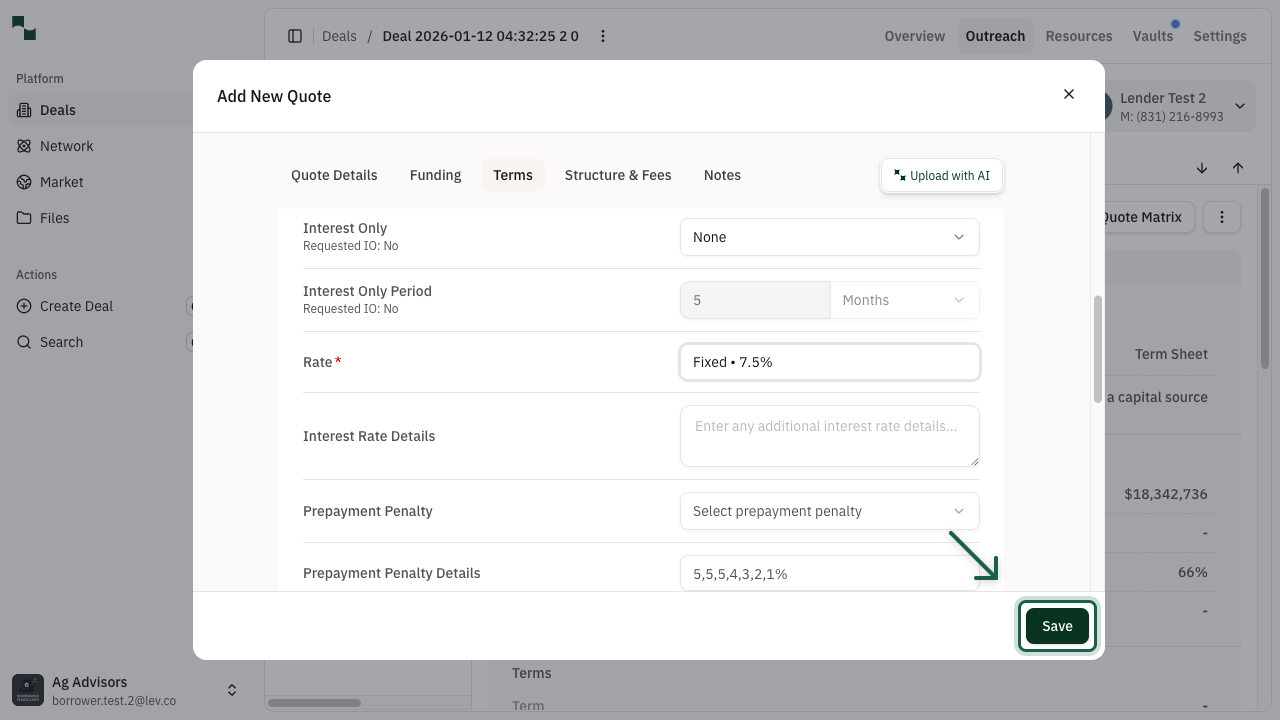
Fill in the key details of the quote. The required fields are marked with an asterisk (*). Common fields include:
| Field | Description |
|-------|-------------|
| Loan Amount* | The proposed loan amount from the lender |
| Max LTV* | Maximum Loan-to-Value ratio offered |
| Rate* | Interest rate details - select Fixed or Floating and enter the all-in rate or spread |
| Term | Loan term in months or years |
| Amortization | Amortization period for the loan |
After filling in the details, click Save to record the quote.
Completion
Verify Quote Added
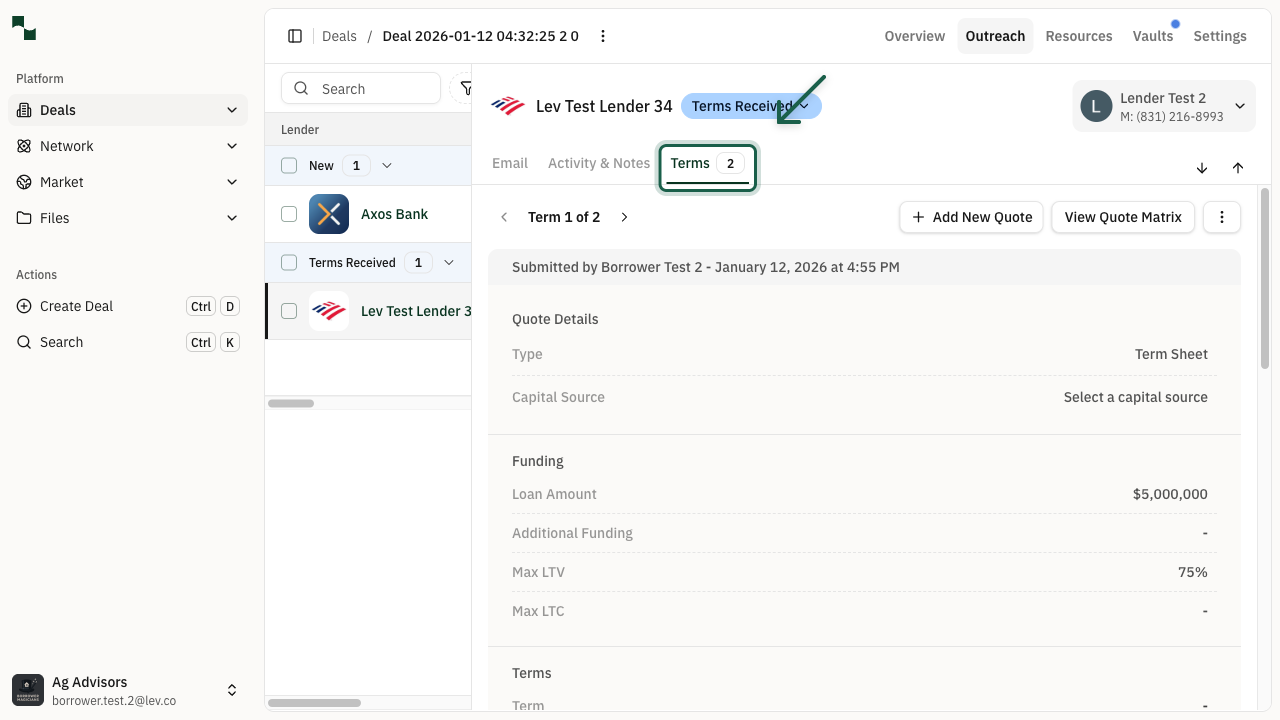
After saving, the modal closes and you'll see your new quote in the Terms tab. The badge on the Terms tab will update to show the total number of quotes. You can navigate between multiple quotes using the arrow buttons.
You're All Set!
- Your quote has been successfully recorded for this lender
- The lender's status will update to "Terms Received" if applicable
- You can view all quotes in the Quote Matrix for easy comparison
- Activity logs will reflect when the quote was added