Learn how to navigate and use the different deal list views in the borrower portal to manage your financing pipeline.
Getting Started
Navigate to the Dashboard
Start by logging into your Lev account. You'll land on the main dashboard where you can access all your deals and platform features.
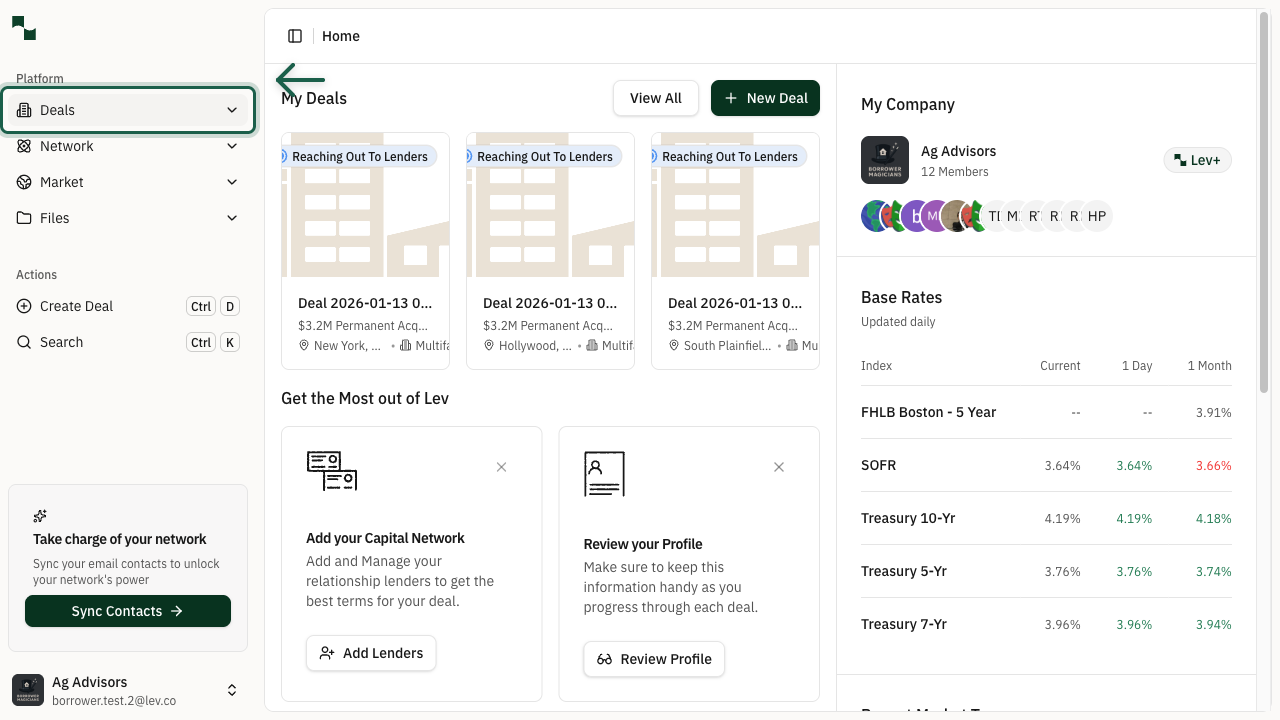
Look for the Deals button in the left navigation sidebar. This is your gateway to viewing and managing all your financing deals.
Location: Dashboard > Sidebar
Access the Deals Menu
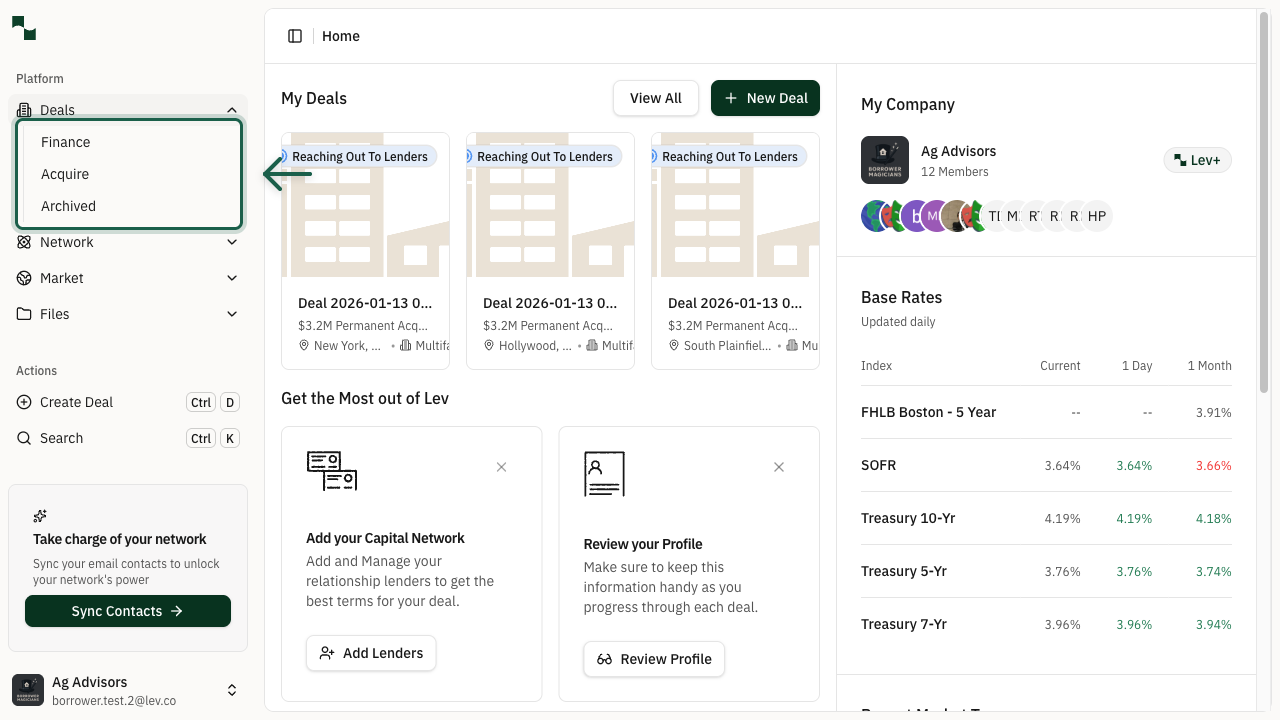
Click on the Deals button to expand the submenu. You'll see three options:
Click on any of these options to view the corresponding deals list.
- Finance - View deals for financing (refinance, acquisition loans, etc.)
- Acquire - View acquisition deals and opportunities
- Archived - View deals that have been archived
Understanding Views
Kanban View
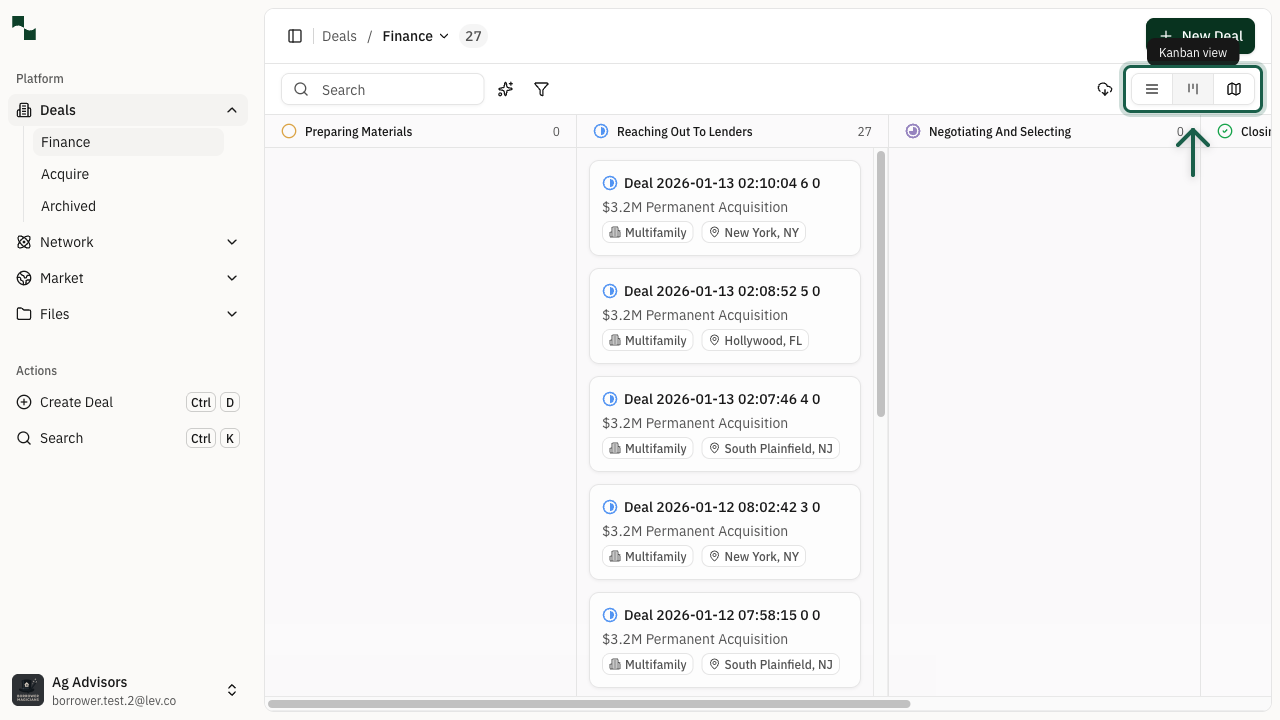
The Kanban view displays your deals as cards organized by status columns. This is great for visualizing your pipeline and tracking deal progress at a glance.
Each column represents a different stage in the deal lifecycle (e.g., "Reaching Out To Lenders", "Reviewing Terms", "Closing").
Use the view toggle in the top-right corner to switch between views:
- List view - Table format with sortable columns
- Kanban view - Card-based pipeline view
- Map view - Geographic visualization of properties
List View
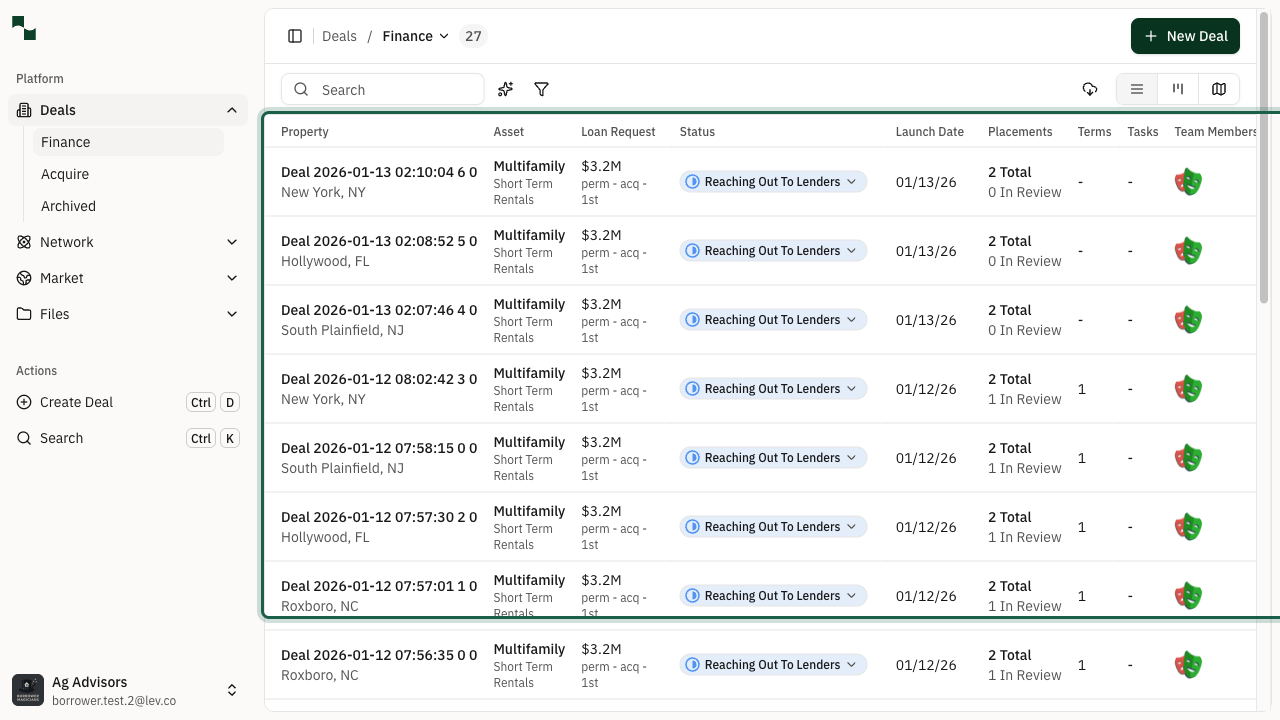
The List view displays your deals in a detailed table format. This view is ideal when you need to see multiple data points at once or sort deals by specific criteria.
Available columns include:
| Column | Description |
|--------|-------------|
| Property | Deal name and location |
| Asset | Property type (Multifamily, Office, Retail, etc.) |
| Loan Request | Loan amount and type |
| Status | Current pipeline stage |
| Launch Date | When the deal was launched |
| Placements | Number of lenders contacted |
| Terms | Number of term sheets received |
| Tasks | Pending tasks |
| Team Members | Assigned team members |
Click on any column header to sort the list by that field.
Using Features
Search for Deals
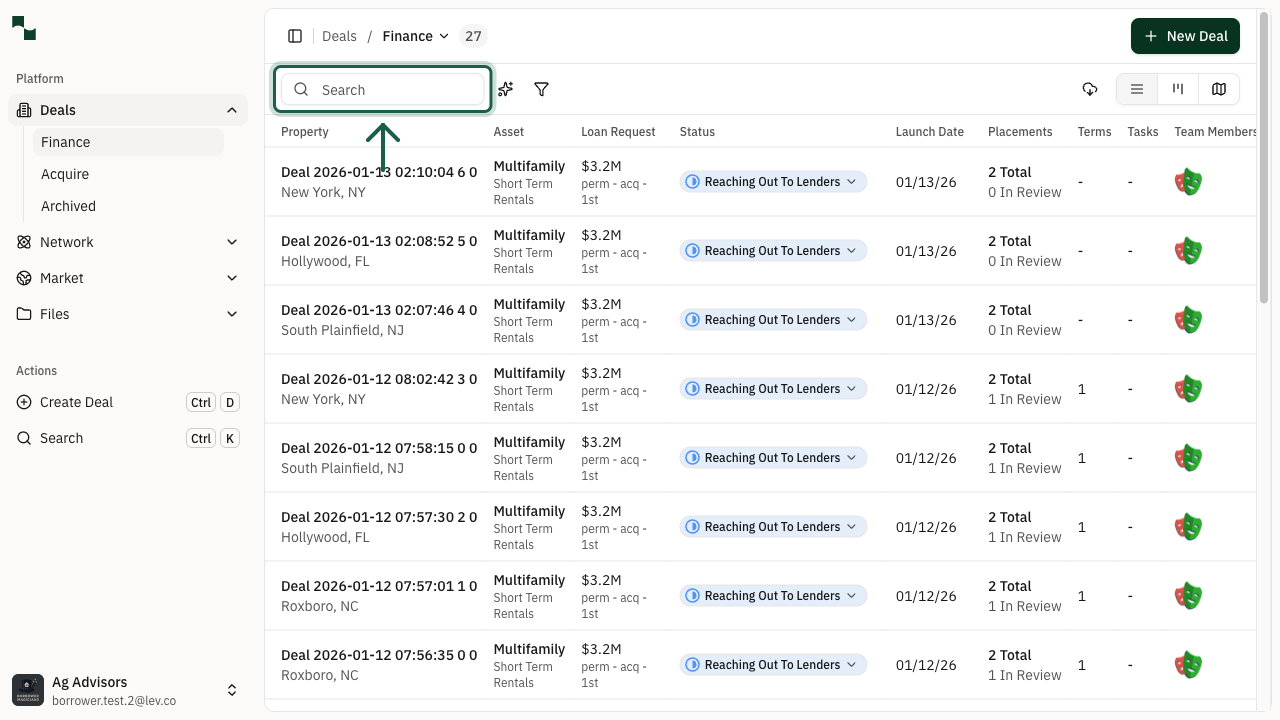
Use the Search box at the top of the deals list to quickly find specific deals. You can search by:
The search filters results in real-time as you type, making it easy to locate deals in large portfolios.
You can also use the AI Filter to create more complex filters using natural language.
- Deal name
- Property address
- City or state
View Archived Deals
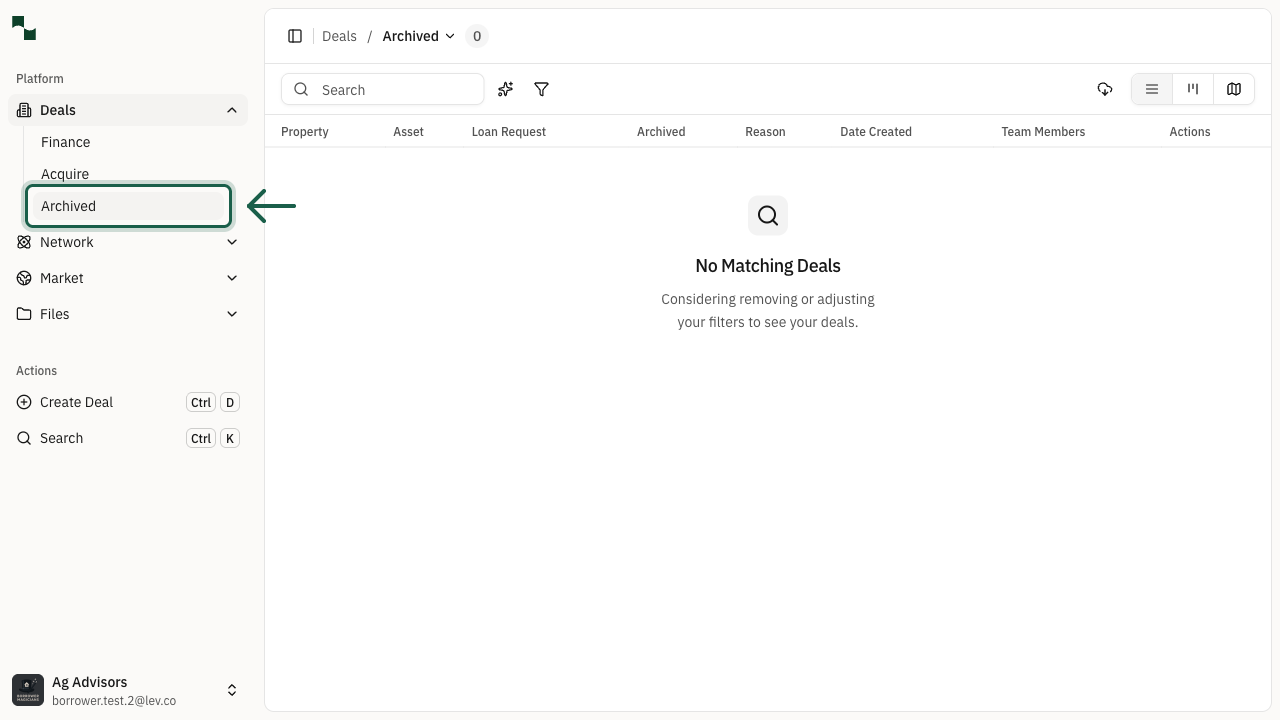
Deals that are no longer active can be found in the Archived section. This keeps your main pipeline clean while preserving your deal history.
To access archived deals:
Archived deals can be restored at any time if you need to reactivate them.
- Click on Deals in the sidebar
- Select Archived from the submenu
Create a New Deal
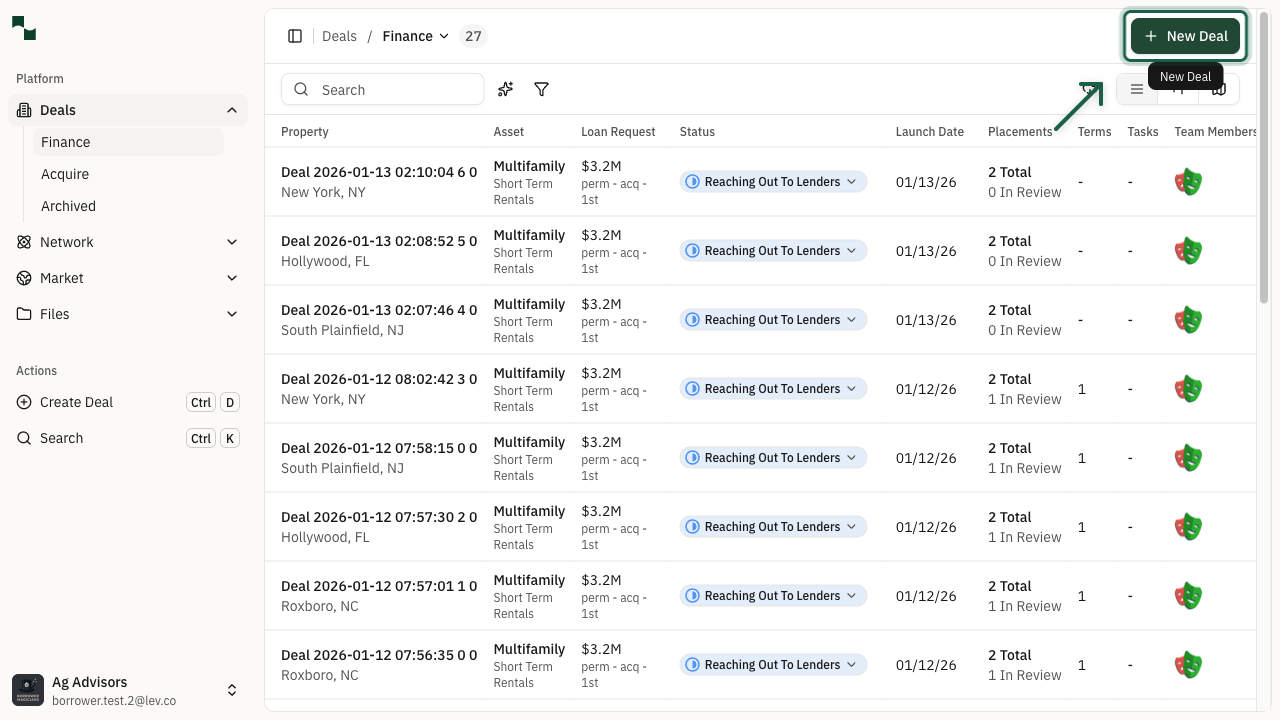
Ready to start a new financing request? Click the New Deal button in the top-right corner of the deals list.
This will open the deal creation wizard where you can:
You can also use the keyboard shortcut Ctrl+D (or Cmd+D on Mac) to quickly create a new deal from anywhere in the platform.
- Enter property details and address
- Specify loan requirements
- Add financial information
- Select target lenders
You're All Set!
- You know how to navigate to your deals list
- You can switch between Kanban, List, and Map views
- You can search and filter deals quickly
- You know where to find archived deals
- You can create new deals from the deals list