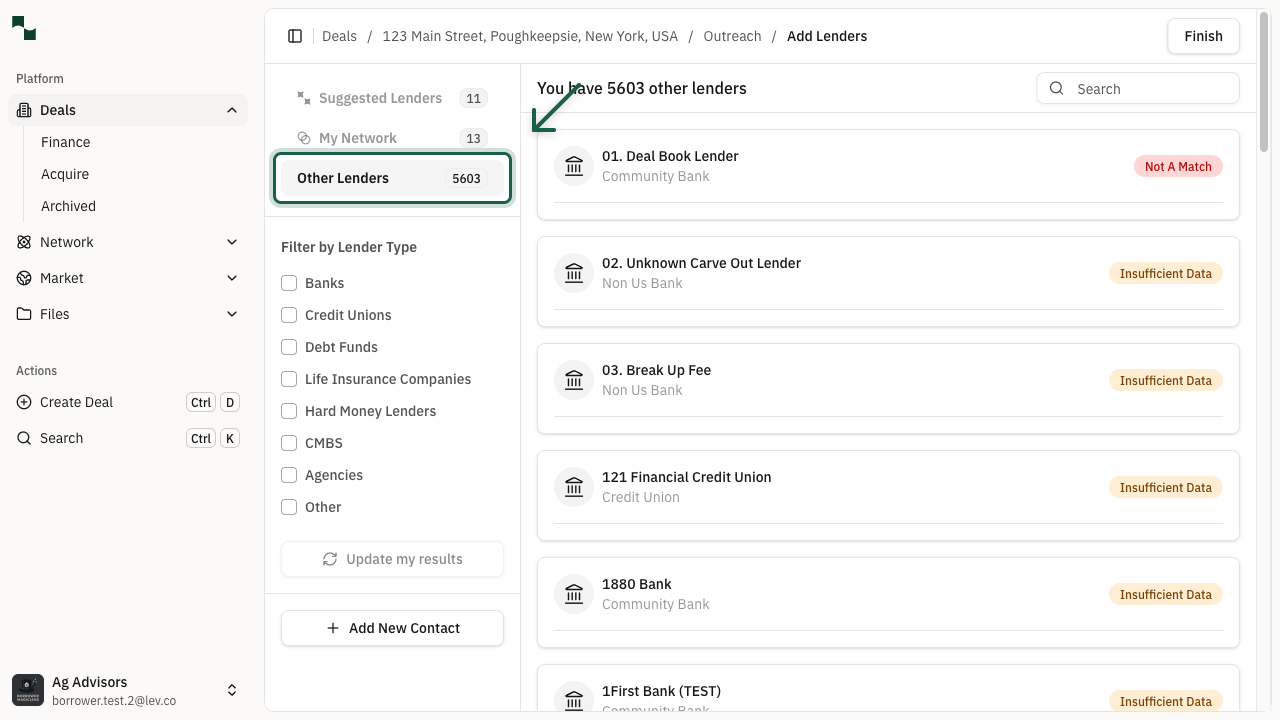
Learn how to navigate the lender search results and explore all available tabs: Suggested Lenders, My Network, and Other Lenders.
Getting Started
Access the Dashboard
Log in to your Lev account and navigate to the Platform dashboard. This is your starting point for creating and managing deals.
Location: Platform → Dashboard
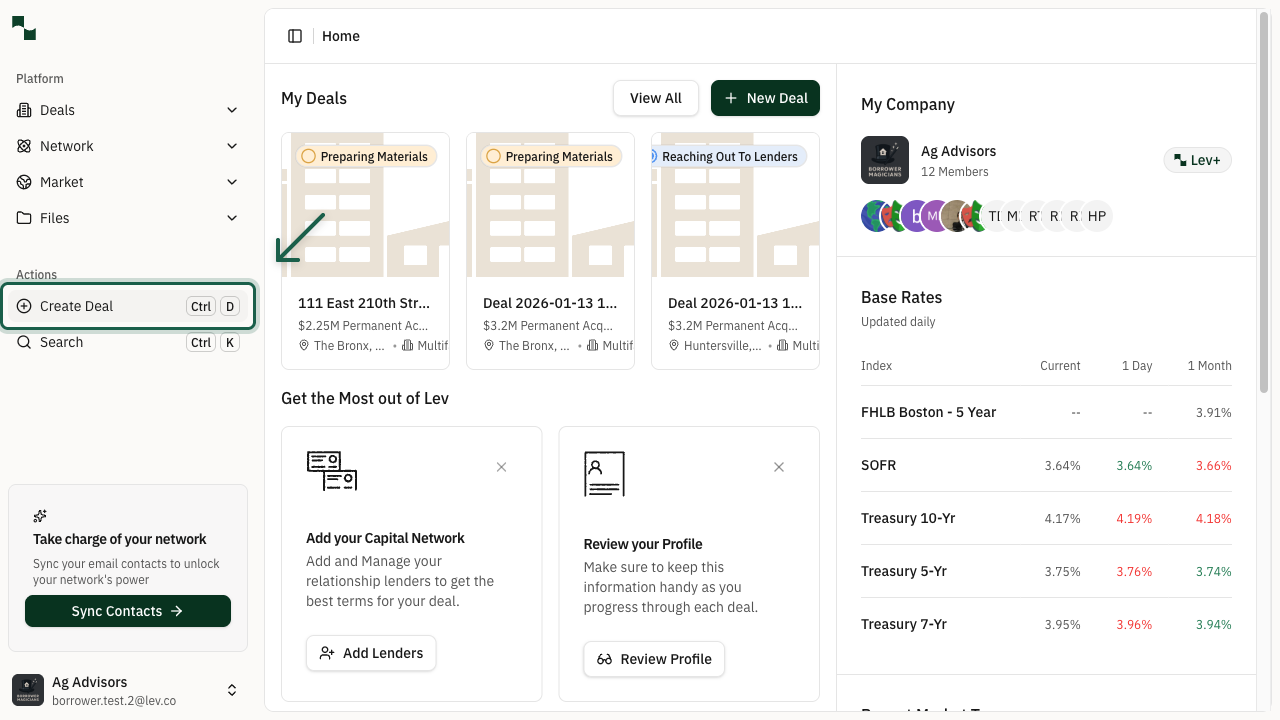
Create a New Deal
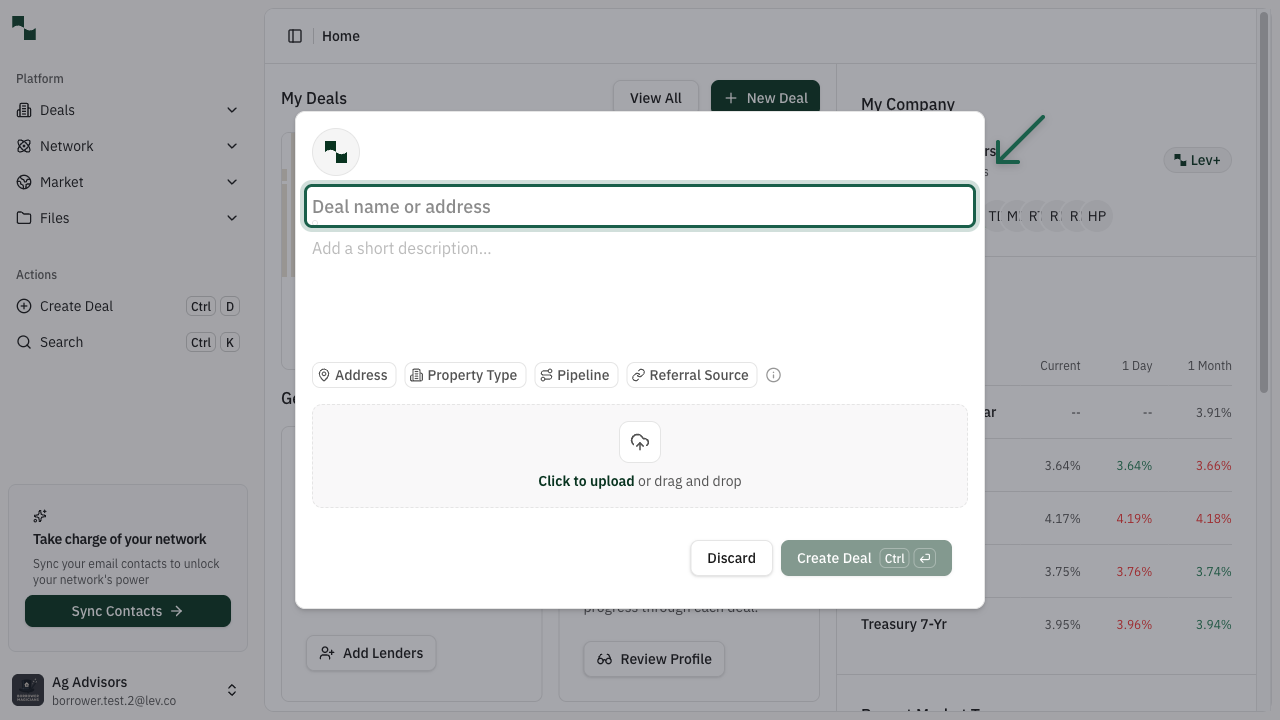
Click the Create Deal button in the sidebar to open the deal creation modal. Enter your property address in the search field to get started.
The address lookup will help you find and validate your property location.
Deal Setup
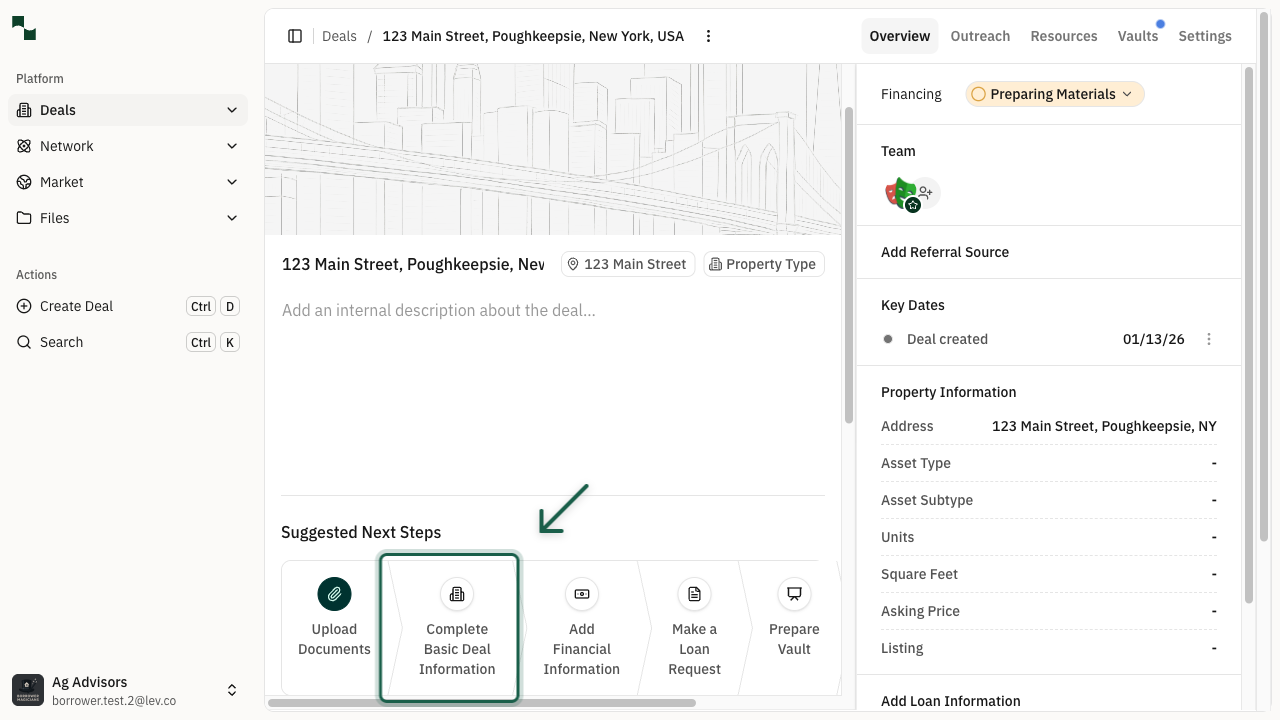
Complete Basic Deal Information
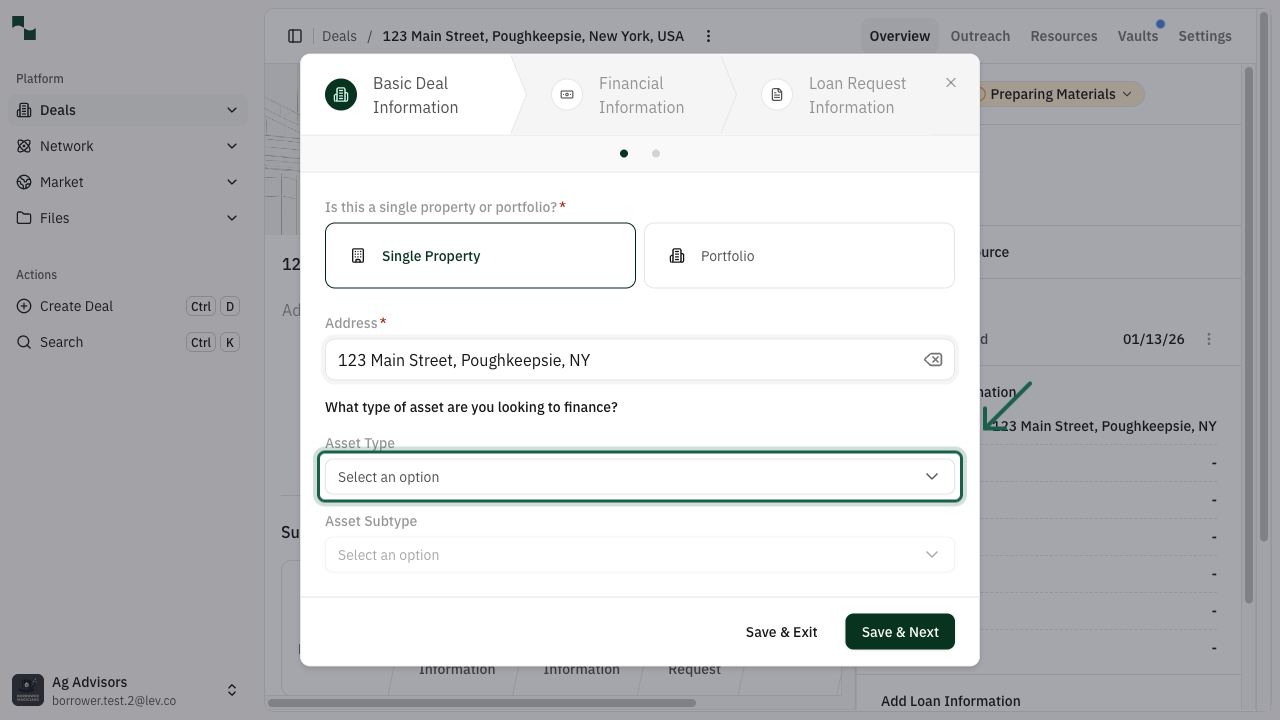
After creating the deal, you'll land on the Deal Overview page. Click Complete Basic Deal Info to begin entering your deal details.
Fill Property Information
Enter your property details including:
Click Save & Next to proceed to the next step.
- Asset Type - Select the property type (e.g., Multifamily, Office, Retail, Industrial)
- Asset Subtype - Choose a more specific category
- Transaction Type - Select Acquisition or Refinance
- Loan Type - Choose your financing needs (Permanent, Bridge, Construction)
Enter Financial Details
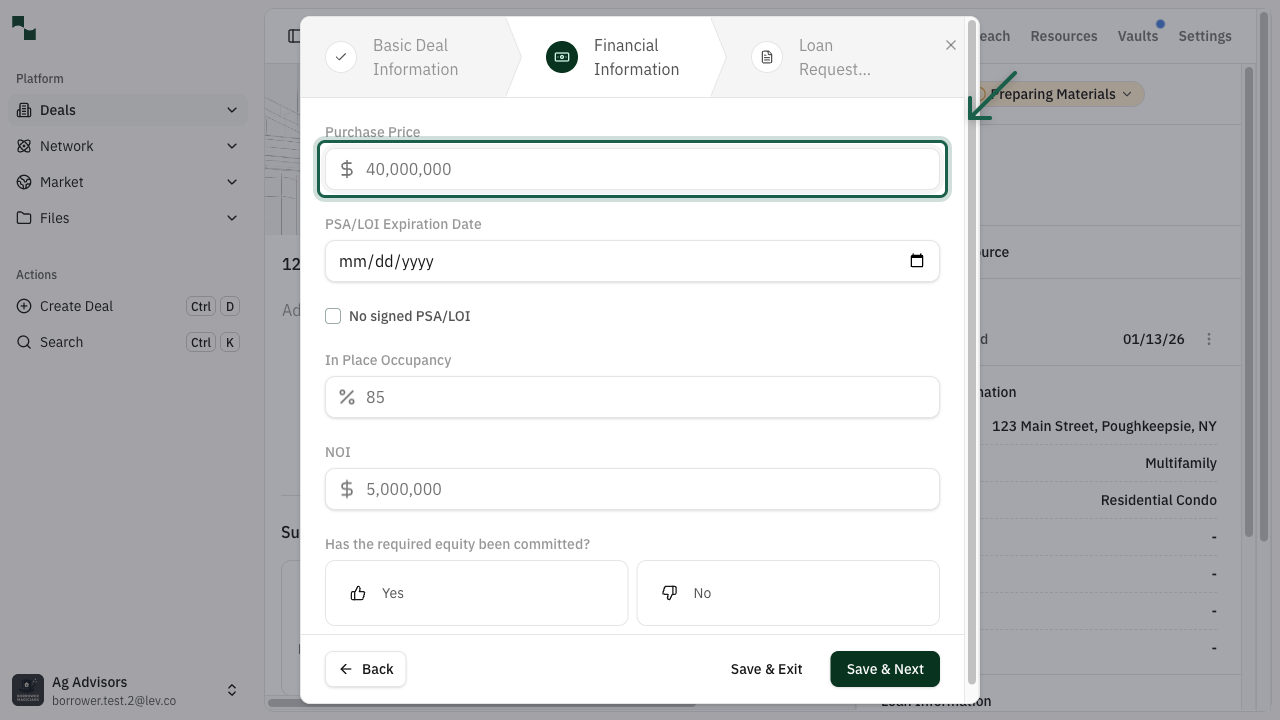
Provide the financial information for your deal:
Click Save & Next to continue.
- Purchase Price / Property Value - The property's value or purchase price
- Loan-to-Value (LTV) - Your desired leverage ratio (typically 65-80%)
- In Place Occupancy - Current occupancy percentage
- NOI (Net Operating Income) - Annual income minus operating expenses
Complete Loan Request
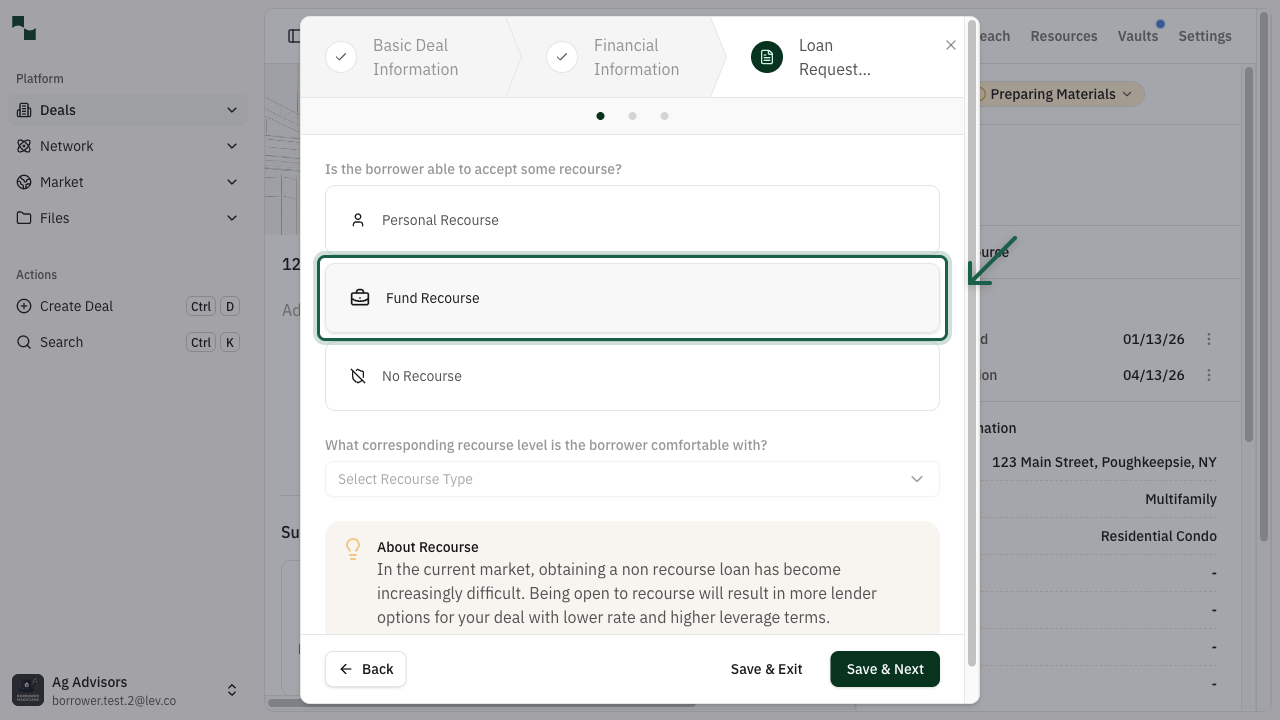
Review and configure your loan request details including recourse preferences and other terms. The system will calculate your loan sizing based on the financial information provided.
Once complete, navigate to the Select Lenders step to view your lender matches.
Note: If you see warnings about loan sizing metrics (DSCR, Debt Yield), you can choose to address them or proceed. These warnings help you understand how lenders may view your deal.
Lender Search Results
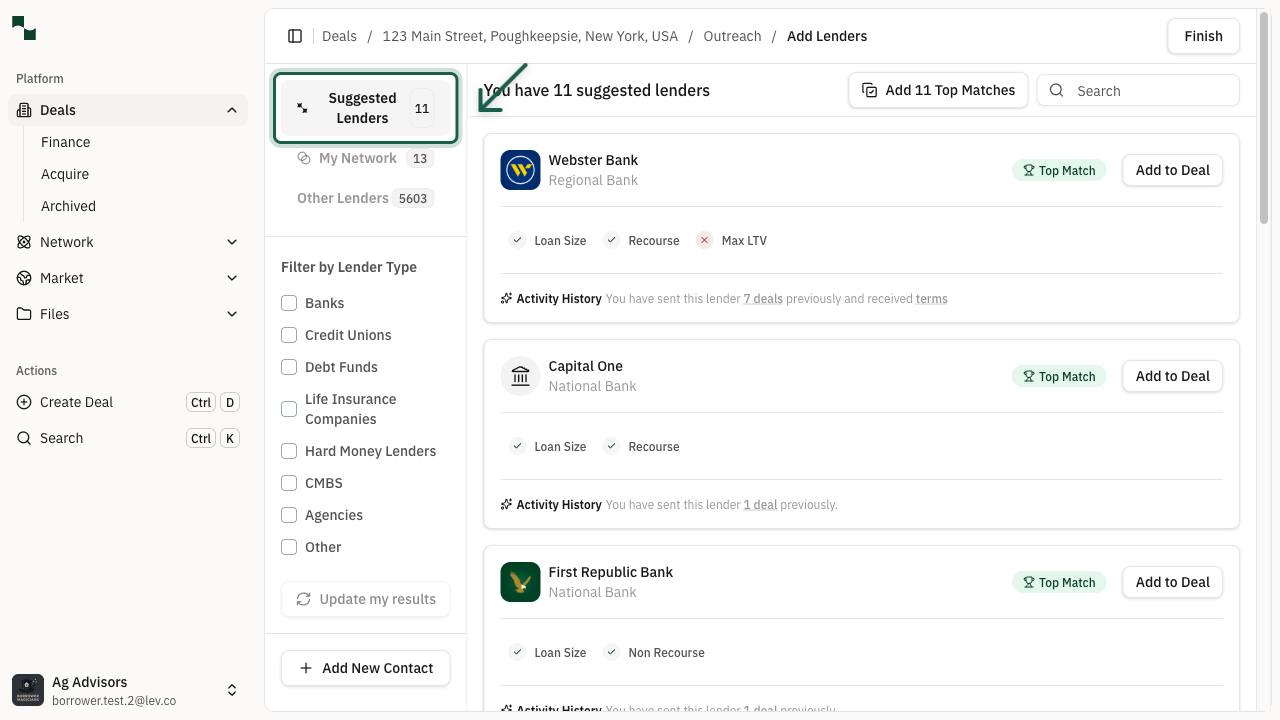
View Suggested Lenders
The Suggested Lenders tab shows lenders that Lev's algorithm has identified as strong matches for your deal. These recommendations are based on:
Look for Top Match badges indicating the best-fit lenders for your specific deal criteria.
- Loan size and property type preferences
- Geographic focus areas
- Recent lending activity
- Historical success rates on similar deals
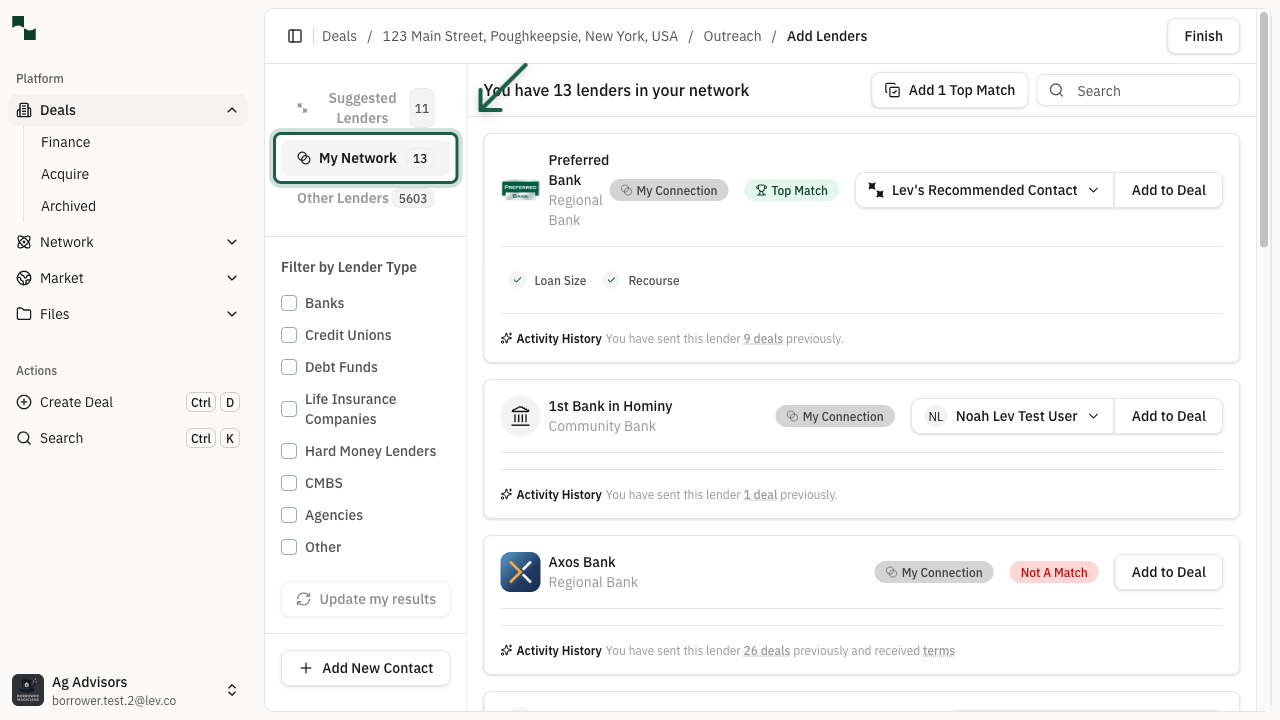
View My Network
Click the My Network tab to see lenders you have existing relationships with. This tab displays:
Each lender card shows the My Connection badge and your primary contact at that institution.
- Lenders you've connected with on the platform
- Your personal lender contacts
- Lenders you've previously done deals with
View Other Lenders
Click the Other Lenders tab to browse the complete lender database. This comprehensive list includes:
Use the Filter by Lender Type options on the left to narrow down your search. You can also use the search box to find specific lenders by name.
✓ You've navigated all three lender search tabs
✓ Suggested Lenders shows AI-matched recommendations for your deal
✓ My Network displays your existing lender relationships
✓ Other Lenders provides access to the full lender database
✓ You can add lenders from any tab to your deal to begin outreach
- All lenders in Lev's network
- Various lender types (Banks, Credit Unions, Debt Funds, Life Insurance Companies, etc.)
- Lenders that may not be a perfect match but could still be interested in your deal