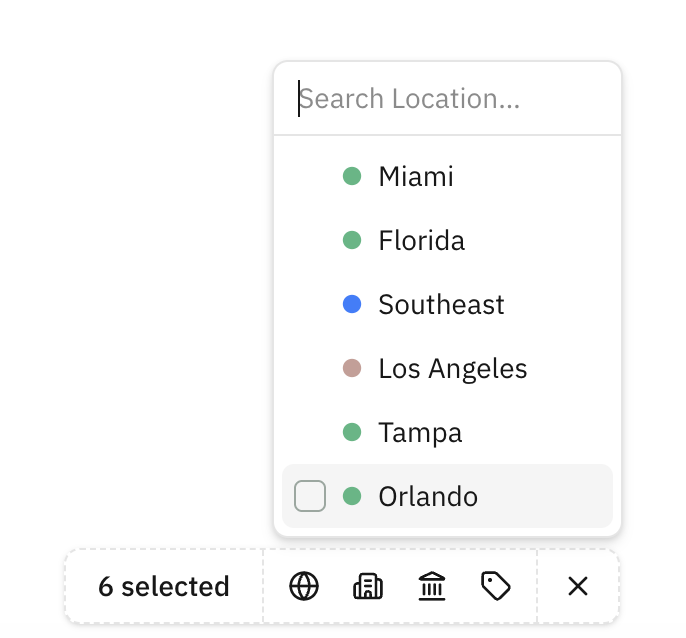
Bulk apply is for one thing: tagging a whole set of companies or contacts at once, based on what has actually happened in your deal history.
Use Past Deal Filters to Get the Right List
Open Past Deal Filters (see the filter menu in the table) and narrow your table based on:
- What specific Deals you've added them to in the past
- What types of Deals you've added them to in the past (asset type, location, loan type)
- How the interaction went on that deal, via Placement Status (were they Unresponsive, did they apply terms)
This gives you the power to bulk apply however you want. You can apply a Multifamily label to any Lender you've ever added to a Multifamily Deal. Or you can be more granular and only apply it to the Lenders who were active and engaged on your past Multifamily deals.
The more specific your filters, the more useful your labels will be when you launch deals later. Don't just tag everyone — tag with intent.
Select Rows, Then Bulk Apply (or Remove)
Once the table shows the set of Contacts or Companies you want:
Select Rows
Use the checkboxes to select individual rows, or click Select all to select everything visible.
Open the Toolbar
A toolbar appears at the bottom of the table with label actions.
Choose Your Label
Choose the Label Group and the specific label you want to apply.
Apply or Remove
Use the toolbar to Bulk apply or Bulk remove the label across all selected rows.