Learn how to remove a lender contact from your network on the Lev platform.
Navigate to Contacts
Access Network
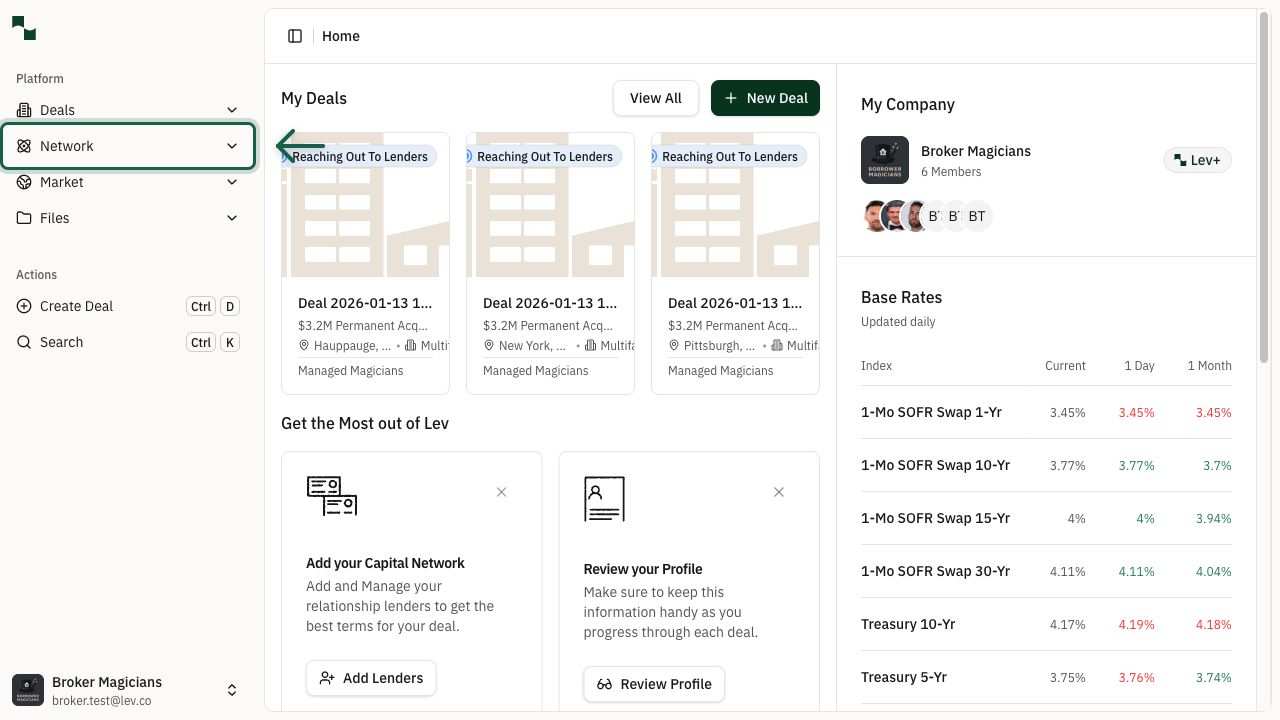
From the dashboard, click on Network in the left sidebar to expand the network menu.
Location: Dashboard → Network
Go to People
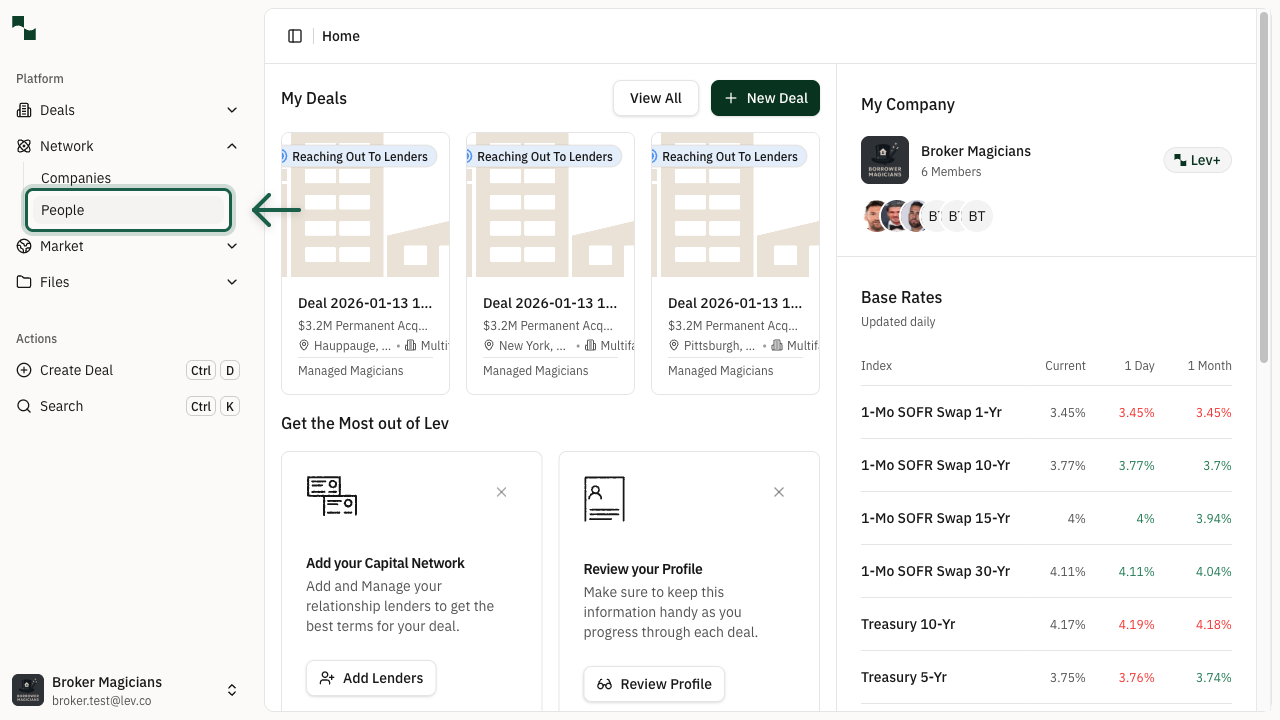
After expanding the Network menu, click on People to access your contacts list.
Location: Network → People
Delete Contact
Find Contact
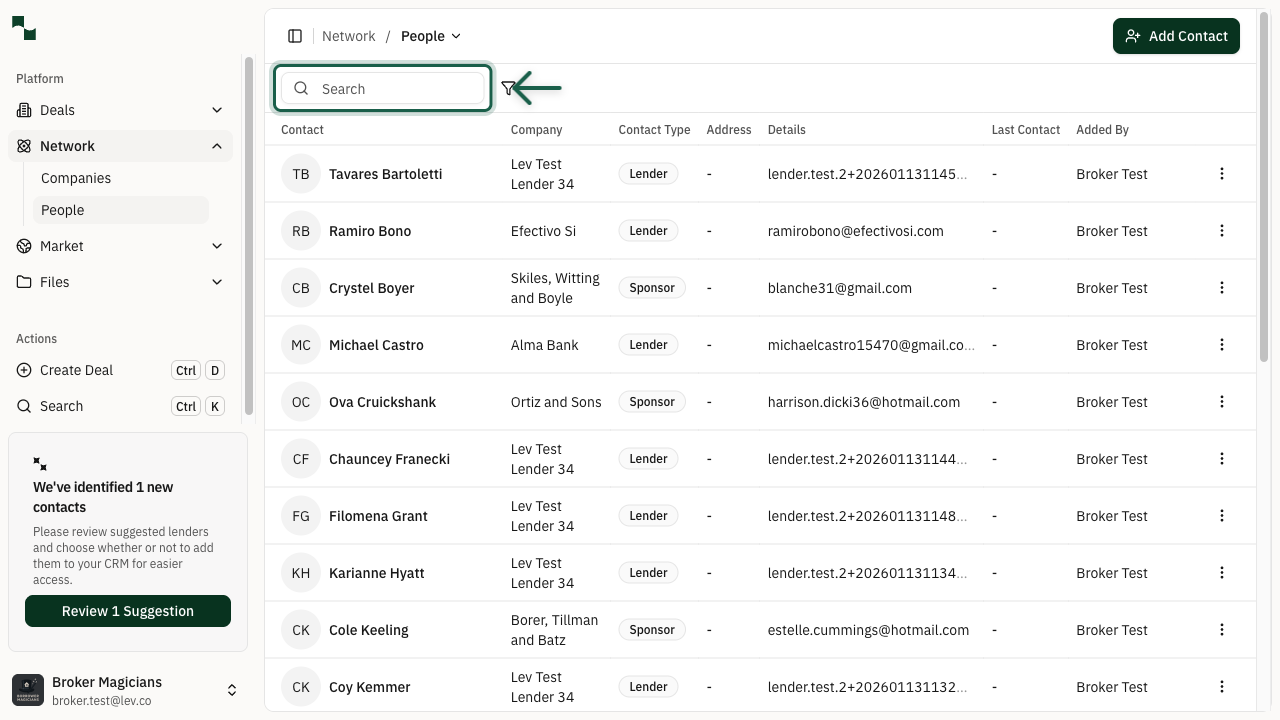
On the Contacts page, use the Search box to find the lender contact you want to delete. You can search by name, email, or company.
Open Actions Menu
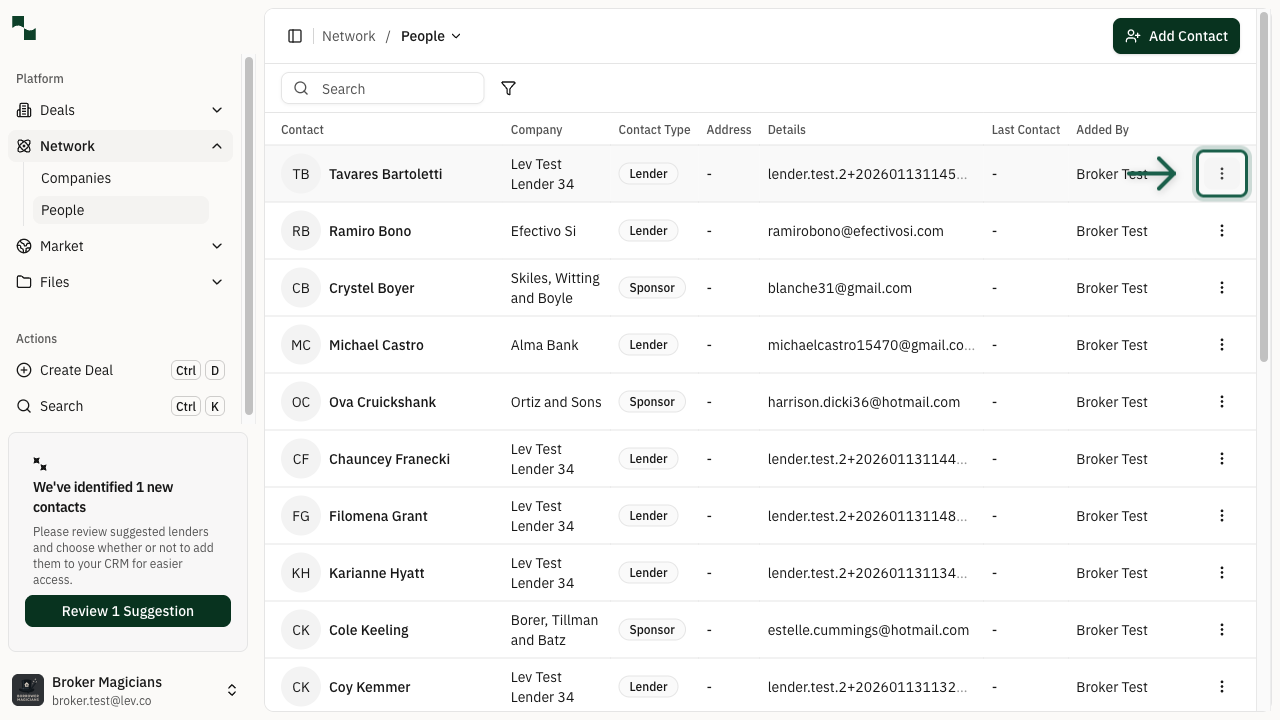
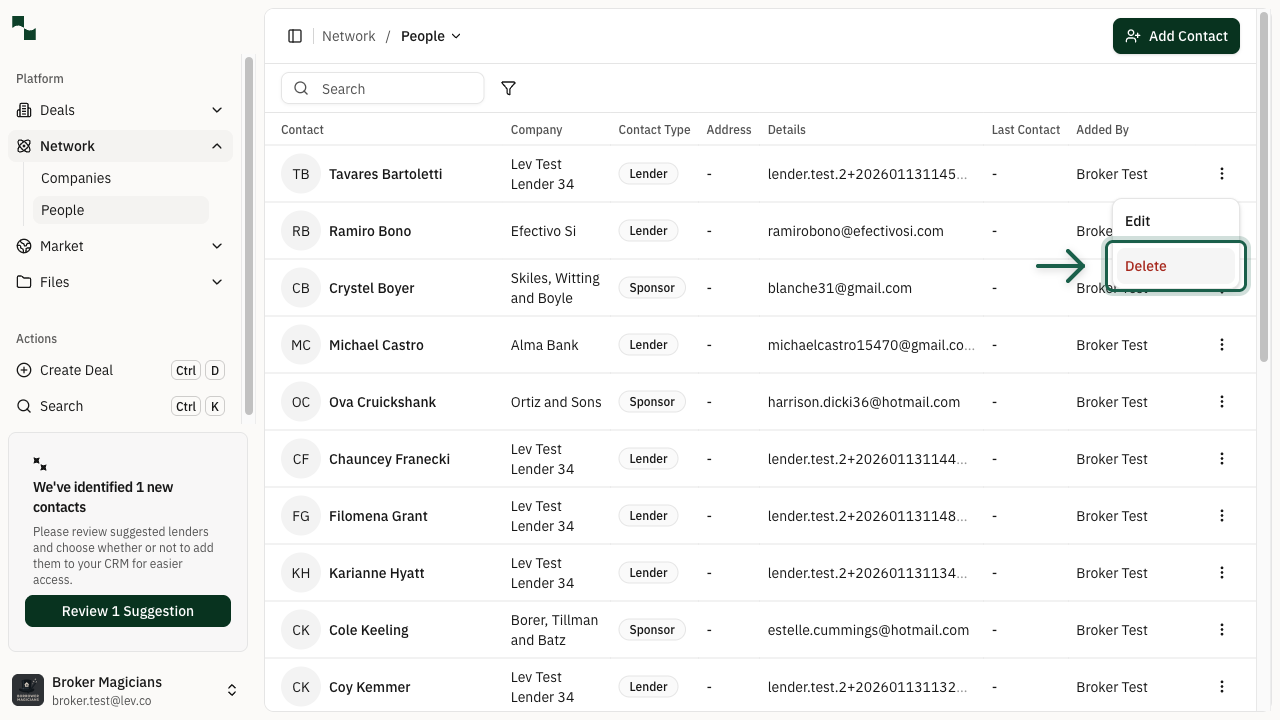
Locate the contact you want to delete in the list. Click the three-dot menu (⋮) on the right side of the contact row to open the actions menu.
Select Delete
From the dropdown menu, click Delete to remove the contact from your network. A confirmation dialog may appear - confirm the deletion to proceed.
You're All Set!
- The lender contact has been removed from your network
- The contact will no longer appear in your People list
- Any deals associated with this contact remain unaffected