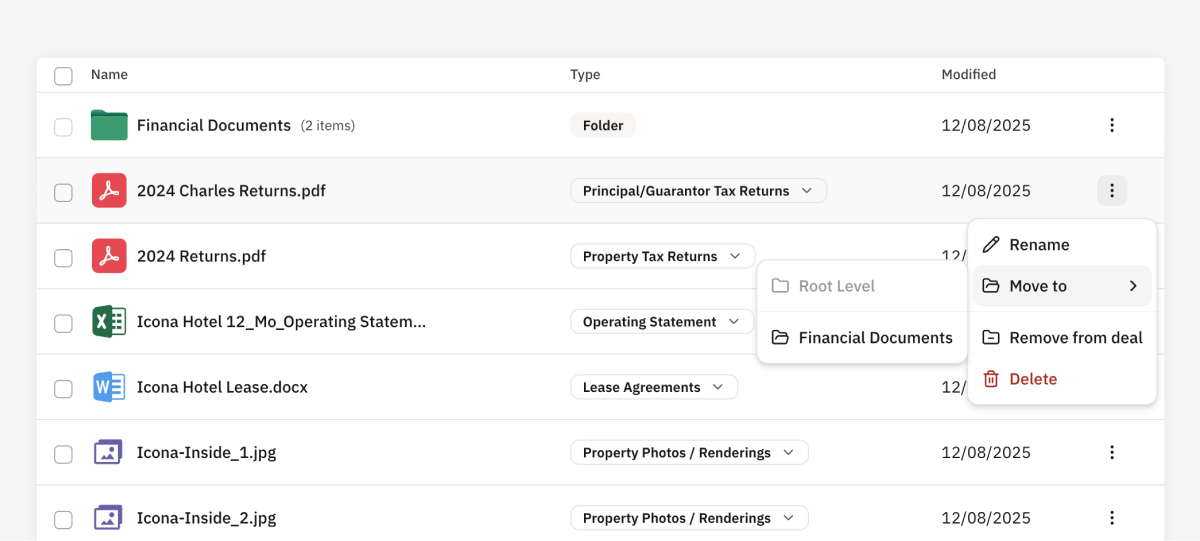
Lev supports folders on Deals and Vaults so you can organize your files for internal use or lender-facing presentation. The Files page does not support folders, since files can belong to multiple Deals.
Folders on Deals
Use folders on a Deal or Vault to organize files. You can have as many levels of Folders as you'd like, some important things to note:
- Folders exist only on the Deal where they are created.
- Vaults have their own folder structure for lender-facing organization.
- Folder structures do not sync across Deals or Vaults.
Create a Folder
You can create a Folder on a Deal from the Deal Resources page, or in a Vault above the Files Table. You can also create a Folder within a Folder by opening the destination Folder.
- Open the Deal Resources Page (For a Deal) or the Vault.
- Click the

- Give the folder a name and click Save.
The new Folder will appear immediately.
Moving Files to a Folder
You can move a File to a Folder by clicking the
⋮ button next to the File and selecting "Move", which will show all available Folders on the opened Deal or Vault to move the file to. Opening a Folder and uploading files will also upload the Files directly to that Folder.