Learn how to manage and customize your email templates for lender outreach on the Lev platform.
Estimated time: ~3 minutes | Steps: 6 | Updated: January 2026
Getting Started
Navigate to Your Deal
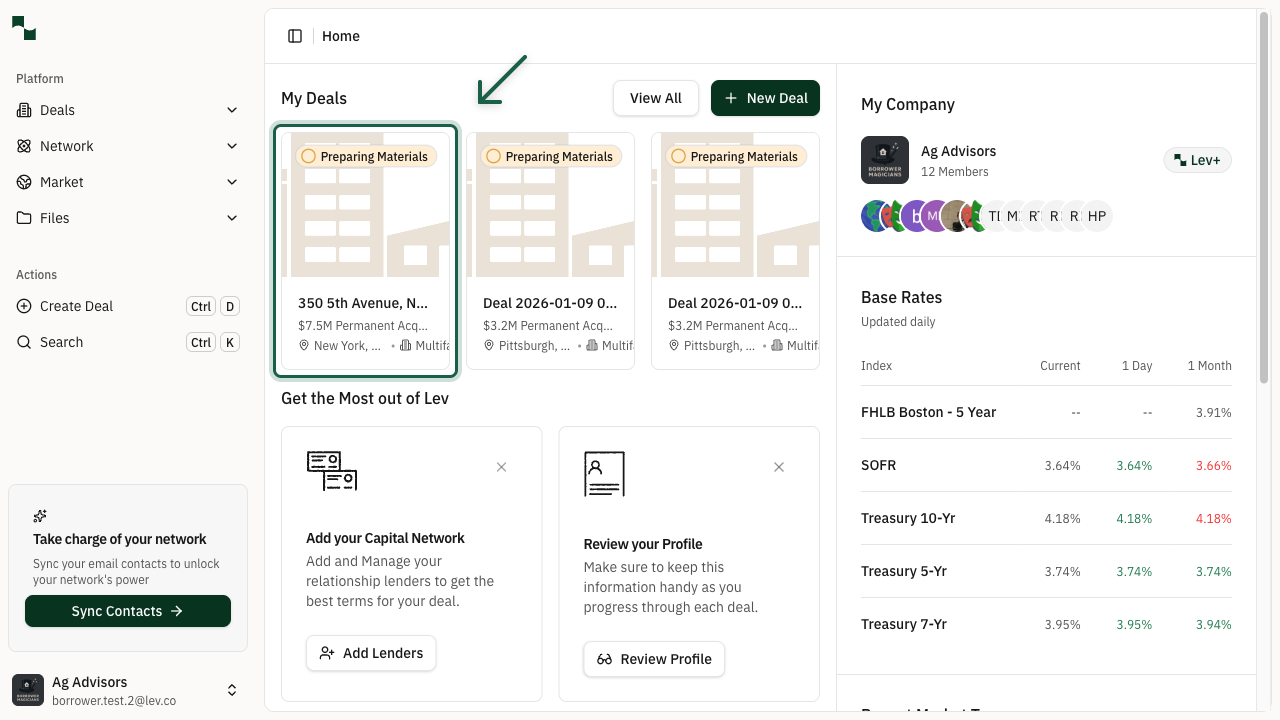
From the dashboard, locate and click on the deal where you want to manage email templates. Your deals are displayed as cards showing the property address and key deal information.
Location: Dashboard > Your Deal
Access Deal Settings
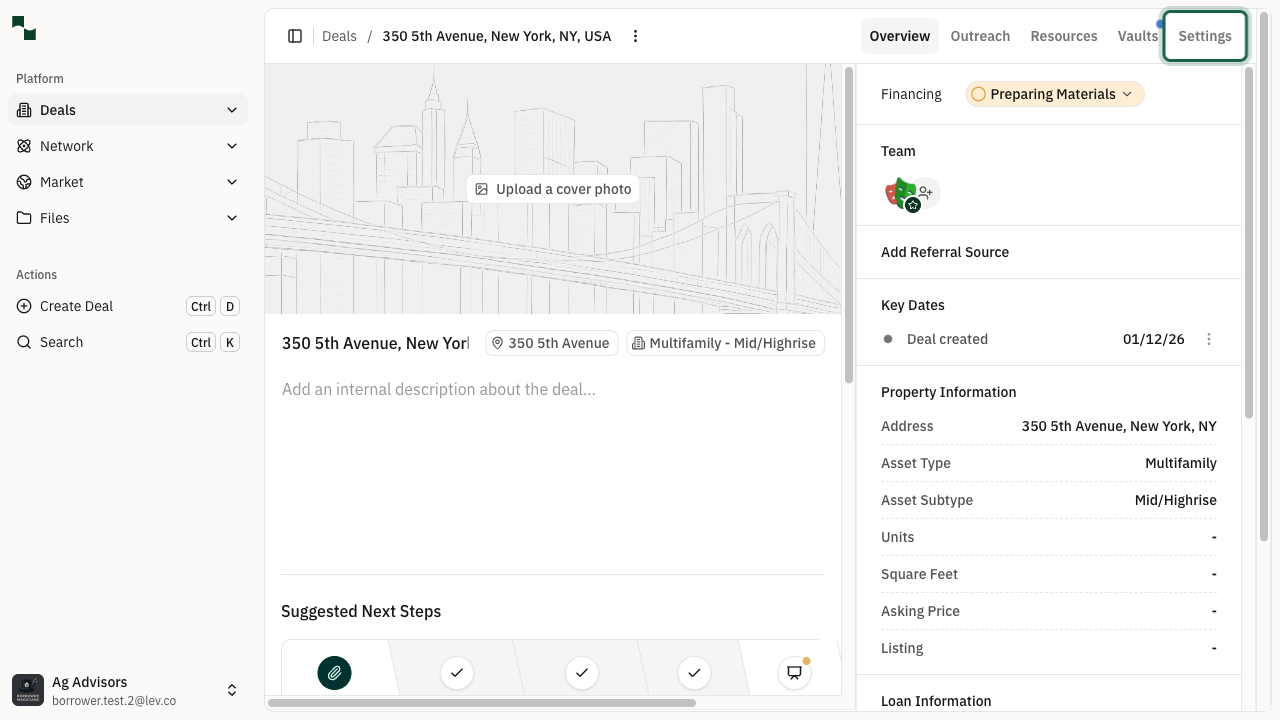
Once you're on the deal overview page, click on the Settings tab in the navigation menu. This section contains all configuration options for your deal, including email templates.
Location: Deal Overview > Settings Tab
Email Templates
Open Email Templates Section
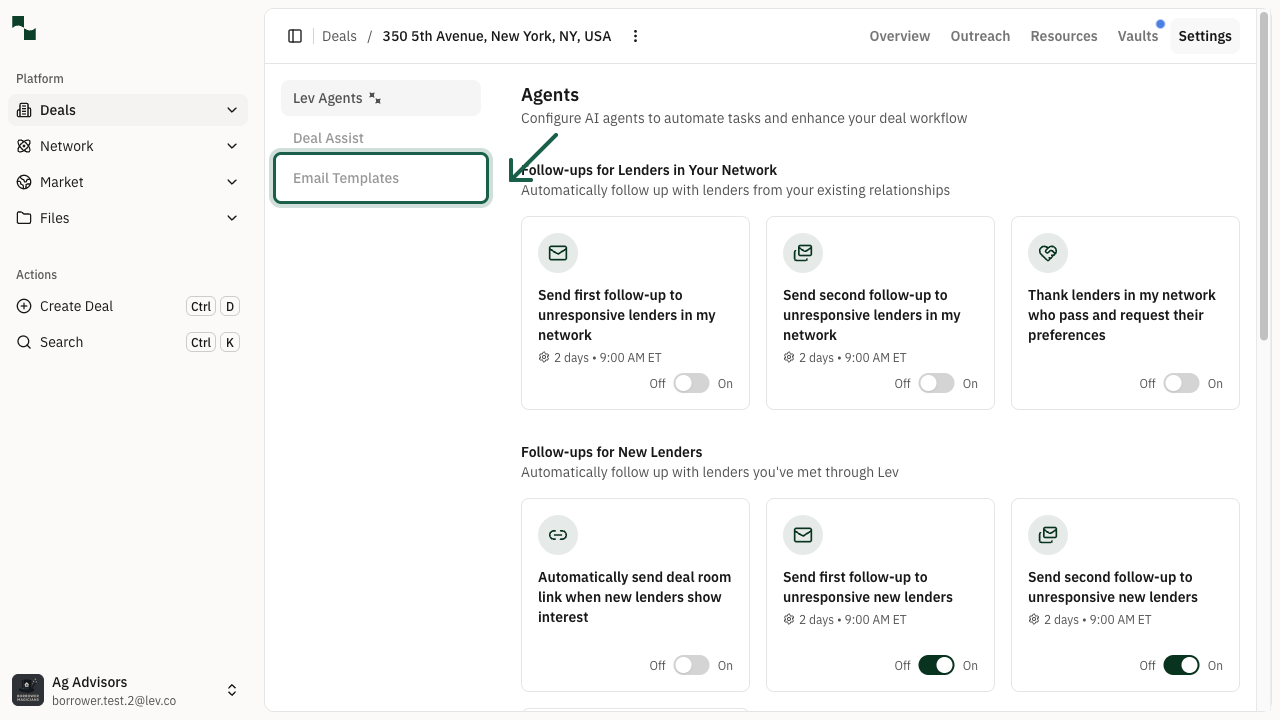
In the Settings page, click on Email Templates from the left sidebar menu. This will show you all the email templates associated with this deal.
Location: Settings > Email Templates
View an Existing Template
You'll see a list of available email templates. Each template shows its name and when it was created. To preview a template's content, click the View Template button on the right side of the template row.
Location: Email Templates > View Template
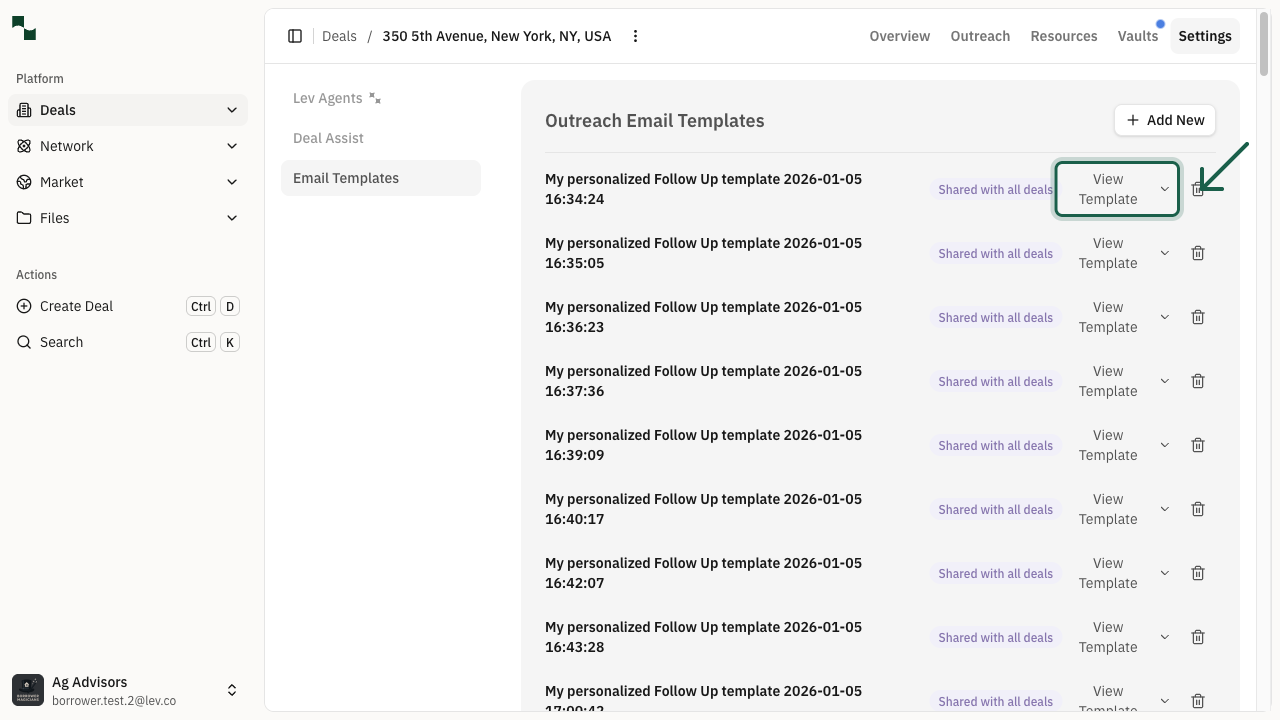
Tip: Templates saved as "for all deals" will be available across all your deals on the platform.
Editing Templates
Edit the Template
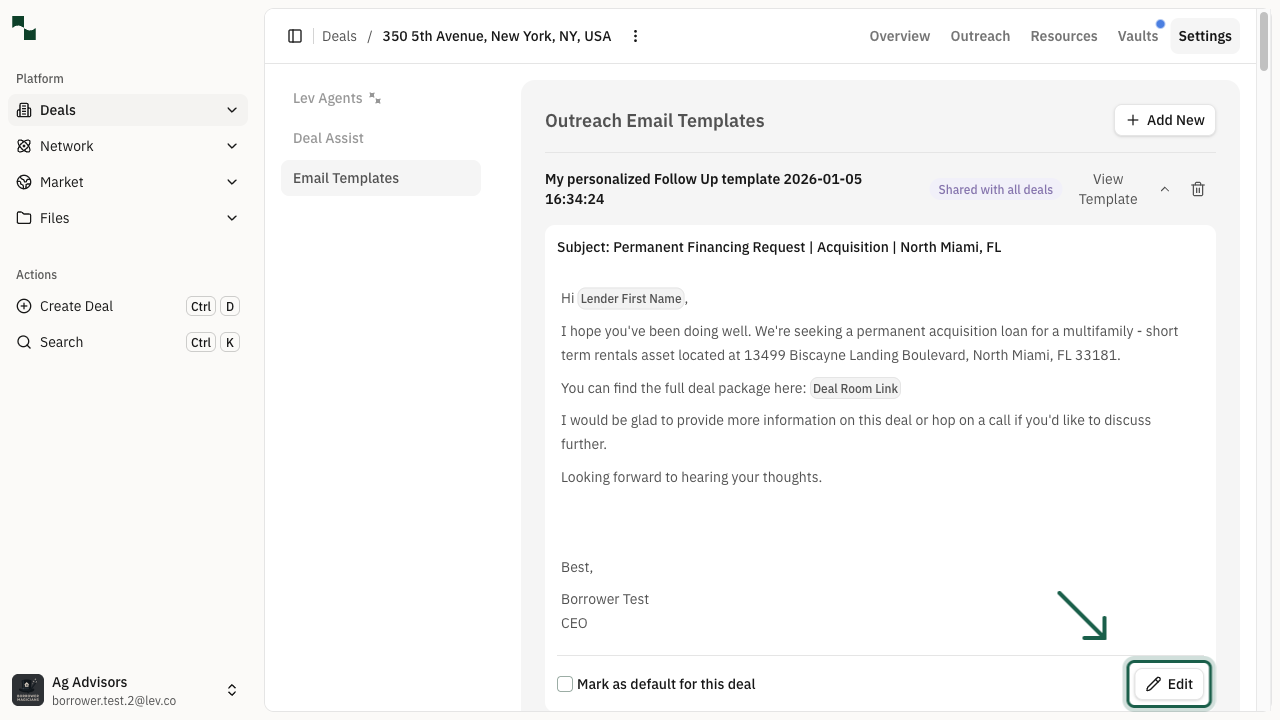
After expanding the template view, you can see the full content of the template. To make changes, click the Edit button located below the template preview.
Location: Template Preview > Edit
Modify Template Content
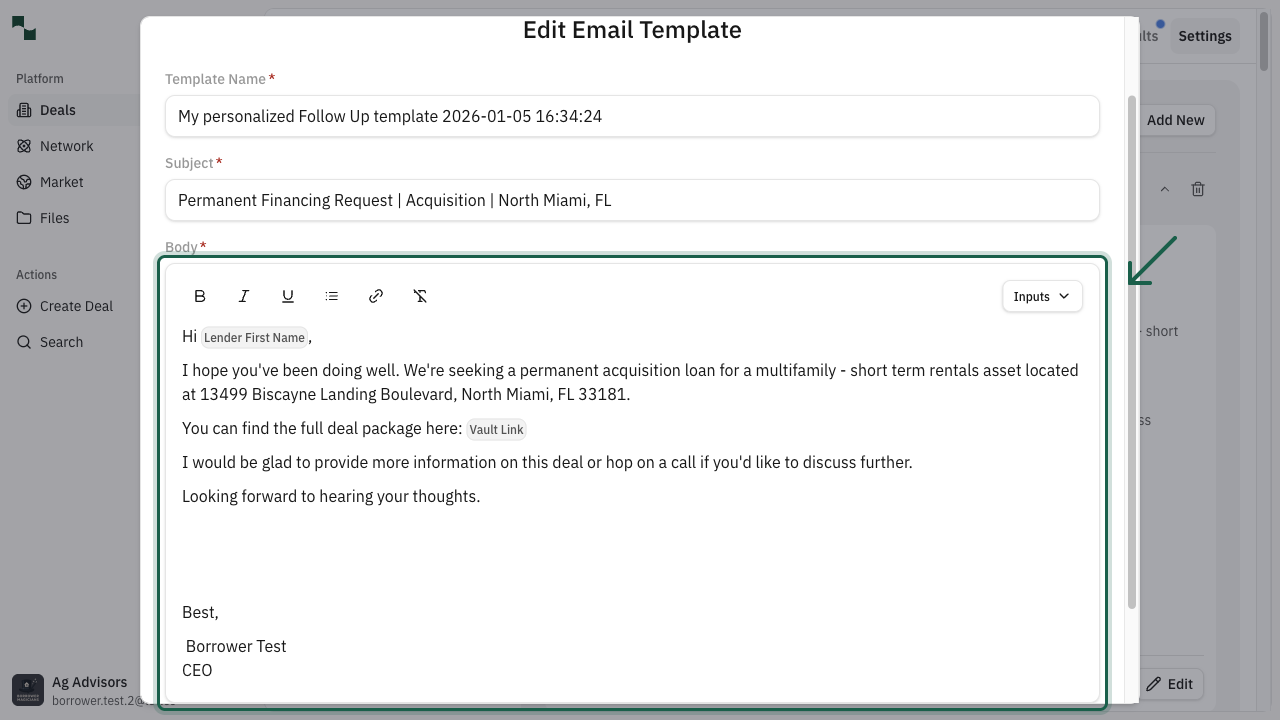
The Edit Email Template modal opens, allowing you to modify the template content. You can:
Click Save when you're done to save your changes, or press Escape to cancel.
- Update the template name
- Edit the email subject line
- Modify the email body content
- Use merge fields (like
{{Lender_Contact_First_Name}}) for personalization
Available merge fields: Use placeholders like
{{Lender_Contact_First_Name}}, {{borrowerFirstName}}, {{borrowerCompanyName}}, and {{signature}} to personalize your emails automatically.You're All Set!
- You've learned how to navigate to email templates settings
- You can view and preview any existing template
- You can edit templates to customize your lender outreach
- Your changes are saved and ready to use in future communications