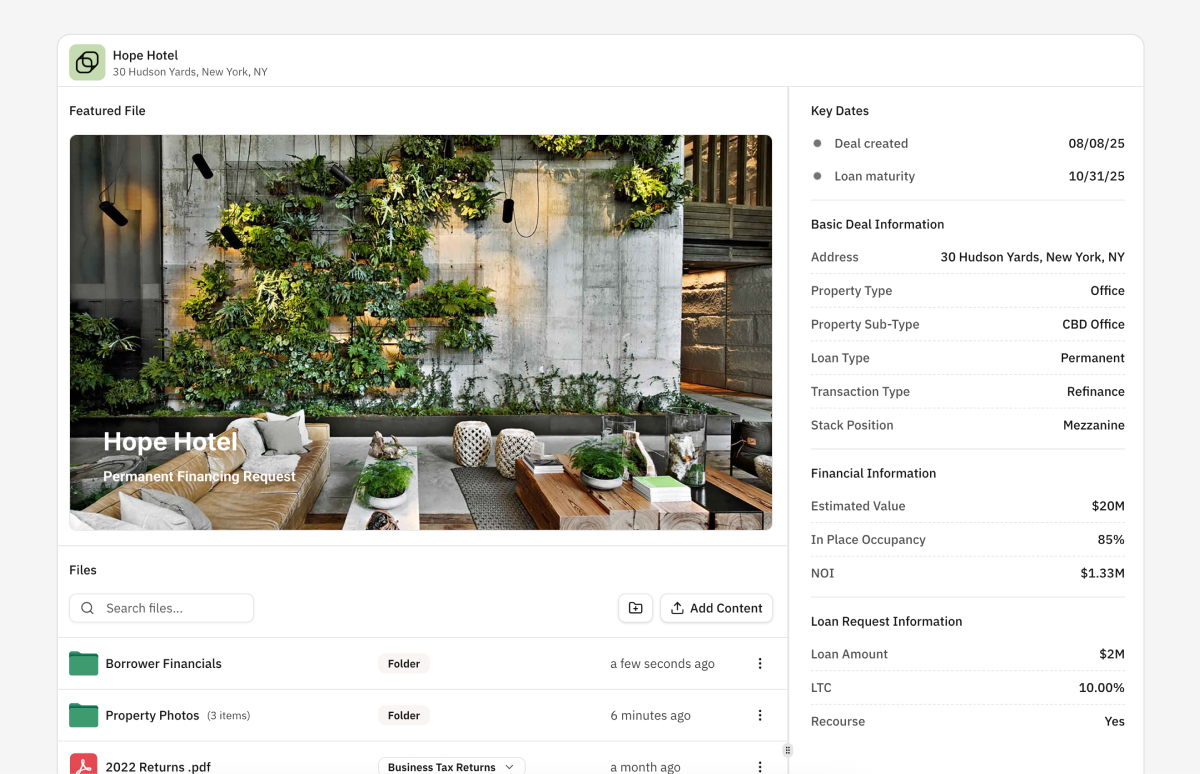
You can set a Featured File to pin to the top of a Vault as a presentation-ready file for lenders to see when they open a Vault. You can set any file in the Vault as featured, including any uploaded file or Lev-Generated Memo.
Set or Change the Featured File
You can set, change, or remove a Featured File in a Vault at any time. Featuring a file only features it in that specific Vault.
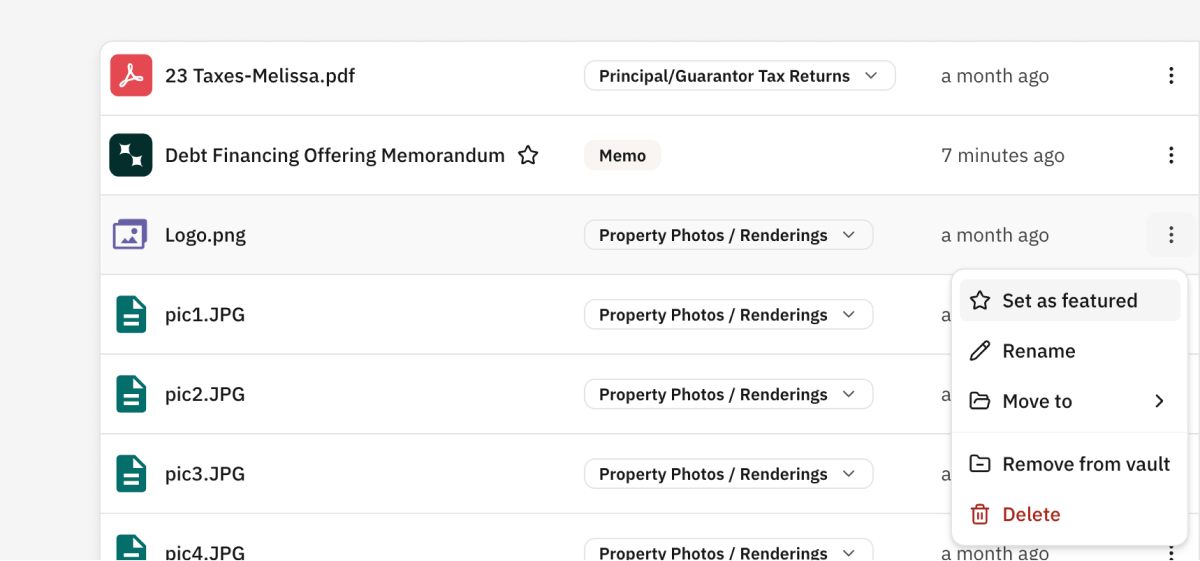
- Open the Vault.
- In the Files table, click the
⋮button next to File you would like to Feature or Remove as Featured. - Select Set as featured or Remove as Featured to make the change.
- Once set as Featured, you will see a
★Star icon next to the Filename.
Vaults with no Featured File
Featuring a File in a Vault is totally optional — feel free to leave it empty and use Vaults as a more traditional File-Share. When your Vault does not have a Featured File, you'll see an empty block (see below) prompting you to set a file or Generate a Memo with Lev. But this will not be visible to external viewers.
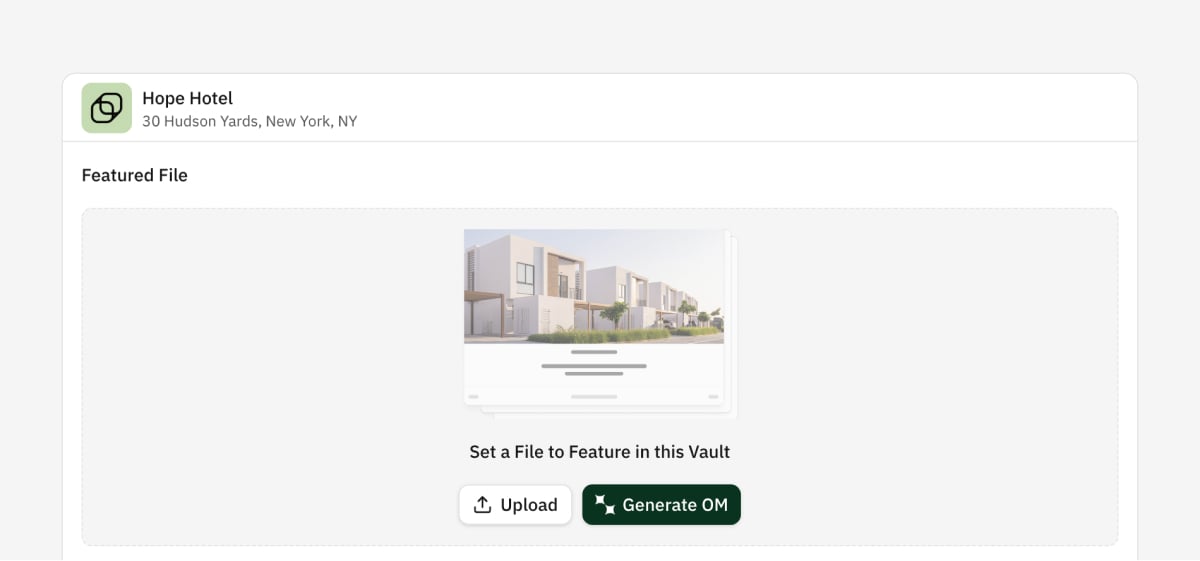
When an external party like a Lender views a Vault with no Featured File, this entire section will be hidden and they'll just see the Files table.