Learn how to add and categorize documents in your deal's Resources section on the Lev platform.
Getting Started
Navigate to Your Deal
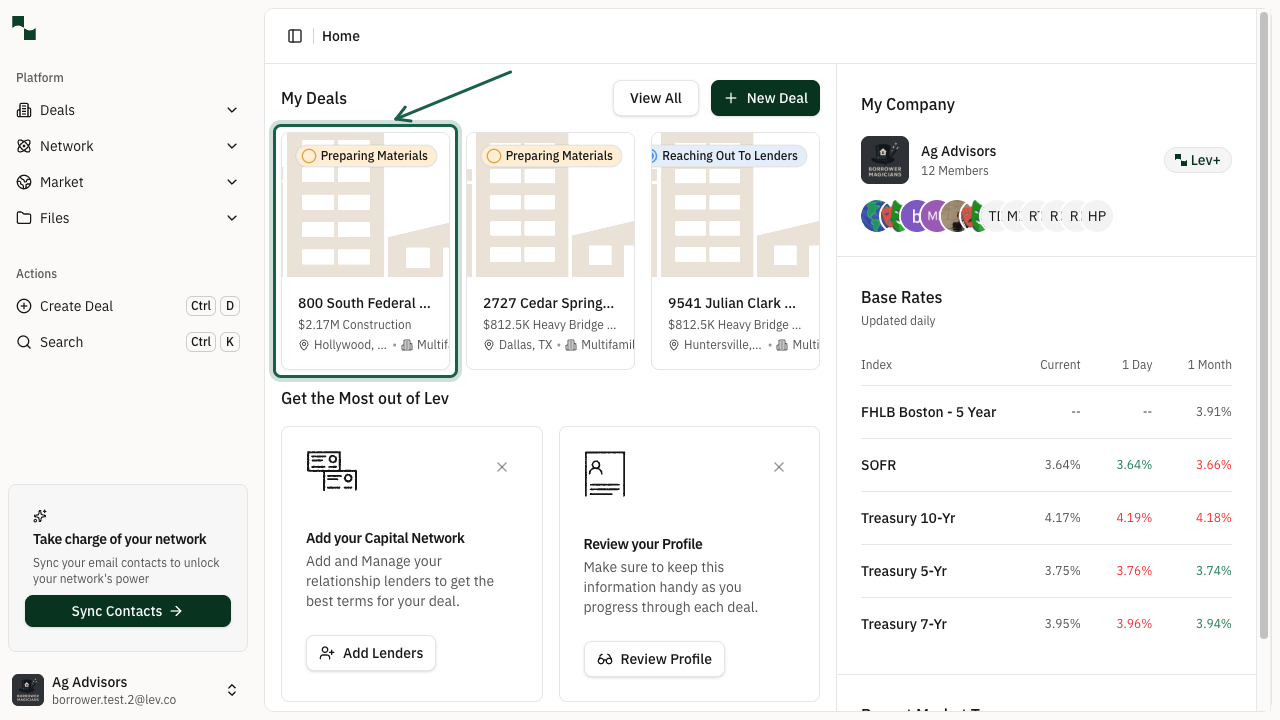
From your dashboard, locate and click on the deal where you want to upload documents. Your deals are displayed as cards showing the property address and deal status.
Location: Dashboard → Deal Card
Open the Resources Tab
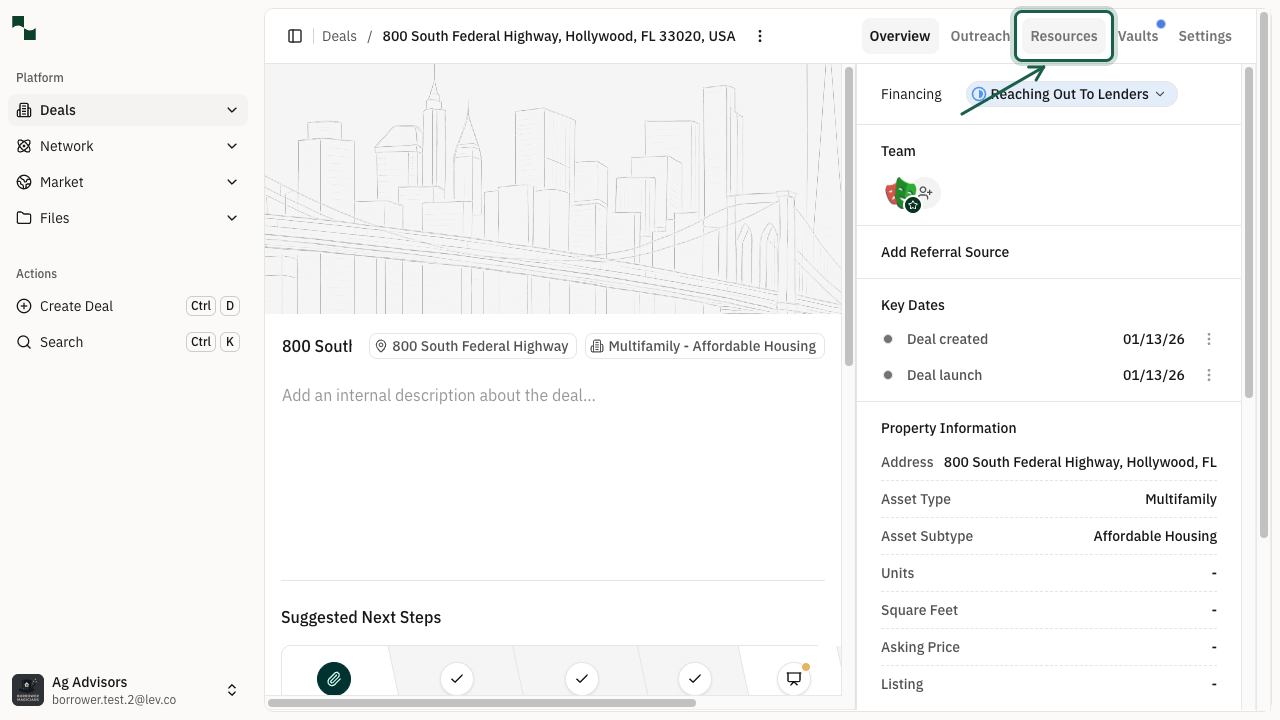
Once you're on the deal overview page, click on the Resources tab in the navigation bar. This tab contains all documents and files associated with your deal.
Location: Deal Overview → Resources Tab
Uploading Documents
Click Add Content
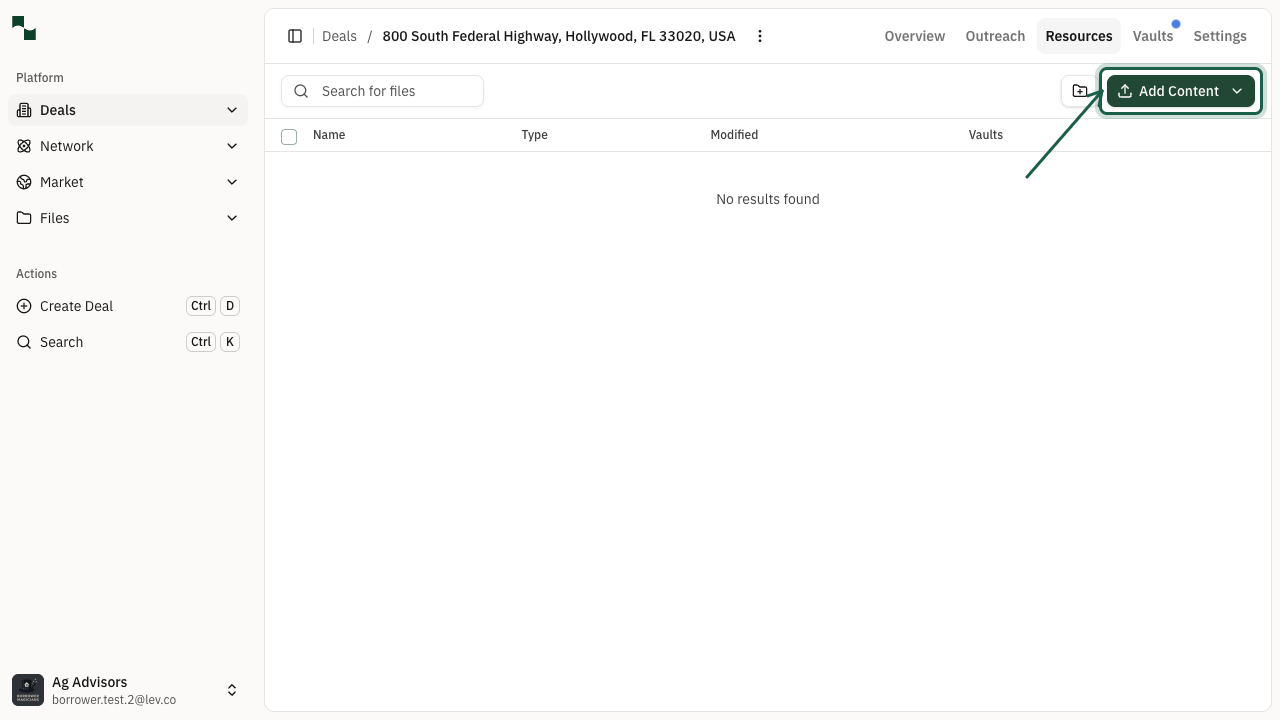
In the Resources section, click the Add Content button located in the upper right area of the page. This button opens a dropdown menu with options for adding different types of content.
Location: Resources → Add Content Button
Select Upload Documents
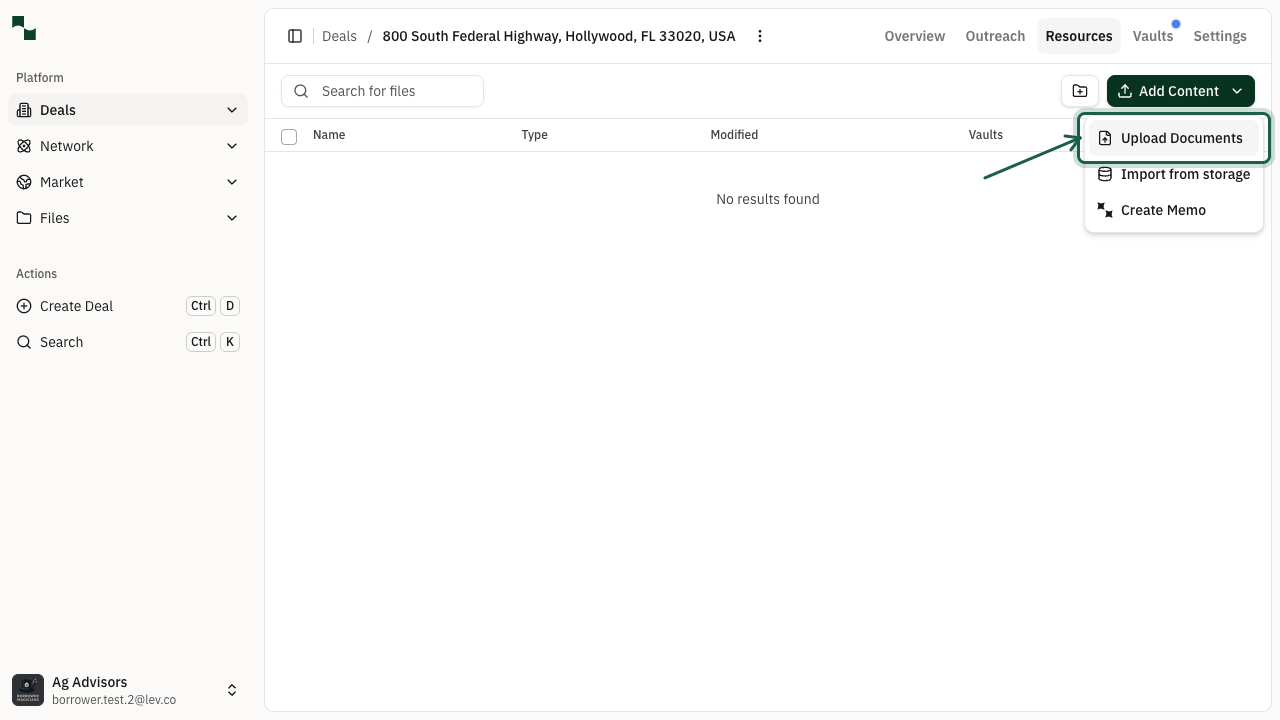
From the dropdown menu, select Upload Documents. This will open a modal where you can upload files from your computer.
Location: Add Content Menu → Upload Documents
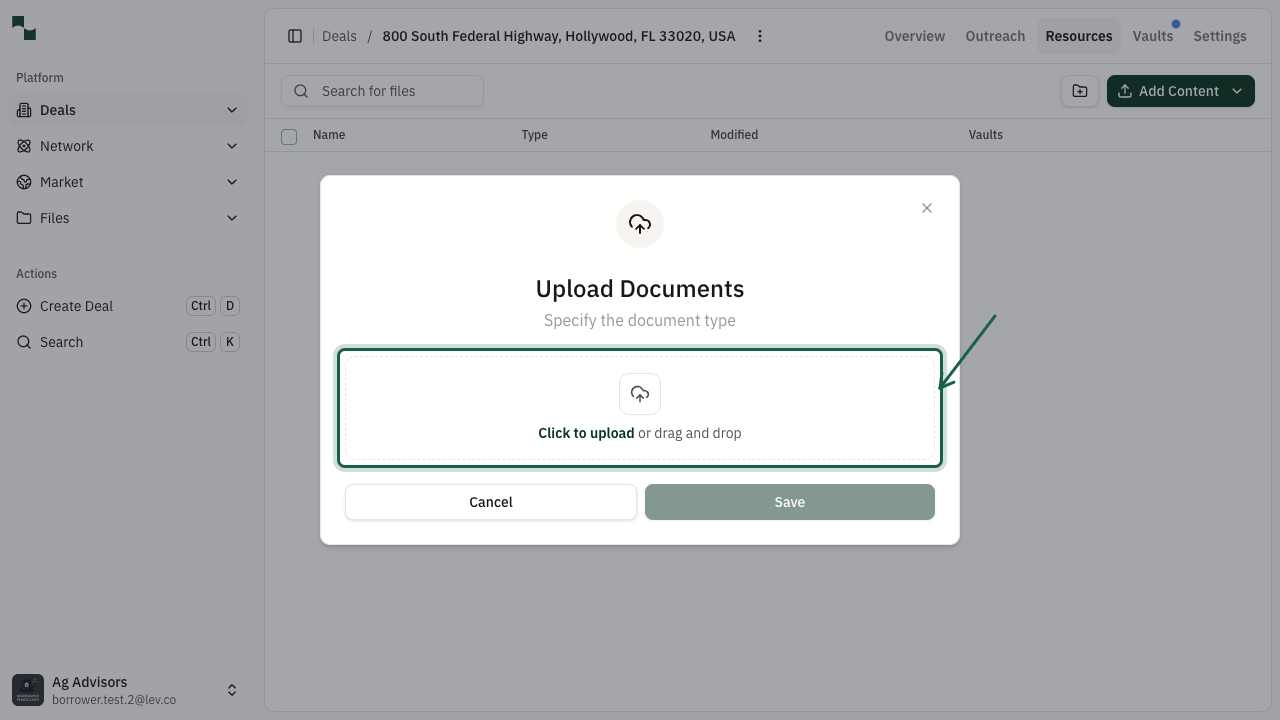
Upload Your File
Click the upload area or drag and drop your file to upload it. Supported file types include PDF, Word documents, Excel spreadsheets, and images. You can upload multiple files at once if needed.
Tip: You can drag and drop files directly onto the upload area for faster uploading.
Categorizing Your Document
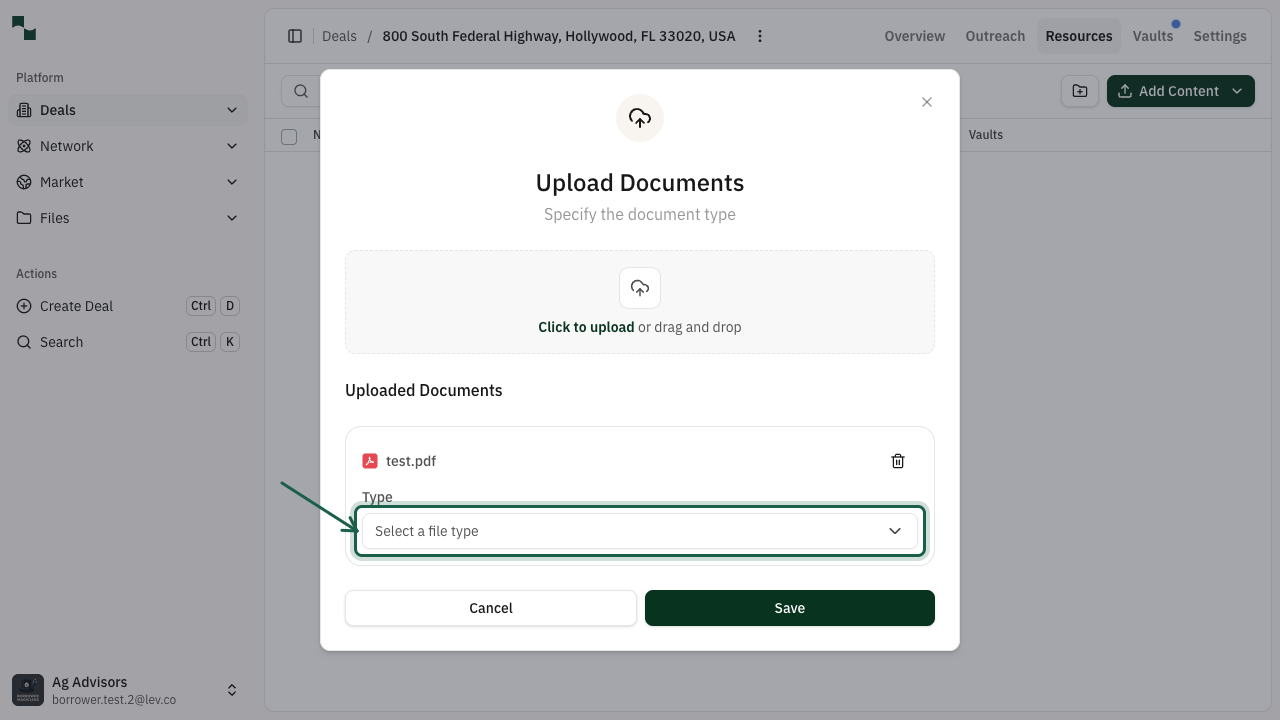
Select Document Type
After your file uploads, click on the Type dropdown to categorize your document. Selecting the correct document type helps organize your files and makes them easier to find later.
Location: Upload Modal → Type Dropdown
Choose from Document Types
Select the appropriate document type from the list. Common document types include:
- Market Analysis - Market reports and comparables
- Financial Statements - Income statements, balance sheets
- Property Information - Surveys, photos, floor plans
- Legal Documents - Contracts, agreements, title reports
- Environmental Reports - Phase I/II assessments
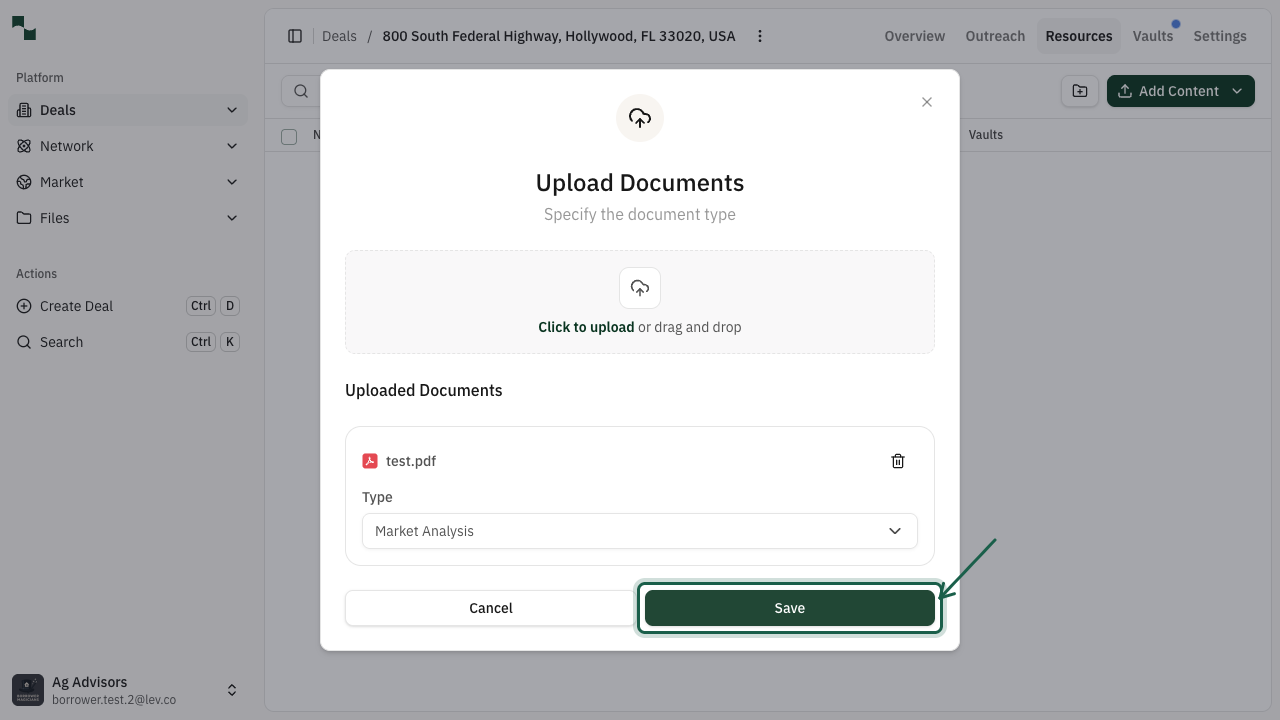
Save Your Document
Once you've selected the document type, click the Save button to complete the upload. Your document will be added to the deal's Resources section.
Location: Upload Modal → Save Button
Confirmation
Document Uploaded Successfully
Your document now appears in the Resources list. You can see the file name, document type, upload date, and who uploaded it. You can upload additional documents by repeating this process.
You're All Set!
- Your document has been uploaded to the deal
- The document is categorized for easy reference
- Lenders reviewing your deal can now access this document
- You can upload additional documents at any time