Manage your lender contacts on Lev: add people from your network for outreach, or remove them when you no longer need them.
Add a Connected Lender
Add lenders from your personal network to the platform so you can include them in deal outreach.
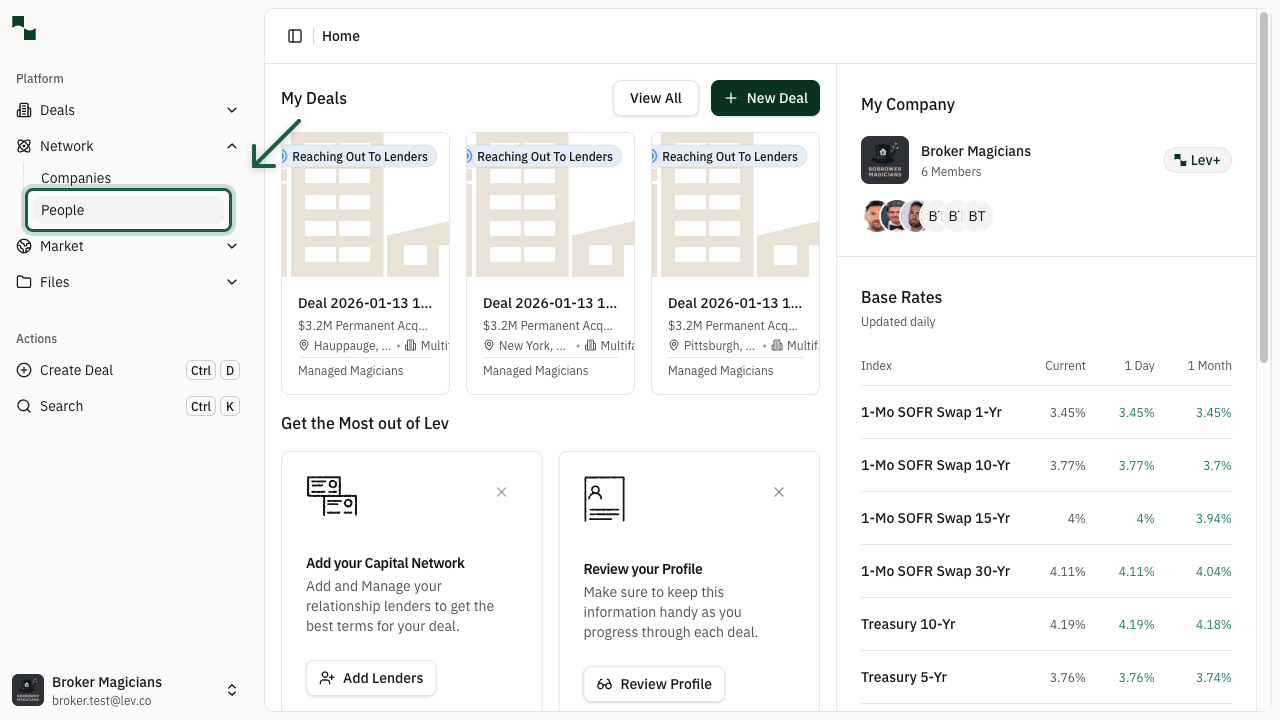
Open your network. From the dashboard, click Network in the left sidebar, then People to open your contacts list.
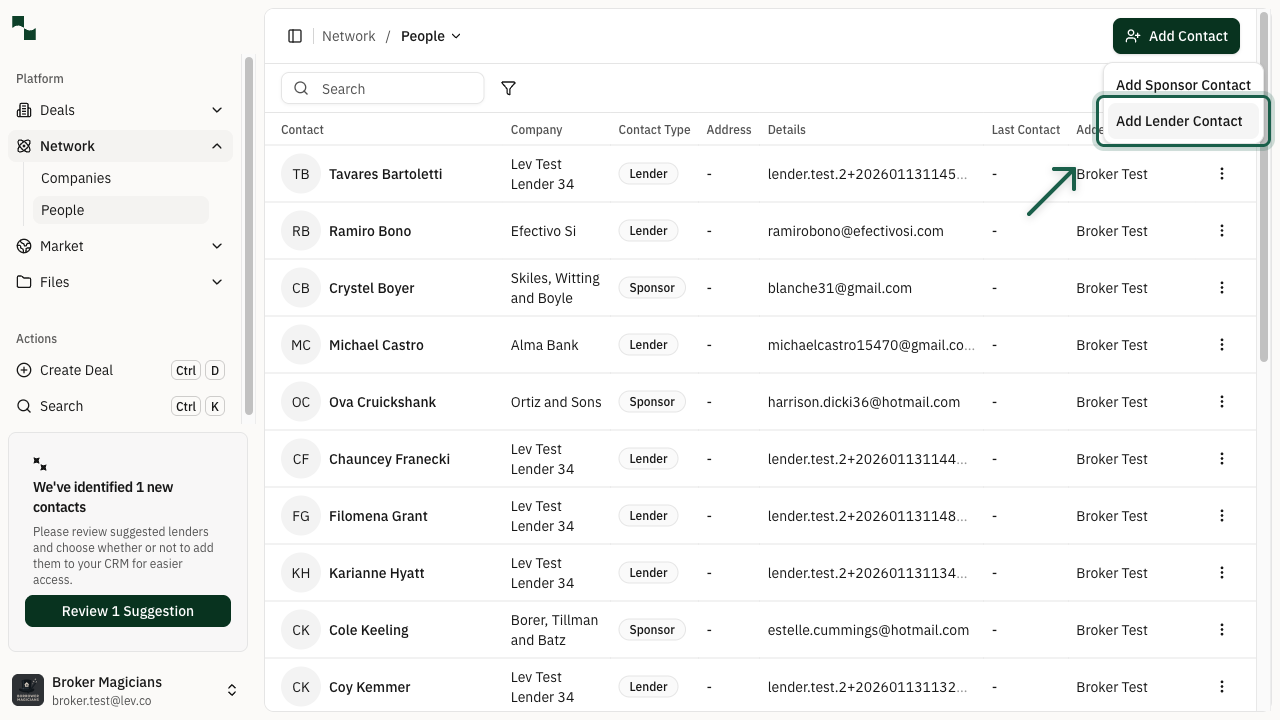
Start a new lender contact. Click Add Contact (top right), then choose Add Lender Contact from the menu.
Enter their details. Type the lender’s email and click Continue. Lev fills in first name, last name, company, and website from the domain when it can—you can edit names manually.
Once added, the lender appears in your network and can be added to deals from the My Network tab on any deal’s Outreach page.
Import Multiple Contacts
Importing contacts lets you add multiple contacts to your Lev network from a CSV file.
This can be done at any time, even after initial contact syncing during the email integration process.
- From the left side of your screen, click Import, then select Contacts
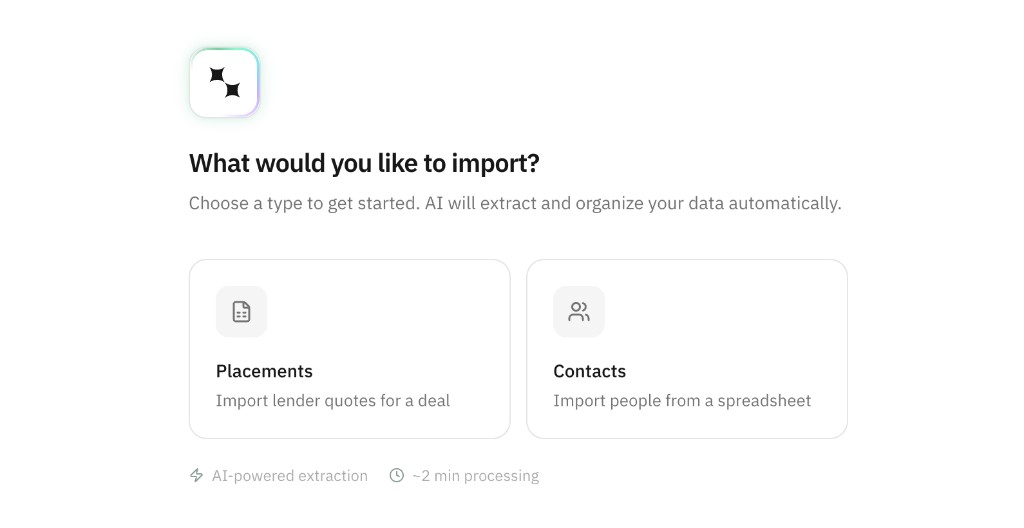
- You can add the contacts by either uploading a CSV file with the corresponding contact information, or by pasting the text directly from the CSV file
- Click Analyze — the platform will review the file's contents so it can properly organize the contact information
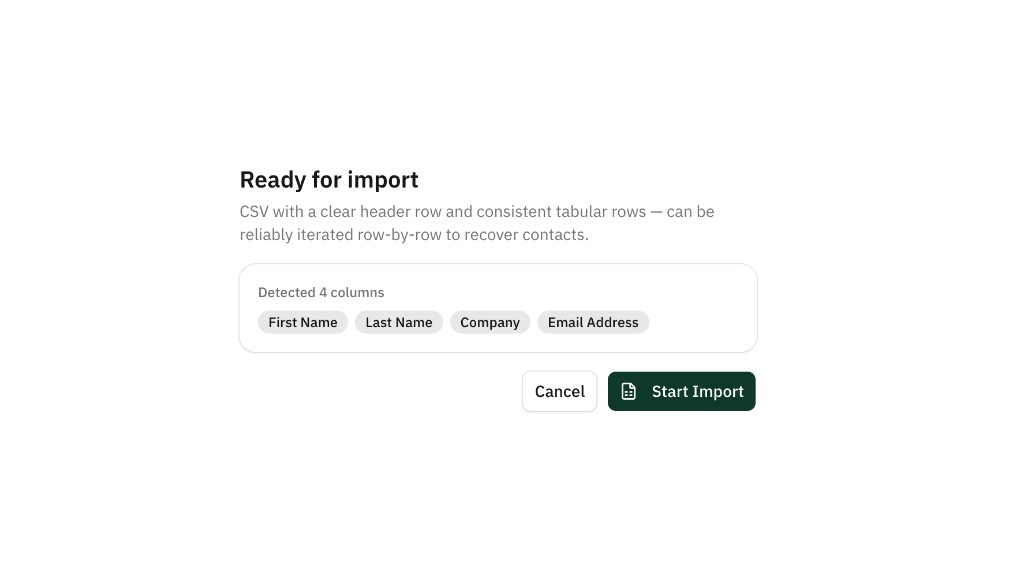
- Confirm the data formatting on the next page, then click Start Import
- Verify the contacts extracted from the file are the names you want added to your network. You can also assign any contact labels for further organization
- Click Save, and the contacts you've uploaded will now be viewable in your network
Delete a Connected Lender
Remove a lender contact from your network when they're no longer needed.
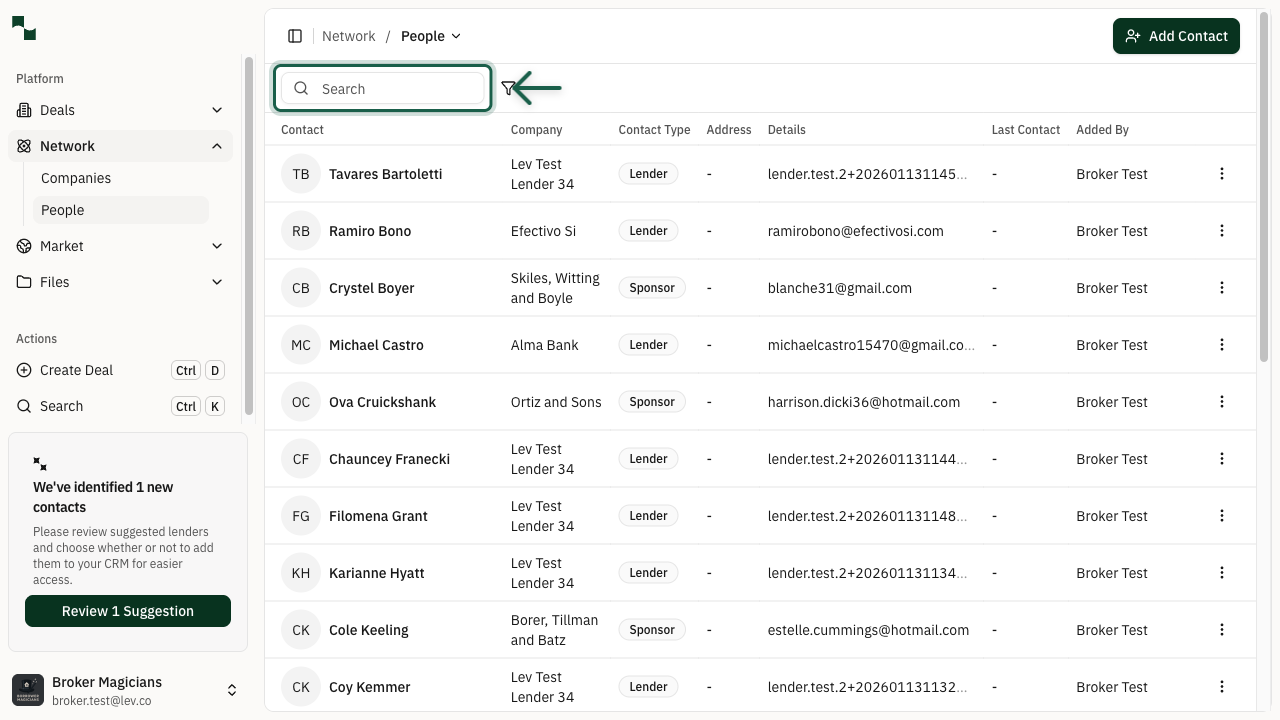
Find the contact. Go to Network → People and use the search box to locate them by name, email, or company.
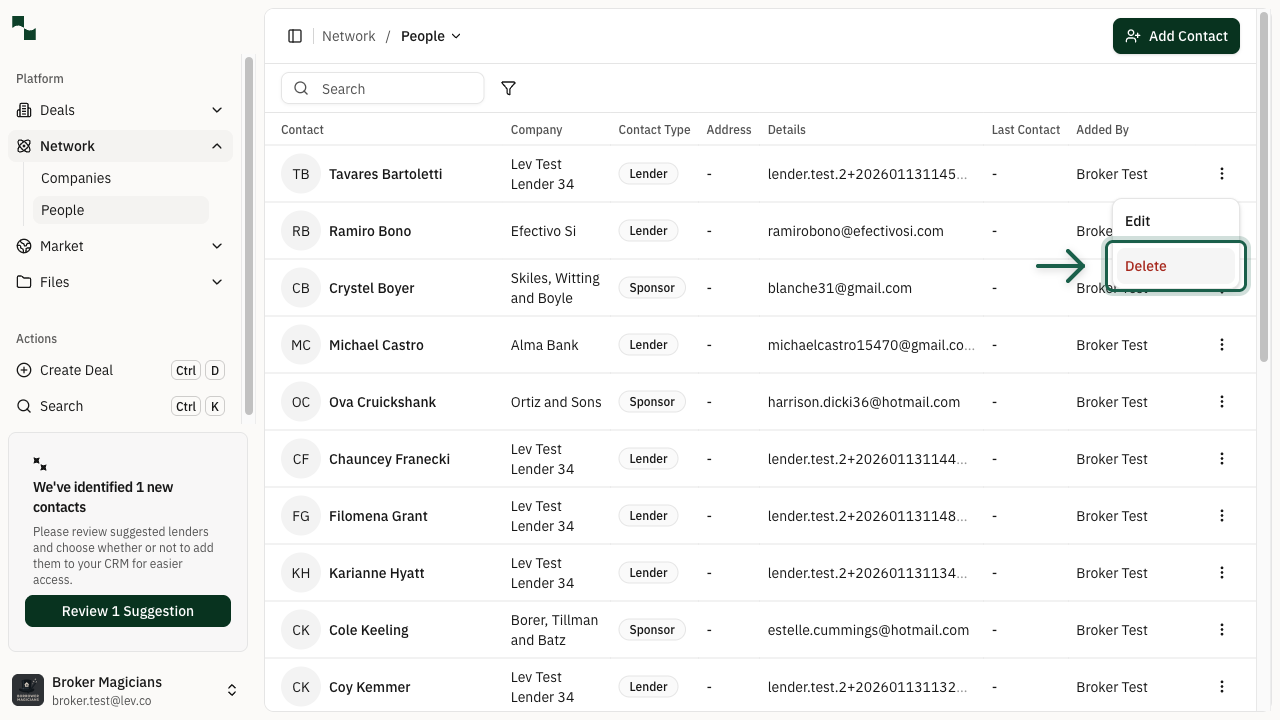
Delete the contact. Click ⋮ on the right side of the row and choose Delete. Confirm when prompted.
Any deals that already include this contact are unchanged.
Next: Using Labels — organize contacts and companies with label groups, bulk apply, and filters when launching deals.