Use labels to group contacts and companies so you can find the right lenders faster—especially on the My Network tab when you add lenders to a deal.
Using Custom Labels
Labels help you organize your network the way you think about it — create categories like "Active Retail Lenders," "West Coast Sponsors," or "Do Not Contact," and use them to find the right people when launching deals.
Labels are organized into Label Groups. A group is essentially a field where you manage a set of labels. Four default groups are created automatically:
- Geography — State, city, or regional labels (e.g.,
Florida,South East) - Asset Type — Property type labels (e.g.,
Industrial,Retail) - Loan Type — Financing labels (e.g.,
Bridge,Permanent) - Custom — Anything you want to track (e.g.,
Blacklist,Favorite)
You can add, rename, and customize labels and groups. Each group has a custom icon and each label can have a custom color.
You can also create custom label groups such as Relationship Status (
Lead, Favorite, Do Not Contact), Loan Amount Range (0–5MM, 5–25MM, 25MM+), or Priority (High, Medium, Low). New groups become columns in your Companies and Contacts tables.Labels can be applied from the Labels Dropdown on any record page or from the network table columns. You can assign, remove, or create new labels directly from the dropdown.
You can only apply labels to connected Contacts and Companies in your Network. To label a lender from the directory, add them to your Network first.
Bulk Applying Labels — Use Past Deal Filters to narrow your table based on specific deals, deal types (asset type, location, loan type), or placement status (unresponsive, terms applied). Then select rows with checkboxes (or Select all), and use the toolbar at the bottom to bulk apply or remove a label.
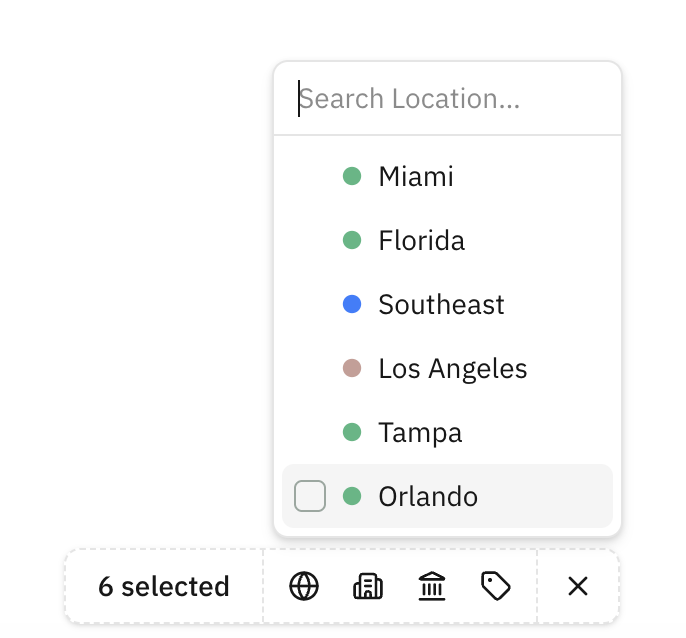
The more specific your filters, the more useful your labels will be when launching deals. Don't just tag everyone — tag with intent.
Filtering with Labels — Once you have labels in place, use them to filter anywhere you view your network. The most valuable place is during deal launch — on the My Network tab, filter by any label to quickly build the right lender list. Combine multiple filters across label groups (e.g.,
Multifamily + South East + Bridge) for hyper-specific results. This works on top of Lev's existing AI Recommendations.Next: Managing Your Network — add or remove lender contacts.